Connects HomeMatic CCU "Logic Layer" ("ReGaHSS") to ioBroker.
Homematic
Homematic is the smart home system of eQ-3. It controls many different functions in a house or in a flat with simple or complex scenarios.
The devices include products for the control of light, roller shutters and heating, hazard detectors, security sensors and products for the measurement of weather data. The radio communication makes the retrofitting easier. In new buildings, wired bus components can be used.
Adapter Homematic ReGaHSS
This adapter connects to the Homematic logic layer "ReGaHSS" (Residential Gateway). It synchronizes plain text names, system variables, rooms, functions and programs between Homematic and ioBroker.
If you want to connect more than one CCU to ioBroker, install and configure one instance of this adapter for every CCU.
Together with this adapter, an instance of the adapter "hm-rpc" is installed too. Configure and activate this instance first.
One instance of this adapter can manage up to five different instances of the Homematic RPC adapter. Every service needs its own RPC instance:
- rfd (radio service of the CCU for the standard components)
- hs485d (Wired) (for the wired bus components)
- CUxD (additional software that provides a universal interface)
- Homematic IP (components with IP support)
- Virtual Devices
Purpose
This adapter keeps the HomeMatic CCU variables in sync with ioBroker and makes it possible to start HomeMatic CCU programs from ioBroker.
The adapter can also be used as a "migration helper": you can copy device and channel names, rooms, functions and favorites from the CCU to ioBroker. This works only in one direction. Changes in ioBroker are overwritten with the next synchronization, so switch these options off after the first synchronization.
Requirements
- Homematic gateway (CCU/CCU2/CCU3 …) or a radio module with suitable software (piVCCU, RaspberryMatic or similar)
- At least one instance of the adapter hm-rpc, which is already installed and configured
Installation
Install one instance of the adapter in the ioBroker admin interface. When the installation is finished, the configuration window opens automatically.
Create and configure the instance of the hm-rpc adapter, which was installed together with this adapter, before you configure this adapter. If you need more services, create the additional hm-rpc instances too.
Configuration

Selection menu at the top
The selection menu at the top has three areas:
Area "Main settings"
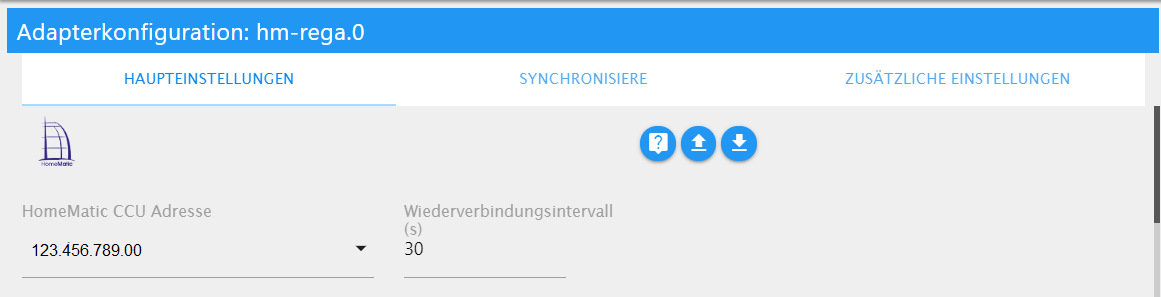
Main settings
The basic settings are made in this area.
You can select the IP address of the CCU in the drop-down menu. You can also change the reconnection interval (default: 30 seconds).
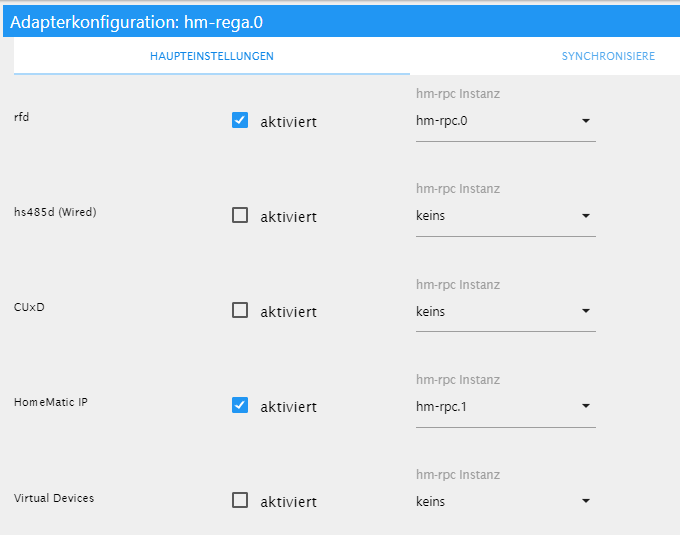
Assignment of the RPC instances
After that, activate the required services and connect every service with the matching hm-rpc instance.
Polling
If polling is activated, the adapter reads the ReGaHSS data from the CCU at regular intervals. The interval is set in seconds in the field "interval (s)". Do not set a too small interval, because too many requests can crash the CCU.
Trigger
To reduce the number of requests from ioBroker to the ReGaHSS, the CCU can also send the data on change. For this, use a virtual button of the CCU, which is switched in a CCU program. By default, this is the button BidCosRF.50.PRESS_SHORT (see the example program).
Area "Synchronize"
Here you define which information is copied from the CCU to ioBroker. The adapter creates the according objects and states in ioBroker.
- DutyCycle: shows the duty cycle (in %)
- variables: copies the system variables from the CCU
- programs: copies the program names from the CCU
- names: copies the plain text names of the data points from the CCU
- favorites: copies the favorites and lists them
- rooms: copies the rooms and lists them
- functions: copies the functions and lists them
Area "Additional settings"
Here you decide if https (an encrypted connection) must be used. If https is activated, you must enter the user name and the according password.
When all settings are done, close the configuration page with the button "save and close" below the settings. The adapter stops, and the instance starts again with the new values.
Instance
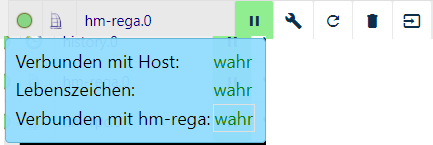
Instance and signal
You find the created instances in the area Instances of ioBroker. On the left side, the traffic light shows if the adapter is activated and if it is connected with the CCU.
If you move the mouse pointer over an icon, you get detailed information.
Objects of the adapter
The area Objects shows all values and information, which the adapter reads from the CCU, in a tree structure.
The objects depend on your own installation. That is why only the general objects, which are the same for all users, are described here.
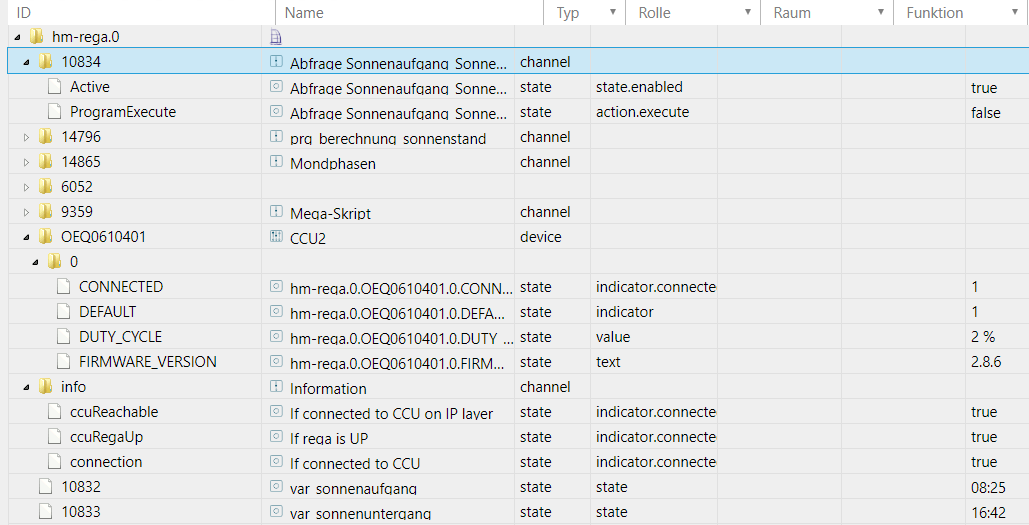
Folder structure
The first folders (normally a numeric ID) are the programs of the CCU.
The folders CCU and info contain the basic information of the gateway, including the duty cycle in percent (if it is activated).
At the end, the variables, which are created in the CCU, are listed.
FAQ
What are the ALARM states created in the device object?
States which end on _ALARM are created by the ReGa adapter to represent service messages. The alarm has three different states.
_NO ALARM_ means that there is no service message for this state. When a service message appears, the state changes to _ALARM_. The time of the alarm on the CCU is stored in the "last changed" timestamp of the state (state.lc).
If you change the state in ioBroker, the alarm is acknowledged on the CCU and the service message disappears. The alarm state in ioBroker changes to _ACKNOWLEDGED_. It still contains the time of the alarm in the "last changed" timestamp, and the time of the acknowledgement in the timestamp of the state (state.ts).
I have a HomeMatic CCU2/CCU3. How can I add it to the adapter settings?
Enter the IP address of your CCU in the adapter settings and then
- activate "rfd" for the normal HomeMatic devices,
- activate "HomeMatic IP" if you use HomeMatic IP devices,
- activate "Virtual Devices" if you use groups in HomeMatic (for example, if you combine several thermostats into one group).
I changed rooms or other settings in HomeMatic, but the changes are not visible in ioBroker.
Restart the hm-rega instance, for example, with the restart button of hm-rega.x in the column "actions" on the tab "Instances".
Wait about 10 to 20 seconds and then check the tab "Enums" and the objects (enum.xxx – the expert mode must be switched on). If the changes are still not there, restart ioBroker. After that, the changes are available in ioBroker.
How can I synchronize the hidden (invisible) variables, for example, of the HMIP-PSM?
Since version 2.4.0 it is possible to synchronize hidden variables. Open the settings of hm-rega. On the tab "Synchronize" you find the option Invisible variables if the option variables is activated.
I want to execute my own scripts on the CCU from ioBroker. Is this possible?
Since version 2.3.0 you can execute your own scripts on the CCU with the command sendTo.
For example, you can read the uptime of your CCU with this script:
const upTimeScript = `
    string stderr;
    string stdout;
    system.Exec("cat /proc/uptime | awk '// { printf $1/3600 }'", &stdout, &stderr);
    WriteLine(stdout);`;

sendTo('hm-rega.0', upTimeScript, res => {
    log(JSON.stringify(res), 'info');
});
The web interface of my CCU uses another port than the standard http/https ports, and no connection is established. How can I configure another port?
This is a rare case, so the setting is only shown in the expert mode. Switch on the expert mode in the admin, and you find the option Web interface port on the tab "Additional settings". You can also change the port in the command line:
iob set hm-rega.0 --webinterfacePort 8765
To use the default ports again, enter 443 or 80 according to your protocol, or enter 0 for the automatic selection.
My ReGa API does not use port 8181 (HTTPS: 48181). Can I use the adapter anyway?
Yes. Switch on the expert mode in the admin, and you can set the option Rega port on the tab "Additional settings".
You can also change the port in the command line: iob set hm-rega.<instance> --homematicPort <port>
Changelog
6.1.0 (2026-09-22)
- (iobroker-bot) Adapter requires node.js >= 22.19.0 now.
- (@GermanBluefox) Removed prepare script
- (@GermanBluefox) Merged the English documentation into README.md and removed the docs folder
- (@GermanBluefox) The values of the device datapoints read from the CCU are converted to the type of the hm-rpc state (e.g.
STATE_NOT_AVAILABLEof an ENUM to its index), values that cannot be converted are not written anymore. This removes the warnings "has to be type number but received type string" (hm-rpc #803, #1342, #1358) - (@GermanBluefox) If hm-rpc deletes a device (e.g. during a firmware update), the adapter recreates the
*_ALARMobjects of the service messages instead of writing states without objects until the next restart (hm-rpc #1200) - (@GermanBluefox) Write-only datapoints of hm-rpc, like
SET_STATEof CUxD devices, do not get a value from the CCU anymore (hm-rpc #803)
6.0.0 (2026-08-15)
- (bluefox) migrated the adapter to TypeScript
- (bluefox) migrated the configuration dialog to JSON config (requires admin 6.17.14 or newer)
- (bluefox) the ports of the ReGaHSS API and of the web interface can now be configured in the expert mode
- (bluefox) required js-controller 5.0.19
5.1.0 (2024-08-29)
- (@foxriver76) added notification if devices are low on battery
5.0.0 (2024-07-18)
- (bluefox) required node 18
- (bluefox) updated dependencies
4.0.0 (2023-09-04)
- (mcm1957) required node 16 due to adapter-core 3.x.x
- (bluefox) removed deprecated package -
request
License
The MIT License (MIT)
Copyright (c) 2014-2026 bluefox dogafox@gmail.com
Copyright (c) 2014 hobbyquaker
Permission is hereby granted, free of charge, to any person obtaining a copy of this software and associated documentation files (the "Software"), to deal in the Software without restriction, including without limitation the rights to use, copy, modify, merge, publish, distribute, sublicense, and/or sell copies of the Software, and to permit persons to whom the Software is furnished to do so, subject to the following conditions:
The above copyright notice and this permission notice shall be included in all copies or substantial portions of the Software.
THE SOFTWARE IS PROVIDED "AS IS", WITHOUT WARRANTY OF ANY KIND, EXPRESS OR IMPLIED, INCLUDING BUT NOT LIMITED TO THE WARRANTIES OF MERCHANTABILITY, FITNESS FOR A PARTICULAR PURPOSE AND NONINFRINGEMENT. IN NO EVENT SHALL THE AUTHORS OR COPYRIGHT HOLDERS BE LIABLE FOR ANY CLAIM, DAMAGES OR OTHER LIABILITY, WHETHER IN AN ACTION OF CONTRACT, TORT OR OTHERWISE, ARISING FROM, OUT OF OR IN CONNECTION WITH THE SOFTWARE OR THE USE OR OTHER DEALINGS IN THE SOFTWARE.