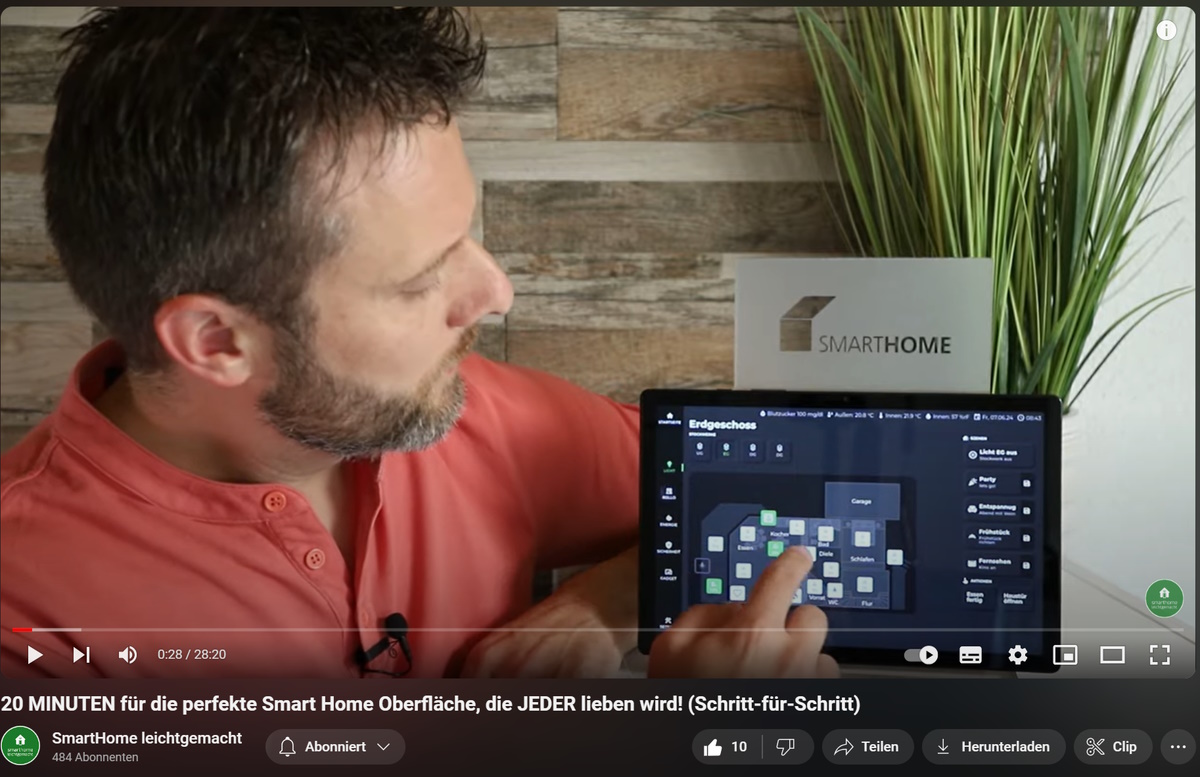
You can find videos how to use the widgets here (in german).
Videos wie die Widgets benutzt werden können, kann man hier finden.
Für deutsche Version sehe hier
Commercial use
Please note that there is no free version of this adapter. A license must be purchased to use these widgets (current price: €50 incl. VAT).
However, you can install them and try them out in the editor for free.
Overview of Creating a Smart Home Interface with the "VIS-2 JAEGER Design Adapter"
Requirements
- An ioBroker system
- The JAEGER Design Adapter (approx. €50)
- Basic knowledge of using ioBroker
Introduction
The JAEGER Design Adapter is based on the vis-2 adapter and allows you to create an interface using click and drop. Various widgets can be added and customized to control smart home devices.
Basic Structure of the Interface
The interface consists of several areas:
- Main Menu: On the left, there is a column with main menu items, which can be easily created.
- Status Bar: At the top, you can add various important status indicators.
- Middle Area: Here, scenes, actions, and notifications can be displayed. The right side is freely configurable and can show information such as security, weather, home appliances, and energy consumption.
Lighting
In the main menu, different floors can be selected. The floor plan of the ground floor shows all lights represented by icons. Some icons can only be switched on or off, while others are dimmable. By pressing and holding an icon, a pop-up window opens with a slider for adjusting brightness.
Lighting scenes on the right side can be easily accessed, and lighting settings can also be saved:
Blinds
In the "Blinds" menu, you can see the shading status. Icons indicate the position of the blinds, and clicking on an icon opens a pop-up window for adjusting the height and slat angle.
Energy
In the "Energy" menu, you can see the room temperatures in each room. Icons display the actual and target temperatures as well as the status of the heating and windows. By clicking on an icon, a pop-up window opens to change the target temperatures and control other actions such as air conditioning or warm air systems.
Security
In the "Security" menu, the status of the windows can be viewed. Open windows are shown in red.
Additional Features
You can also create freely defined interfaces, such as the consumption display of the "consumption" adapter or the display of Nightscout for diabetes. In the "Settings" menu, various settings can be made.
YouTube Tutorials
For detailed instructions and more information, it is recommended to watch the linked YouTube tutorials.
The widgets
The adapter adds nine widgets to the vis-2 palette, in the set Jaeger design. Hovering over a widget in the palette shows a short description under its preview.
All widgets share one color theme. Only the layout widget carries the complete theme; every other widget either picks its colors up from it (Palette → From widget) or defines its own. Four themes are built in: green, blue, green-dark and blue-dark.
Layout
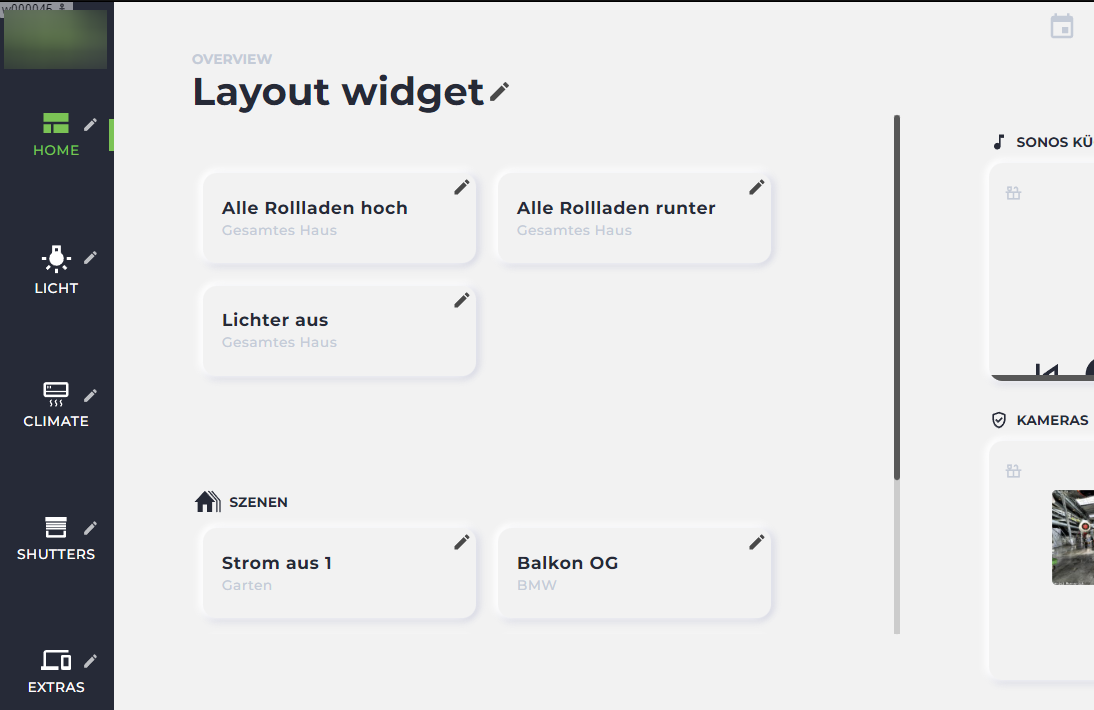
The frame around everything else. It renders the complete interface: the main menu on the left, the status bar at the top, the floor selector, the home page with its scenes and actions, the freely configurable right column and — on a phone or a tablet — a swipeable drawer instead of the menu column.
It has a single attribute, Settings, which opens the editor in which the whole interface is described: menu entries, floors and their views, scenes, actions, info groups and the colors. Use exactly one layout widget per view; by default it fills the view completely.
State
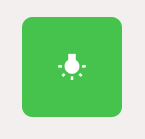
A square icon button for one object — the building block of the floor plans. A click toggles the value; with Write specific value a fixed value is written instead, and Indicate if value is set highlights the button while that value is active.
- Number of values — several values, each with its own icon, color, background color and tooltip.
- Show control dialog — instead of toggling, a dialog with all values opens.
- No control — display only, the button cannot be pressed.
- Ask for confirmation, with a text of your own, before anything is written.
- An optional caption above or below the icon.
Dimmer
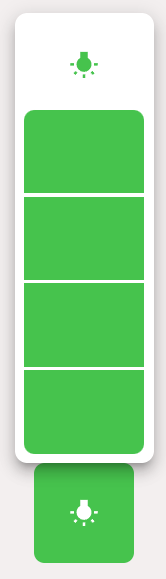
Brightness control for a dimmable light. The widget itself shows the current level as a vertical bar; pressing and holding it (Press duration) opens the popup with the slider, split into the configured number of sections.
- Memory buttons — buttons for fixed brightness values below the slider, each with its own icon and text. The value either comes from an object or is written directly.
- Object ID for ON/OFF and Value by ON for lights whose on/off switch is a separate object.
- Optionally show the value in the widget, rotate the icon, and close the popup after setting.
Shutter
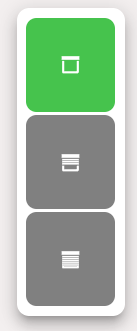
The same idea for roller shutters and blinds. The icon shows the current position, with a shutter, blinds or shadow icon set. Shadow shutter ID adds a second object for the slat angle, so height and slats are set in the same popup.
Since actuators disagree about what 0 % means, the value and the display can be inverted independently of each other — separately for the height and for the slats. Memory buttons store height and slat angle together.
Thermostat
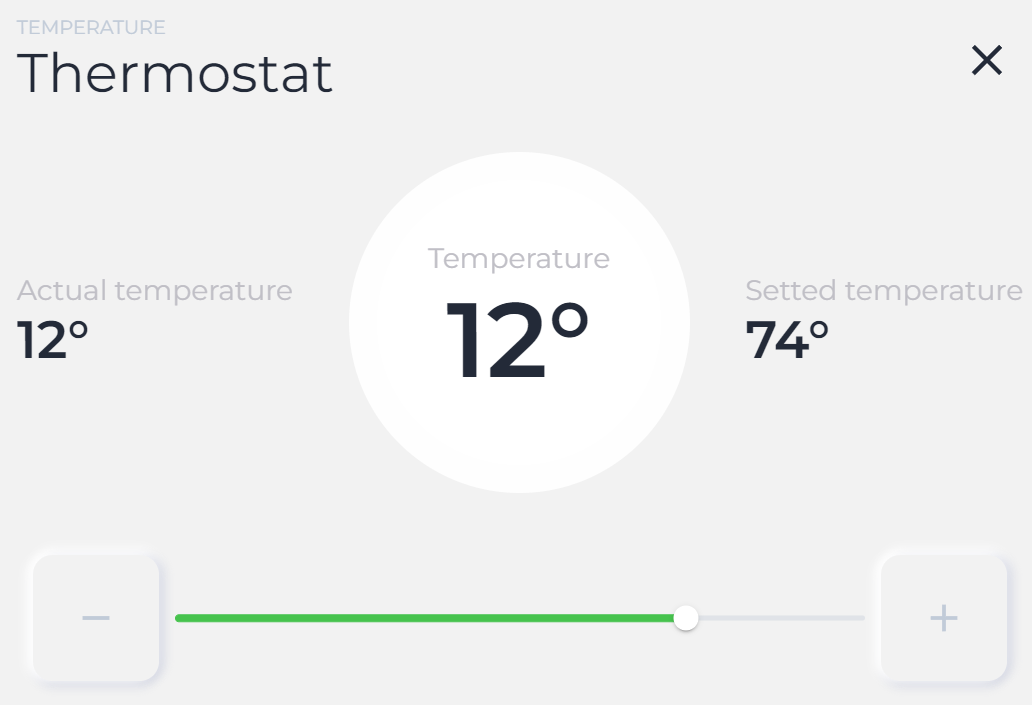
The target temperature as a dial. The dialog puts the actual temperature, the humidity and the valve position next to the target value and offers minus/plus buttons and a slider. Minimum, maximum, step and unit are configurable, and a comma can be used as the decimal separator.
Below that there is room for additional Buttons — boost, away, air conditioning, whatever the heating offers. Each one has its own object, value, icon, label and style.
Scene
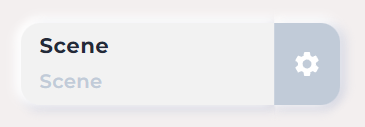
A wide button with a title and a subtitle that starts a scene of the scenes adapter or simply writes a value. Save adds a second button on the right (the gear in the picture): it stores the current states of all members back into the scene.
Further options: no active state, write false instead of true, ask for confirmation with a text of your own, and show the time of the last change.
Cameras
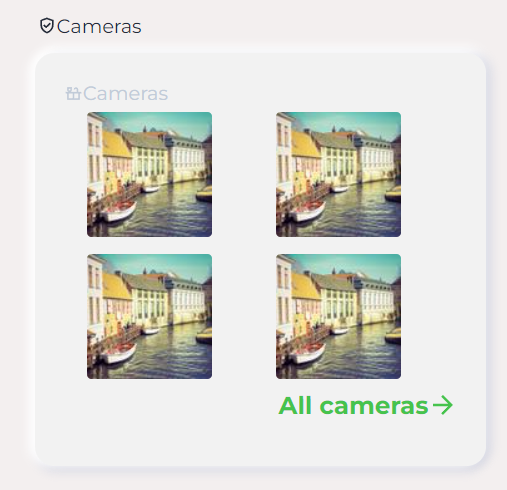
A card with a grid of camera images. Each camera comes either from the cameras adapter or from a free URL, which can be read from an object as well, and has its own refresh interval.
Allow full screen opens a single camera large, with a separate URL and refresh interval for the full-screen picture — so the thumbnails can stay small. "Show more" links to another widget or another page.
Actual news
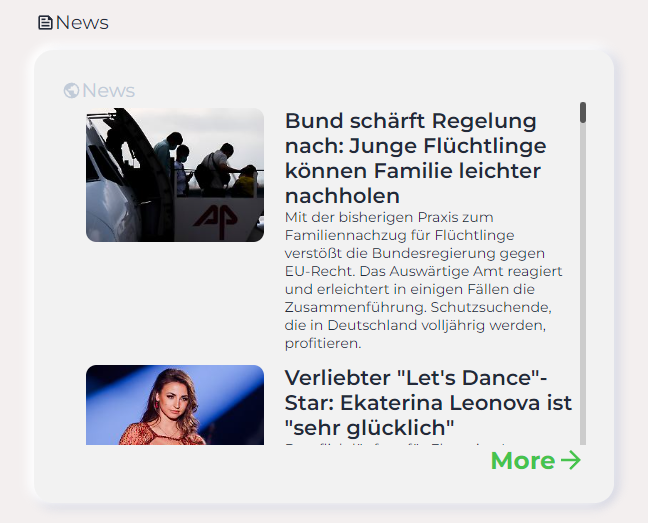
A card with an RSS feed: image, headline and teaser per entry, scrollable. The feed URL is entered directly or read from an object, so it can be switched at runtime. The update interval is configurable, and "More" links to a widget or a page.
Player
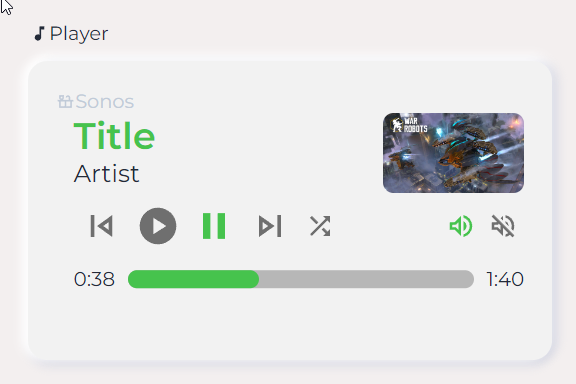
A media player card: title, artist, cover, play/pause, previous/next, shuffle, mute, a volume slider and the elapsed/total time bar. Every element is bound to its own object, so the widget works with any player adapter — Sonos, Squeezebox, Alexa and so on. Elements whose object is left empty are not shown.
Changelog
WORK IN PROGRESS
- (bluefox) Home page shows the info even if no scenes and no actions are defined
- (bluefox) Info groups wrap instead of pushing the right side out of the screen; the width of info lines is configurable
- (bluefox) State widget: for display-only numbers the color does not depend on the max value of the object anymore
- (bluefox) Thermostat: the power button can be inverted (e.g., for HomematicIP control mode)
- (bluefox) Cameras: the image is replaced only after the next image was loaded completely, so it does not disappear anymore
1.5.2 (2026-10-27)
- (bluefox) Shutter and dimmer popups: percent and memory buttons have the widget height on mobile devices
1.5.1 (2026-10-27)
- (bluefox) Corrected the layout of the thermostat dialog on mobile devices
- (bluefox) Thermostat dialog shows humidity and valve position even if no actual temperature is configured
1.5.0 (2026-10-17)
- (bluefox) Migrated to React 19 and vis-2 2.20.0
1.4.20 (2026-04-27)
- (bluefox) Hide the menu on mobile devices if no scenes or actions are defined
1.4.19 (2026-03-13)
- (bluefox) Corrected possible error with invalid theme name
Older changes can be found in CHANGELOG_OLD.md
License
Copyright (c) 2022-2026 bluefox dogafox@gmail.com All rights reserved.
This is a commercial adapter. Use requires a license, see https://www.iobroker.com/productoverview. The full license text can be found in the LICENSE file.