Anyone who accesses a camera, uses an AI key, or sends emails knows this: the same password is stored in three places. If it changes, you only find the third one when something stops working.
Since Admin 8, there's a central repository for this. It's located in the Admin panel under System , in the Access Data tab. Passwords and keys are stored there encrypted; everything else is referenced only by a name.
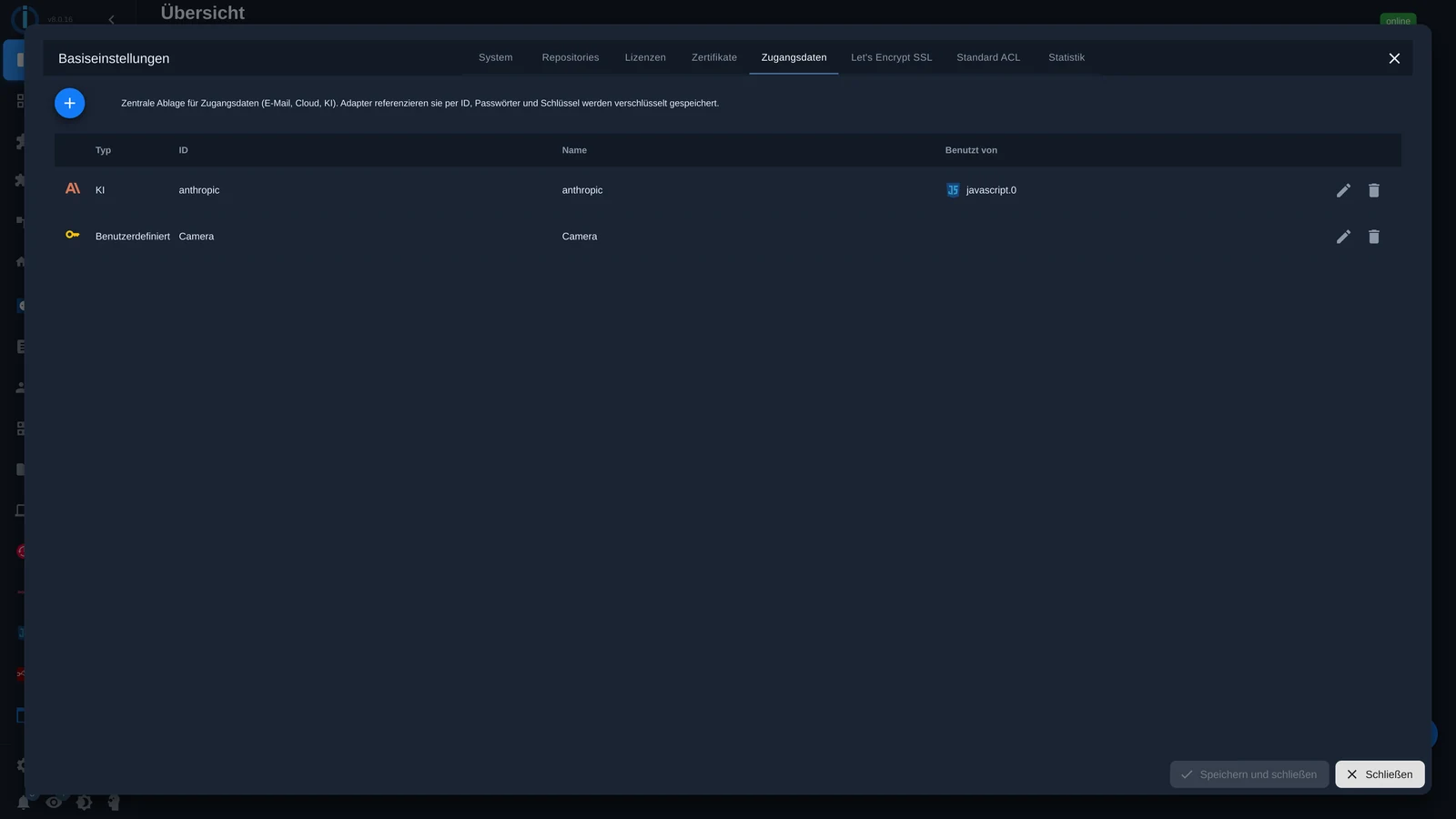
The " Used by" column shows which instance is currently using an entry. Before you change or delete anything, you can see what depends on it.
We've made a video showing all the steps in the admin panel:
Create an entry
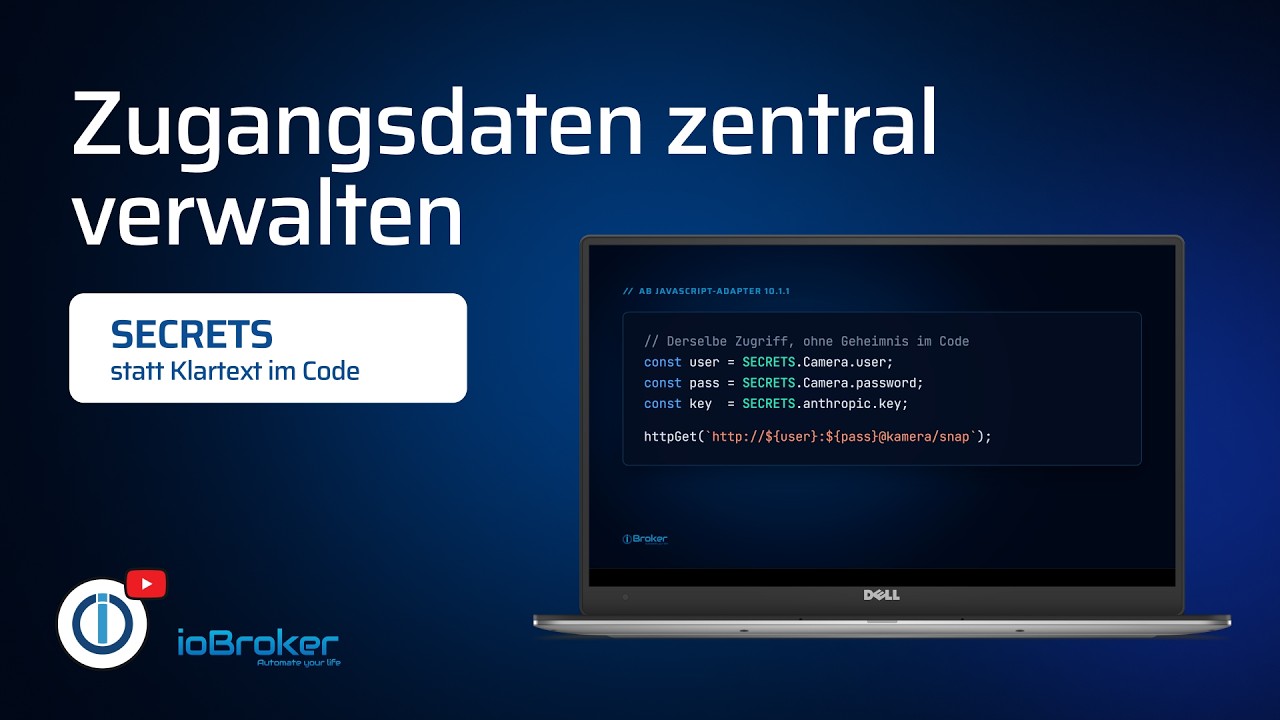
Click the plus sign in the top left corner. You select a template, which determines the fields. Templates are included for Anthropic, ChatGPT, Google Gemini, DeepSeek, AWS, Azure, email, as well as iobroker.pro and iobroker.net. There are also two general fields: Login/Password and Key . Finally, you need a unique name, for example... Kamera, and that's it.
In the instance configuration
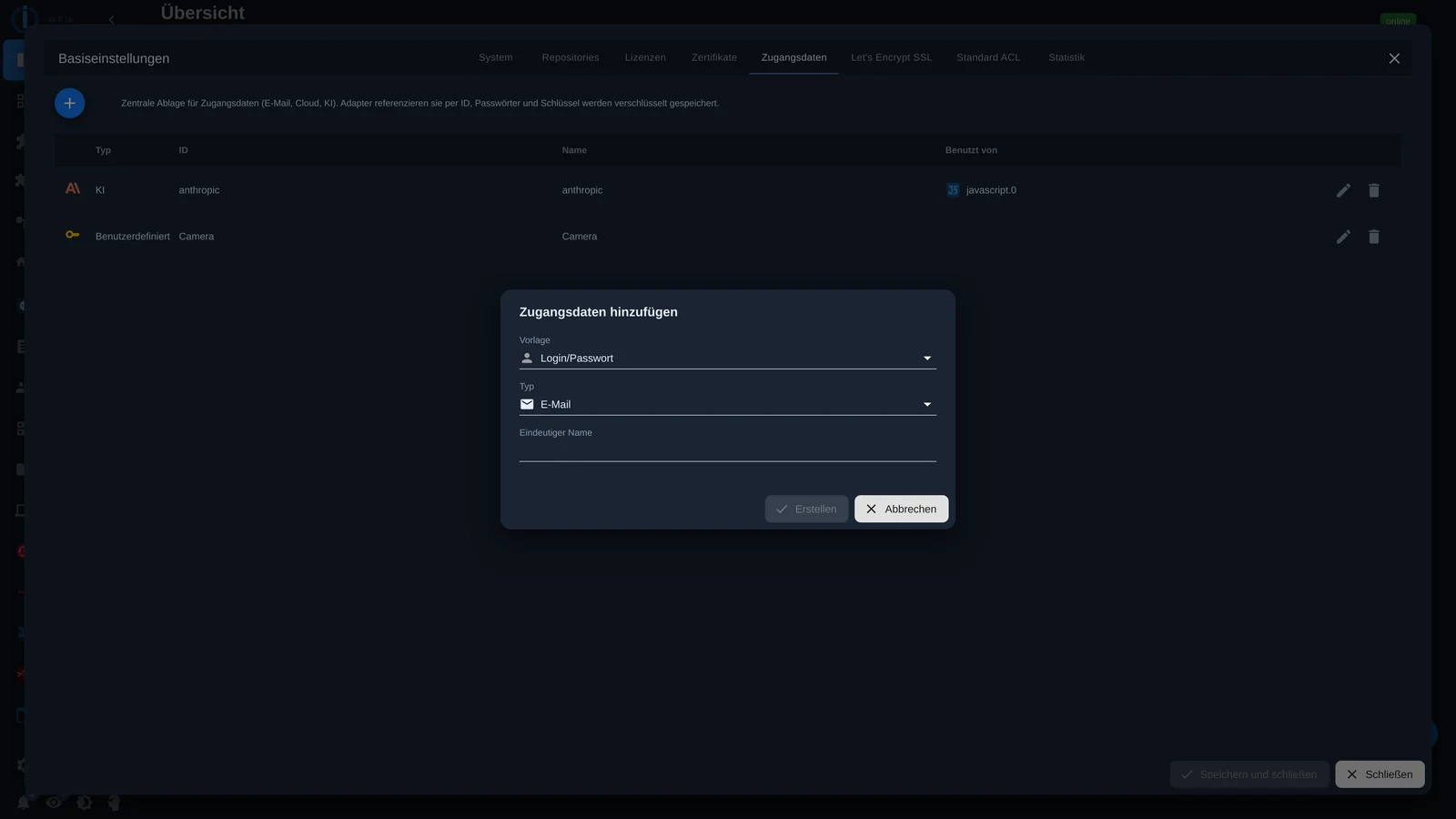
This is the most common case. Adapters that support memory display a selection list instead of the input field. For example, in the JavaScript adapter, under AI settings: Login type to Systemanmeldedaten, select the entry below.
In the script
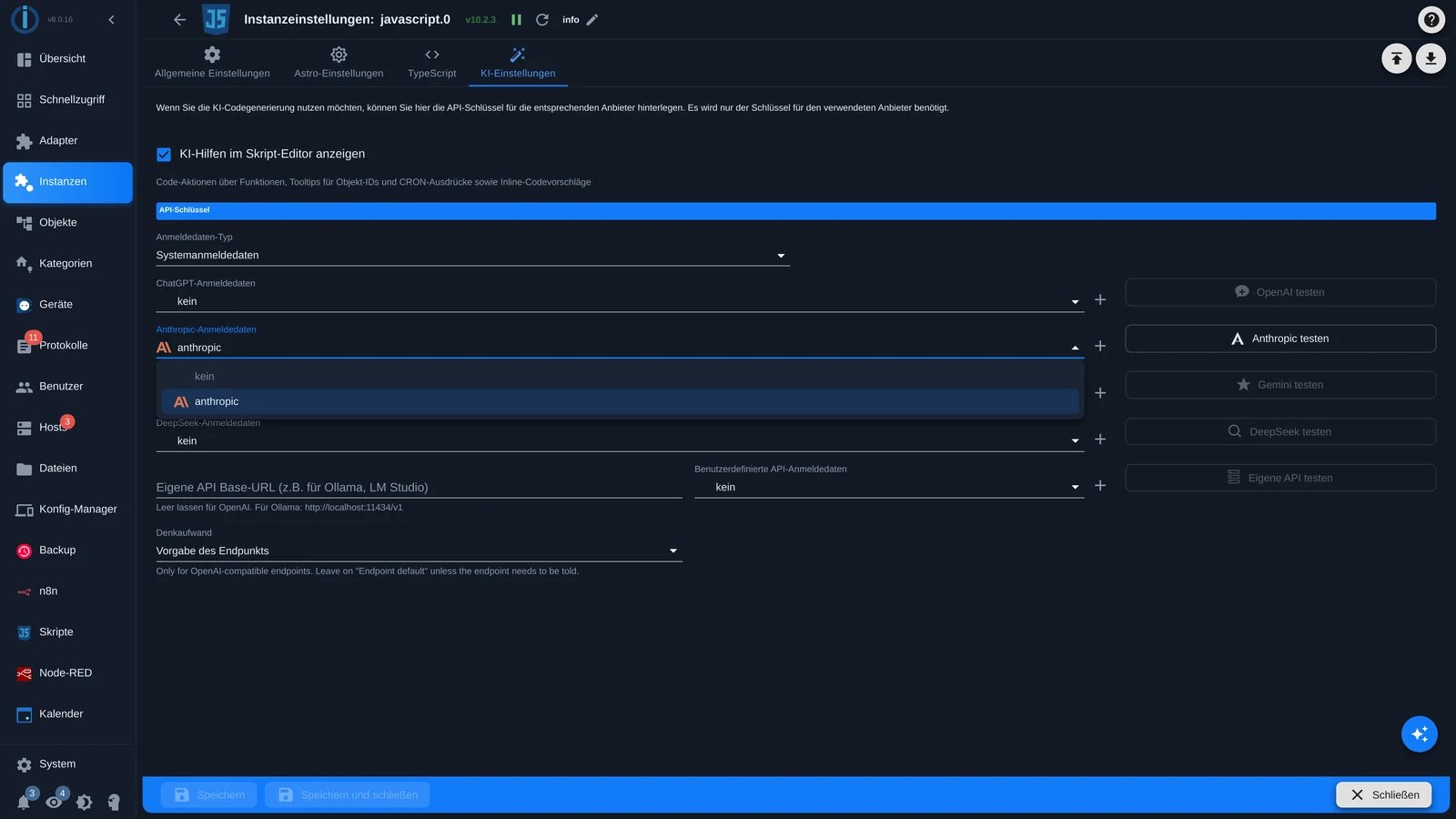
From JavaScript adapter version 10.1.1 onwards, all entries are stored as a global object. SECRETS ready:
const user = SECRETS.Kamera.user;
const pass = SECRETS.Kamera.password;
const key  = SECRETS.anthropic.key;
The values arrive already decoded, SECRETS It is read-only, and changes in the admin panel take effect immediately without restarting the script. The editor looks up... SECRETS. The existing names before and after the next point, the fields that this entry has.
This allows you to share a script or show it in the forum without revealing any secrets.
In Blockly, the "Access Data" block is located in the "System" category. You drag it to the position where the password would normally be and select the entry and field from two drop-down menus.
Two clues
Memory doesn't replace input fields everywhere; the adapter must support it. Where it's not yet offered, everything remains as usual.
And the entries are stored encrypted in your installation's configuration. Therefore, they should also be included in the backup.
Everything you need to know can be found in the documentation: 🔗 Access data