The admin adapter is used to configure the whole ioBroker-Installation and all its adapters. It provides a web-interface, which can be opened by "http://:8081" in the web browser. This adapter is automatically installed together with ioBroker.
Configuration
The configuration dialog of the adapter "admin" provides the following settings:
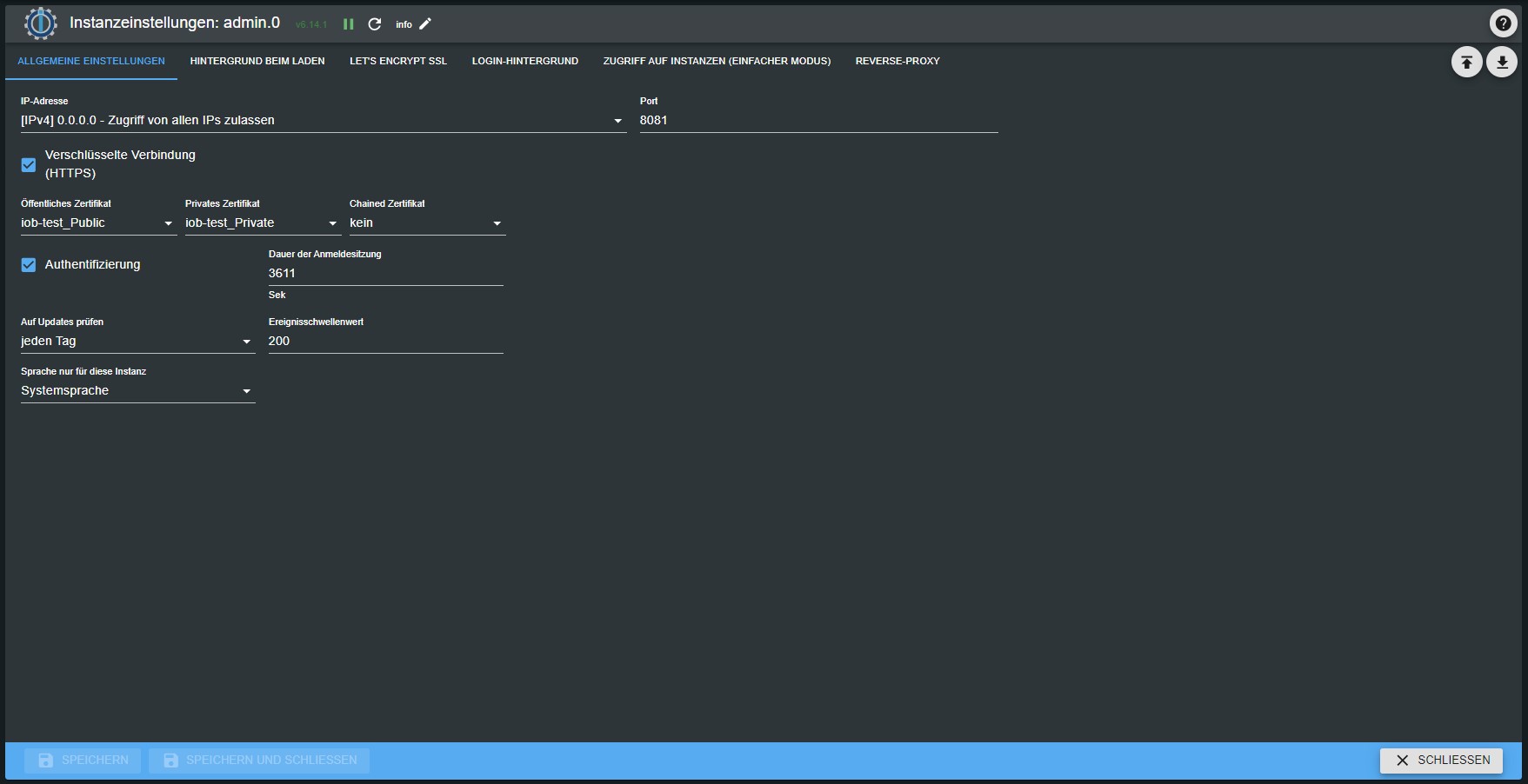
IP: the IP-address of the "admin" web-server can be chosen here. Different IPv4 and IPv6 addresses can be selected. The default value is 0.0.0.0. If you think, that 0.0.0.0 is invalid setting, please let it stay there, because it is absolutely valid. If you change the address, you will be able to reach the web-server only through this address. Port: You can specify the port of the "admin" web-server. If there are more web servers on the PC or device the port must be customized to avoid problems of a double port allocation. Coding: enable this option if secure https protocol should be used.
Authentication: If you want the authentication with login/password you should enable this check-box. Default password for user "admin" is "iobroker" Buffer: to speed up the load of the pages enable this option. Normally only the developer wants to have this option unchecked.
Handling
The main page of the admin consist of several tabs. Adapter: Here the instances of a adapters can be installed or deleted. With the update button

on the top left we can get if the new versions of adapters are available.
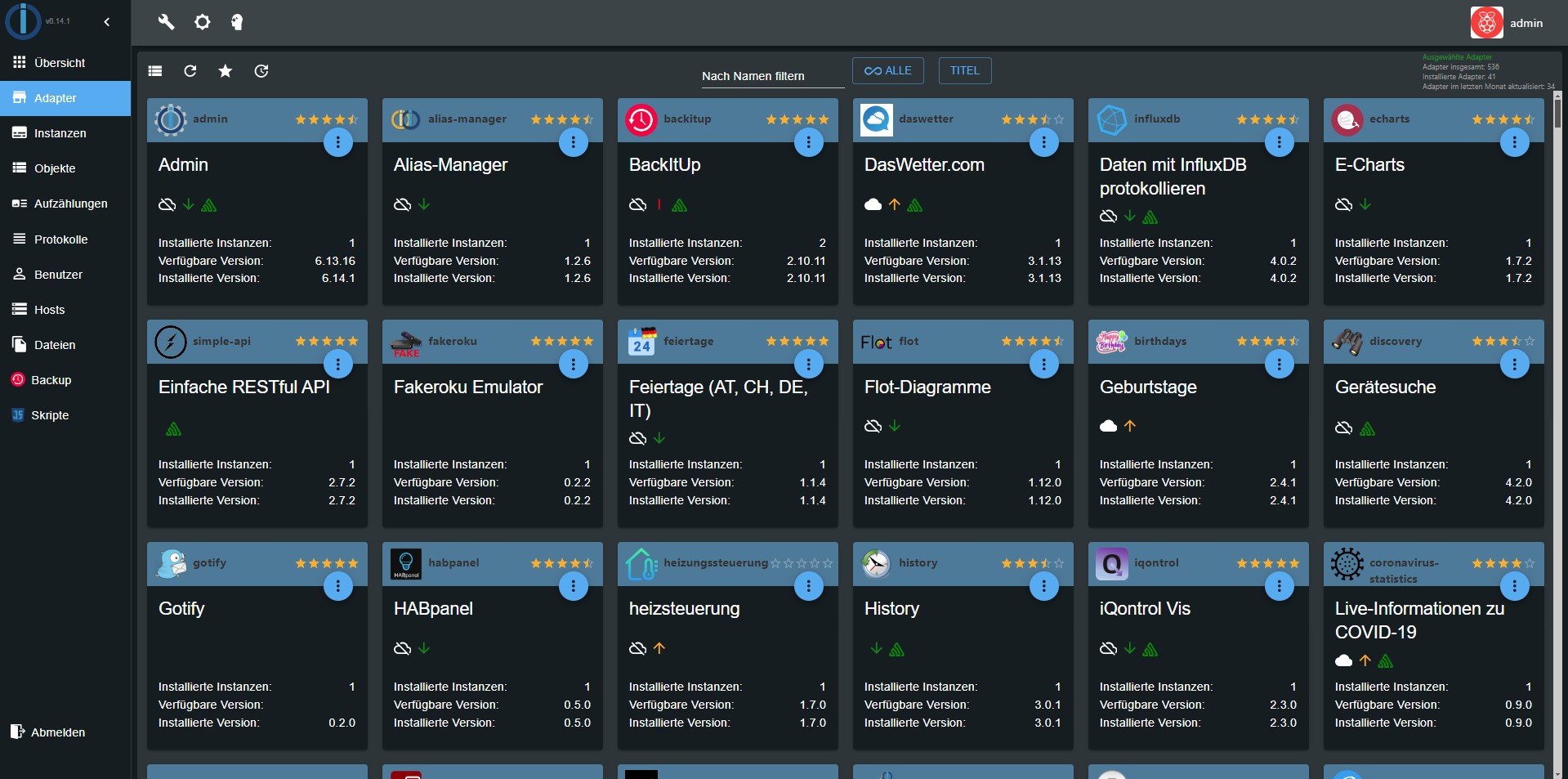
The available and installed versions of the adapter is shown. For overall view the state of the adapter is coloured (red=in planning; orange=alpha; yellow=beta). The updates to a newer version of the adapter are made here also. If there is a newer version the lettering of the tab will be green. If the question mark icon in the last column is active you can get from there to web site with information of the adapter. The available adapter are sorted in alphabetical order. Already installed instance are in the upper part of the list.
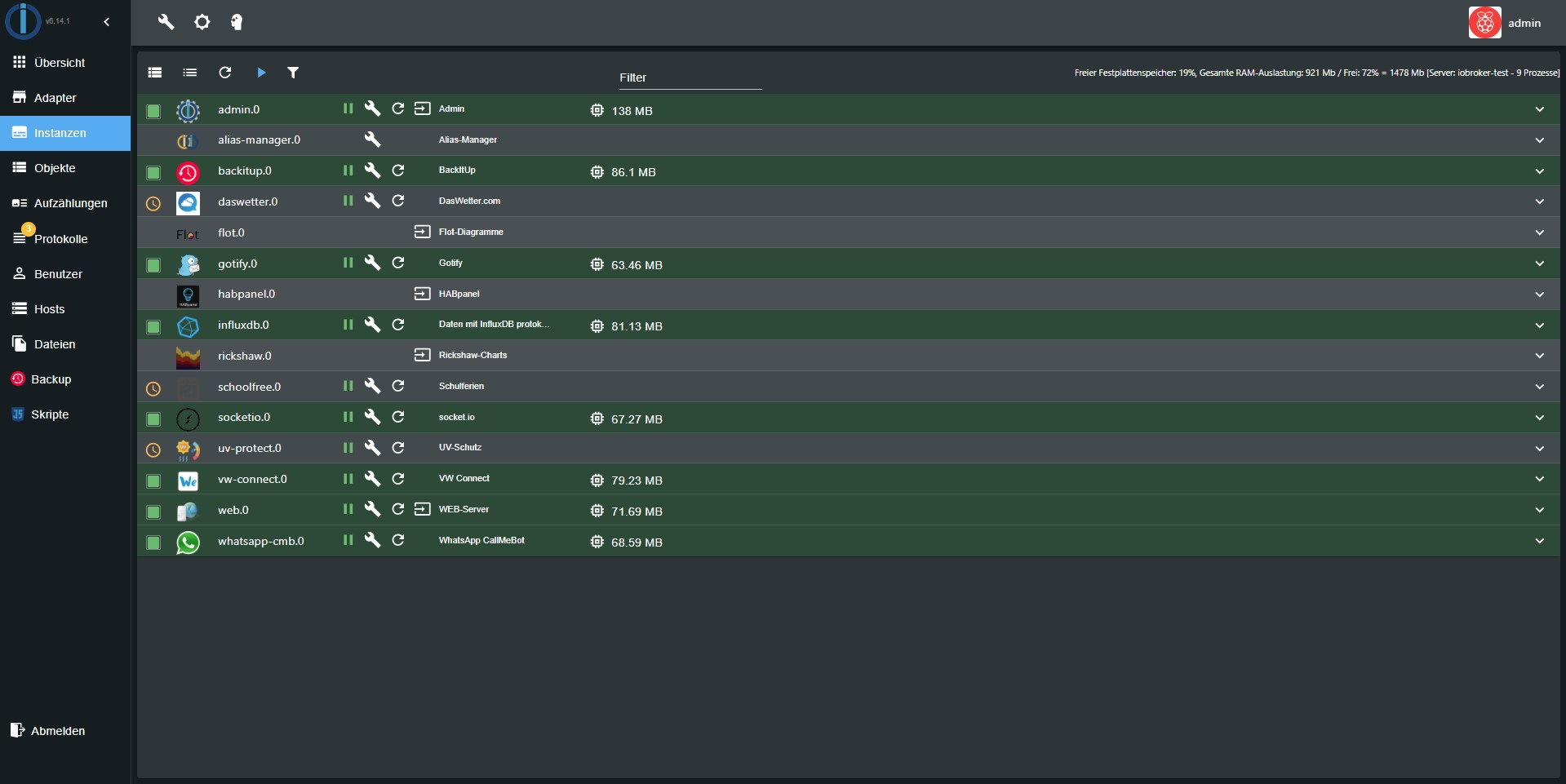
Instance: The already installed instance are listed here and can be accordingly configured. If the title of the instance are underlined you can click on it and the corresponding web site will be opened.
Objects: the managed objects (for example setup / variables / programs of the connected hardware)
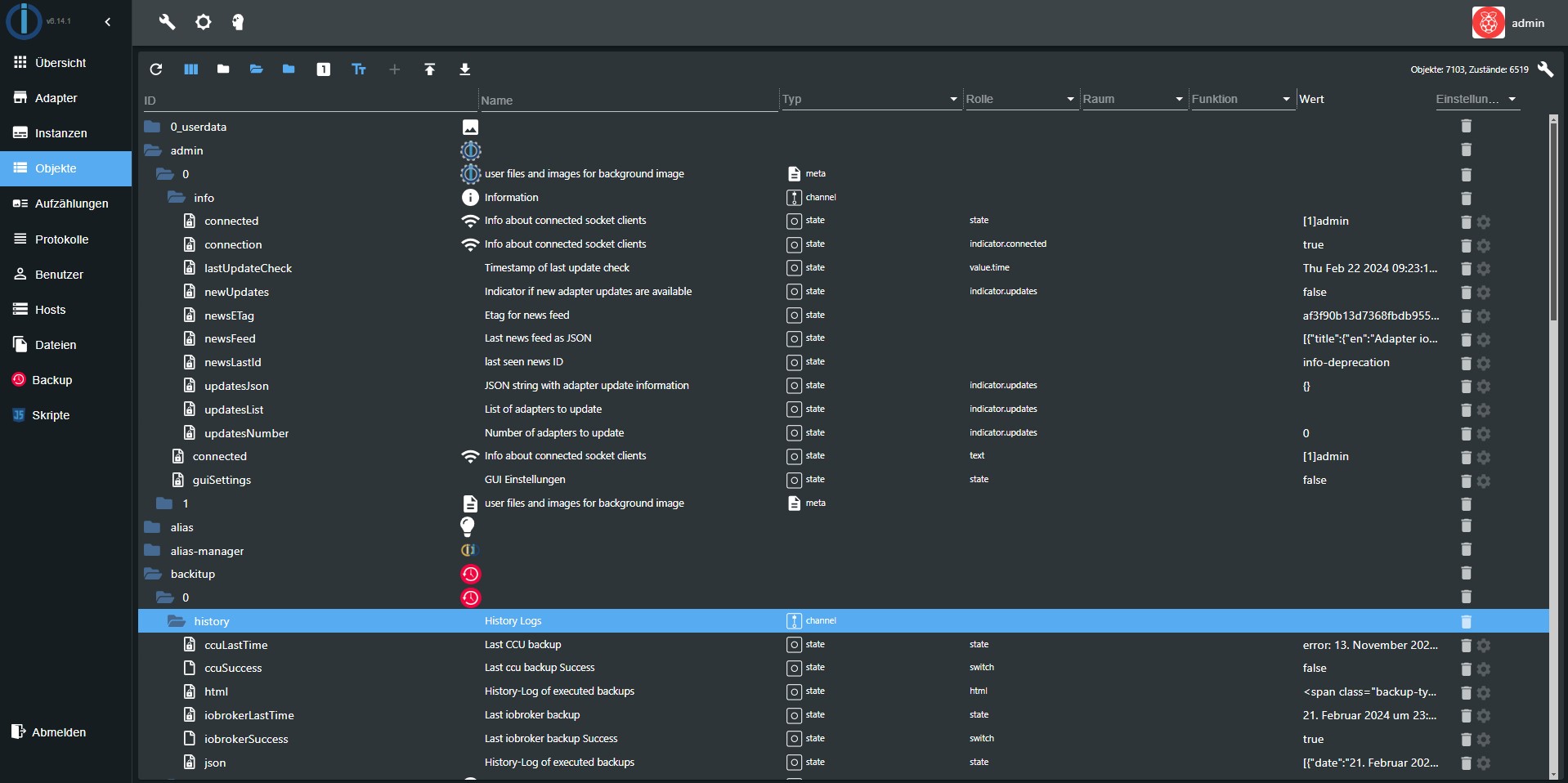
States: the current states (values of the objects) If the adapter history is installed, you can log chosen data points. The logged data points are selected on the right and appear with a green logo.
Scripts: this tab is only active if the "javascript" adapter is installed.
Node-red: this tab is only visible if the "node-red" adapter installed and enabled.
Hosts: the computer which ioBroker is installed on. Here the latest version of js-controller can be installed on. If there is a new version the letters of the tab are green. To search for a new version you have to click on the update icon on the bottom left corner.
Enumeration: here the favourites, trades and spaces from the CCU are listed.
Users: here the users can be added. To do this click on the (+). By default there is an admin.
Groups: if you click on the (+) on the bottom left you can create user groups. From the pull-down menu the users get assigned to the groups.
Event: A list of the running updates of the conditions.
Hosts: Information about the computer on which ioBroker is installed. The current version of the js controller can be updated here. If a new version is available, the label of the tab appears in green.
Log: here the log is displayed In the tab instance the the logged log level of the single instance can be set. In the selection Menu the the displayed minimum log level is selected. If an error occurs the lettering of the log appears in red.
System settings: Settings such as language, time and date format and other system-wide settings are made in the menu that opens here.
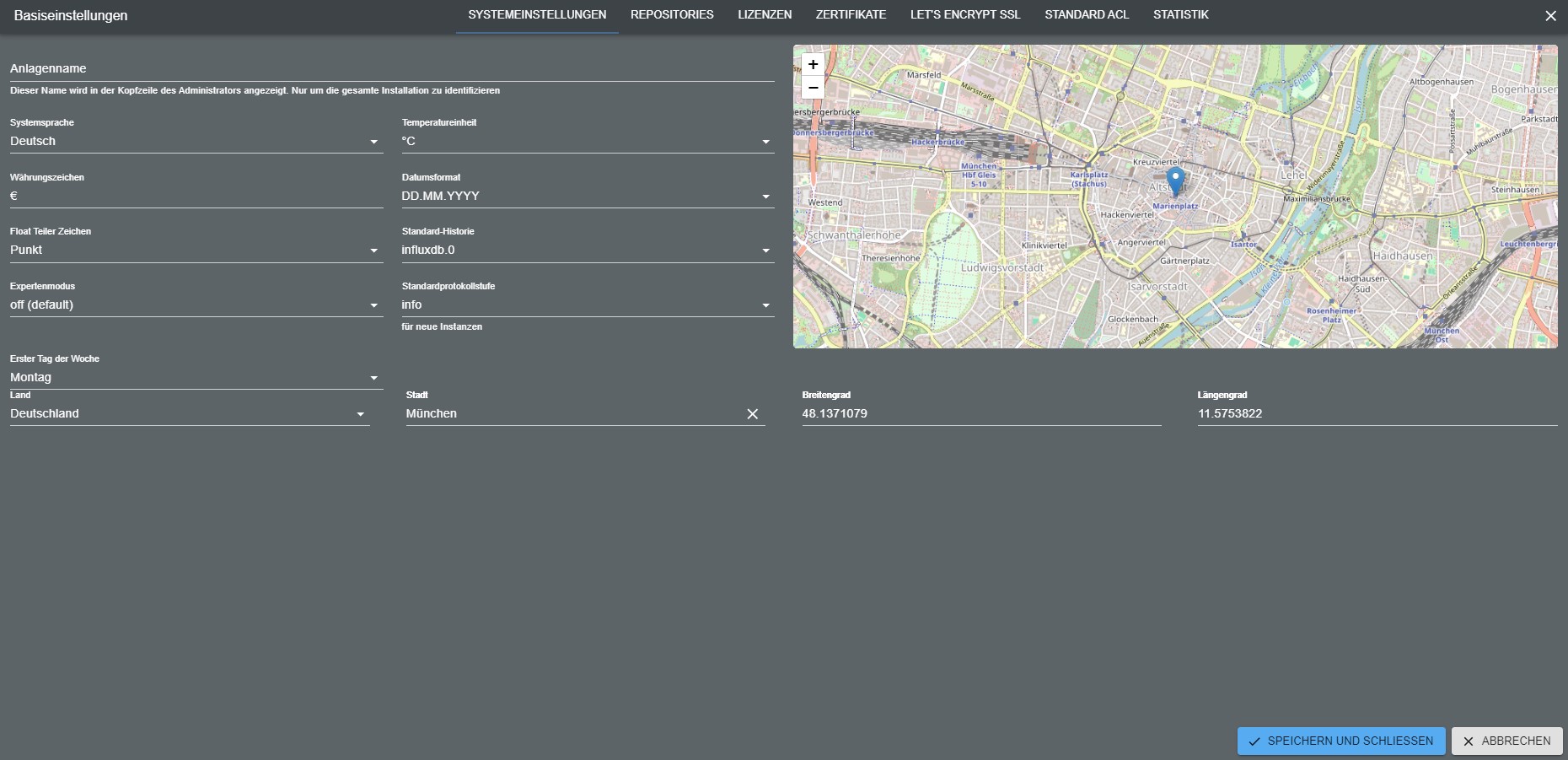
The repositories and security settings can also be set here.
Changelog
WORK IN PROGRESS
- (@GermanBluefox) Fixed: the
checkDockercontrol of a configuration dialog showed the Docker of the host admin runs on, also for an instance on another host. Admin asks the host of the instance now; that host needs a js-controller withCONTROLLER_CHECK_DOCKER. With an older js-controller there, the dialog says that Docker cannot be checked instead of showing the wrong host - (@GermanBluefox) Updated
@iobroker/json-configto 10.1.9: thecheckDockercontrol names the host of the instance - (@GermanBluefox) Added: OpenRouter as provider in the AI settings of the system settings (
@iobroker/ai-core0.0.6,@iobroker/ai-gui0.0.5)
8.3.5 (2026-10-26)
- (@GermanBluefox) Fixed: after a single sign-on the access and refresh token were put into the address (
?ssoLoginResponse=), so they ended up in the browser history and in the logs of a reverse proxy. Only a one-time code is there now, admin fetches the tokens with it. The ID token that came back after connecting an identity (?id_token=, with name and e-mail) is not kept any more, nothing used it - (@GermanBluefox) Fixed: the session cookie of a single sign-on was readable by scripts and sent along cross-site requests, unlike the one of a password login
- (@GermanBluefox) Fixed: behind a reverse proxy with https the single sign-on sent
http://.../sso-callbackto the identity provider, which did not match the registered redirect URI. The protocol now comes fromX-Forwarded-Proto, and the external address of admin can be set in the SSO settings - (@GermanBluefox) Important for everybody who had the single sign-on switched on with an admin before 8.3.4: an identity that somebody else connected with a user stays connected after the update. Check on the "Users" page that every user with single sign-on is connected with the right account, and disconnect the others
- (@GermanBluefox) Fixed: the device manager crashed if a slider of a device got a value that is not a number (#3699)
- (@GermanBluefox) Added: the system settings have an "AI" tab to set up the AI provider, its API key and the model once for the whole system; only one provider can be active
- (@GermanBluefox) Changed: the tabs of the system settings stand on the left with icons, on a phone on top
- (@GermanBluefox) Changed: the AI assistant takes provider, key and model from the "AI" tab of the system settings
8.3.4 (2026-10-25)
- (@typhosj) Fixed: the license dialog of a paid adapter stayed empty and could not be accepted, so the adapter could not be installed. The dialog loaded
licenseInformation.linkas the license text, but that link names the page with prices and where to buy, which the browser may not read. The license text comes from the repository of the adapter again, and the link is shown next to it. A license text that cannot be loaded no longer blocks the dialog, and a short Markdown text that needs no scrolling can be accepted (#3311, ioBroker/ioBroker.vis-2#707) - (@agross) Improved the English wording of the active repository warning.
- (@GermanBluefox) Fixed: "Add Single-Sign On" in the user dialog sent the display name of the user instead of the user ID, so connecting failed for every user whose name differs from the ID
8.3.3 (2026-10-23)
- (@GermanBluefox) Fixed: the object browser showed an object twice and copied its row while scrolling, if a sibling ID began with the same text followed by a space (#3693)
8.3.2 (2026-10-23)
- (@GermanBluefox) Fixed: the adapter list was empty after an adapter update and switching between the tabs (#3695)
- (@GermanBluefox) Fixed: an adapter updated while the adapter list was loading was still offered for update with the same version
8.3.1 (2026-10-22)
- (@GermanBluefox) Added: sort icon and tooltip on the sort button in the adapters tab (#3684)
- (@GermanBluefox) Added: disk and RAM usage of the host are shown as bars with tooltip in the instances tab
- (@GermanBluefox) Added: the repository version of an adapter can be installed with one click, if a newer or a self-installed version (e.g., from GitHub) is installed (#2973)
License
The MIT License (MIT)
Copyright (c) 2014-2026 bluefox dogafox@gmail.com