IP-Cameras adapter for ioBroker
You can integrate your web/ip cameras into vis and other visualizations.
If you configure a camera with name cam1 it will be available on
web server under http(s)://iobroker-IP:8082/cameras.0/cam1.
Use exactly that URL - without a file extension. Every request to it grabs a new frame from the camera, so a periodic reload gives you a live picture.
The adapter additionally stores the last frame as a file under cameras.0/cam1.jpg, which the web
server also happens to serve under http(s)://iobroker-IP:8082/cameras.0/cam1.jpg. That file is only
rewritten when the adapter starts and whenever an image message is processed - it is not updated
by requesting it. Pointing a widget at the .jpg therefore shows a picture that never refreshes, no
matter which refresh interval is configured.
Additionally, the image could be requested via a message:
sendTo('cameras.0', 'image', {
    name: 'cam1',
    width: 100, // optional
    height: 50, // optional
    angle: 90,   // optional
    noCache: true // optional, if you want to get the image not from cache
}, result => {
    const img = 'data:' + result.contentType + ';base64,' + result.data;
    console.log('Show image: ' + img);
});
The result is always in jpg format.
Sending the image to a messenger
result.data is the JPEG as a base64 string, so it can not be passed to a messenger directly. Turn it into a
Buffer or a file first. In a script of the javascript adapter (also usable from Blockly via the
Javascript function block):
sendTo('cameras.0', 'image', { name: 'cam1' }, result => {
    if (result.error) {
        log(`Cannot get image: ${result.error}`, 'warn');
        return;
    }
    const image = Buffer.from(result.data, 'base64');

    // Telegram accepts the buffer directly
    sendTo('telegram.0', 'send', { text: image, type: 'photo', caption: 'cam1' });

    // Every other adapter gets a file path, e.g. pushover, signal or email attachments
    const fileName = createTempFile('cam1.jpg', image);
    sendTo('pushover.0', 'send', { message: 'cam1', file: fileName });
});
Supported cameras:
- More than 50 manufacturers with their model lists, e.g. Hikvision, Dahua, Axis, Reolink (incl. E1 Pro), Foscam, TP-Link/Tapo
EufyviaeusecadapterUniFi Protect- every camera managed by a UniFi console or NVR, see below- HiKam of second and third generation via ONVIF (für S6, Q8, A7 2. Generation), A7 Pro, A9
- WIWICam M1 via HiKam adapter
- RTSP Native - if your camera supports RTSP protocol
- Screenshots via HTTP URL - if you can get the snapshot from your camera via URL
Adding a camera
The dialog asks for the manufacturer first. Afterwards it shows only what fits:
- Universal (custom URL / RTSP) for a snapshot URL (with or without basic authentication) or an RTSP stream.
The RTSP stream takes the whole link, e.g.
rtsp://192.168.1.10:554/stream1orrtsps://...; a login in the link is moved to the user and password fields. - A manufacturer with its own implementation (Eufy, HiKam, INSTAR, UniFi Protect) offers it as Connection, next to the model list where the manufacturer has one.
- Every other manufacturer leads to its model list. The main field is the stream path: the list shows the paths of the manufacturer sorted by how many models use them, so the right one is usually among the first. Search model is optional and only narrows the list. A path of your own can be typed in as well.
The stored configuration keeps its format, existing cameras are shown with their manufacturer. The former type
Reolink E1 is deprecated: it still works, is not offered for new cameras any more, and its dialog converts it to the
Reolink model list with one click.
UniFi Protect
Protect re-streams every camera from the console, so the address is the one of the console (or NVR),
not of the camera. Instead of credentials the stream link contains a token:
rtsp://<console>:7447/<token> or rtsps://<console>:7441/<token>?enableSrtp.
Protect itself always uses these two ports. The field RTSP port is only needed if the console is reached
through a port forwarding or a proxy; left empty, it follows the RTSPS setting.
Two ways to configure a camera:
- With an API key (Protect 5.3 or newer): create a key under UniFi OS → Settings → Control Plane →
Integrations, enter it together with the console IP and press Load cameras. The token is then read from Protect
at every start, and snapshots are taken by Protect itself (about 0.3 s, no
ffmpegneeded). If Protect has no RTSP stream for the chosen quality yet, the adapter switches it on - the same as enabling "RTSP" for the camera in the Protect UI. - With the token only: enable RTSP for the camera in Protect and paste the link (or just its last part) into
Stream token. Snapshots are then decoded from the stream with
ffmpeg.
Recommended: enter both. The API key keeps the token up to date - Protect issues a new one when RTSP is switched
off and on again or the camera is re-adopted, and a token entered by hand then stops working until it is replaced.
The token stays as a fallback: if the API cannot be reached or the key was deleted, the stream is used with the
configured token and snapshots come from ffmpeg.
Use the token only if you do not want to give ioBroker an API key - the key opens the whole Protect API, all cameras and their settings, while a token only gives read access to one stream - or if your Protect is older than 5.3. The live stream uses RTSP/RTSPS with the token in both cases; the key only affects snapshots and how the token is obtained.
The console uses a self-signed certificate, which is not verified for these requests. Many Protect cameras send H.265; snapshots are taken from key frames only, otherwise the first picture is a grey area. The snapshot API of Protect only knows a high and a low resolution, so medium takes the high one.
Eufy
With the eusec adapter installed, the dialog lists its cameras and doorbells by the names from the Eufy app:
- A camera with RTSP of its own uses the link
eusecprovides inrtsp_stream_url. RTSP is switched on for it automatically; if no link appears, enable RTSP for the camera in the Eufy app. - A camera without RTSP (many battery cameras) is marked live via station: for an image the adapter presses
start_streamofeusec, which streams the camera through the station into its own go2rtc, and takes the snapshot from there. The first image takes a few seconds, and a battery camera is woken up each time.eusecends the stream after its max. livestream duration; images within that time do not wake the camera again. Such a camera is only woken by a request - unlike every other type it gets no picture at the start of the adapter, which would cost its battery at every restart. The RTSP server of the go2rtc ineusecmust not require a login - its password is a protected setting ofeusecthat other adapters cannot read.
Without eusec, a camera with RTSP can be entered by its IP address.
URL image
This is a normal URL request, where all parameters are in URL. Like http://mycam/snapshot.jpg
URL image with basic authentication
This is URL request for image, where all parameters are in URL, but you can provide the credentials for basic authentication. Like http://mycam/snapshot.jpg
Both URL types - and the HTTP paths of the model lists - also accept an MJPEG stream (multipart/x-mixed-replace,
often .../video.mjpg or .../mjpg/video.cgi): its first frame is taken and the connection is closed, no ffmpeg
needed. A video stream over HTTP (ASF, MP4, ...) cannot be decoded this way; it fails at once with a hint to use the
snapshot or RTSP URL of the camera.
FFmpeg
If you want to access snapshots on RTSP cameras, you can use ffmpeg. You need to install ffmpeg on your system:
- Windows has precompiled
ffmpegand there is no need to download anything. (Windows version is taken from here: https://www.gyan.dev/ffmpeg/builds/ffmpeg-git-full.7z) - Linux:
sudo apt-get install ffmpeg -y
Many cameras send H.265. Joined between two key frames, ffmpeg decodes the first picture as a flat grey area. The
adapter recognizes such a picture, takes the snapshot again from a key frame and keeps that for the camera while it
runs (a note appears in the log). Key frames only in the expert settings of the RTSP type sets it permanently.
How to update the Windows version of ffmpeg:
- Download file https://www.gyan.dev/ffmpeg/builds/ffmpeg-git-full.7z
- Extract
bin/ffmpeg.exe - Rename
ffmpeg.exetowin-ffmpeg.exe - Zip
win-ffmpeg.exetowin-ffmpeg.zip - Place
win-ffmpeg.zipin the root of this repository - Execute
win-ffmpeg.exe --versionto get the version and save it intomain.tsWIN_FFMPEG_VERSIONconstant (like2025-02-02-git-957eb2323a-full_build-www.gyan.dev)
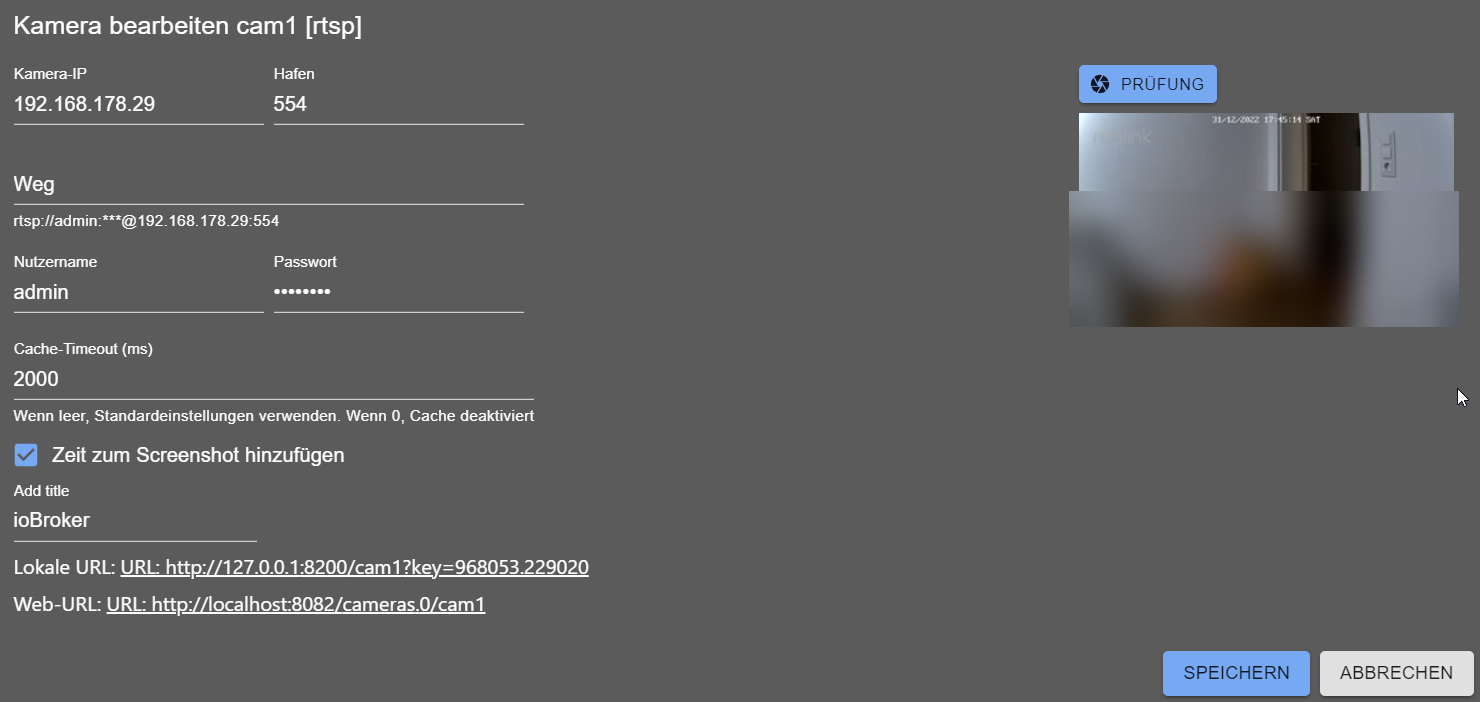
Here is an example of how to add Reolink E1:
Ezviz - How to re-enable RTSP for EZVIZ cameras
For some reason, EZVIZ decided to disable RTSP for their cameras:
- Open EZVIZ App and go to: Profile / Settings / Lan Live View
- Start scanning and then Select Camera:
- Login with your camera password (the default password is on the camera sticker)
- Press the Settings icon and select Local Service Settings
- Enable RTSP
How to add a new camera (For developers)
The easy way: a new manufacturer for the universal type
Most cameras do not need any code. The universal type is driven by the data files in
src-admin/public/data/, which are generated from ispyconnect.com:
- Add the manufacturer to the
MANUFACTURERSmap at the top oftools/parser.js - Run
node tools/parser.js <manufacturer>— this writessrc-admin/public/data/<manufacturer>.jsonand updatesmanufacturers.json - Run
node tools/logos.jsto add a logo. It uses the brand mark fromsimple-iconswhen that collection carries the manufacturer, otherwise it generates a monogram. To use the real logo instead, simply place<manufacturer>.svg,.pngor.jpginsrc-admin/public/data/— existing files are never overwritten (unless--forceis given)
The new manufacturer then appears in the manufacturer list of the camera dialog.
The port of a row is only taken over when the camera plausibly listens on it out of the box
(PLAUSIBLE_PORTS in tools/parser.js). ispyconnect stores whatever port the submitter reached
their camera on, which is often a port forwarding of their router, and that must not become the
default for every owner of the model. Everything else is written as 0, so the dialog offers 80
resp. 554 — and the port field can be changed there in any case.
A dedicated camera type
Only needed when the camera requires its own logic. Create a Pull Request with:
src/types.d.ts— add the key to theCameraTypeunion, add aCameraConfigMyCam extends CameraConfiginterface and add it to theCameraConfigAnyunionsrc/cameras/MyCamCamera.ts— extendGenericCamerafor a plain HTTP snapshot, orGenericRtspCamerafor RTSP (fillthis.settingsandthis.decodedPasswordininit()before callingsuper.init())src/cameras/Factory.ts— add thecasefor the new typesrc-admin/src/Types/MyCam.tsx— the configuration dialog, extendingConfigGenericsrc-admin/src/Tabs/Cameras.tsx— import the dialog and add it to theTYPESstructure, e.g.mycam: { Config: MyCamConfig as unknown as IConfigGeneric, name: 'MyCam' },. The key must be identical to thetypeused in the backend.src-admin/src/Components/TypeSelector.tsx— add the type toDEDICATEDunder its manufacturer (the id of the model list if there is one), otherwise the dialog does not offer it. A type that is replaced by another one getsdeprecated: true: existing cameras keep working, new ones cannot choose it- Add the new labels to all files in
src-admin/src/i18n/
go2rtc (optional)
If go2rtc is enabled in the settings, a local go2rtc process
replaces the ffmpeg processes: one per snapshot in the adapter, and one per camera in the web
extension. go2rtc holds a single connection per camera and serves all consumers from it.
go2rtc binds its API to 127.0.0.1 and is never reachable by the browser directly. All access goes
through the web adapter, so it uses the same authentication and the same http/https scheme as the
rest of ioBroker — no additional port has to be opened. Besides the existing web socket, each camera
also offers /<instance>/<camera>/stream.mjpeg, which can be used in a plain <img src="/en/adapterref/iobroker.cameras/...">.
If the binary cannot be found or does not start, the adapter transparently falls back to ffmpeg.
Changelog
3.3.0 (2026-10-16)
- (@GermanBluefox) Migrated widgets to React 19 - vis-2 >= 2.20.0 is required, if installed
3.2.2 (2026-10-03)
- (@hdering) Fixed: after a browser tab with a live stream was closed, "Cannot send to UI: ... is not registered" was logged for every frame and the stream kept running (#201)
- (@GermanBluefox) Fixed: the live picture of a camera in ioBroker.devices froze after a minute - the widget did not renew its subscription
3.2.1 (2026-10-03)
- (@hdering) Changed: a camera is added by choosing the manufacturer first, then only the fitting connection is offered; the stored configuration keeps its format
- (@hdering) Changed: the model list is chosen by stream path, sorted by how many models use it; the model is optional. HTTP paths that deliver a stream instead of an image are hidden, they never worked
- (@hdering) Changed: an RTSP camera is configured with one URL field, also for
rtsps://; a pasted login goes to its own fields - (@hdering) Deprecated: the type "Reolink E1" - it keeps working and can be converted to the Reolink model list in its dialog
- (@hdering) Fixed: the RTSP dialog showed UDP while the adapter used TCP, and saved UDP as soon as another field was changed
- (@hdering) Fixed: the URL preview of an RTSP camera was only updated after saving
- (@hdering) Fixed: changes in the camera dialog were applied to the stored settings instead of the edited ones, so an earlier change could get lost
- (@hdering) Added: MJPEG streams over HTTP - the first frame is taken; this makes the MJPEG paths of the model lists usable. A video stream over HTTP fails at once with a hint instead of a timeout
- (@hdering) Added: a grey snapshot of an H.265 stream is recognized and taken again from a key frame; "Key frames only" in the expert settings of the RTSP type sets it permanently
- (@hdering) Added: the Eufy dialog lists the cameras of the
eusecadapter; cameras without RTSP of their own are streamed through the station byeusec(#205) - (@hdering) Fixed: switching the Eufy dialog between
eusecand IP address was not saved - (@GermanBluefox) Fixed: opening or closing the full screen dialog of an RTSP camera asks for the stream in the size it is shown in right away; until now the big view showed the small picture enlarged for up to 14 seconds
- (@GermanBluefox) Fixed: the dialog of the RTSP camera widget for ioBroker.devices never asked for a bigger picture at all
3.2.0 (2026-10-01)
- (@hdering) Added: UniFi Protect cameras, with the stream token from the Protect API or entered by hand (#133)
- (@hdering) Added: RTSPS for UniFi Protect, also through go2rtc
- (@GermanBluefox) Fixed: the stderr of a failed
ffmpegcall was passed on unmasked, so a camera password could end up in the log - (@hdering) Fixed: the web URL of a camera in the admin was always shown with
http://, also for a web instance with https; the MJPEG stream URL is shown when go2rtc is enabled - (@GermanBluefox) Fixed: a request for the MJPEG stream of a camera was left hanging when go2rtc was switched on but not reachable
- (@hdering) Fixed: all camera URLs of the web extension answered 404 when the native WebRTC binary was missing (#321)
- (@GermanBluefox) Removed the unfinished
rtsp2WebRTCexperiment and the@roamhq/wrtcdependency with it - WebRTC runs through go2rtc
3.1.0 (2026-09-29)
- (@GermanBluefox) Fixed: after a single failed request a camera stayed broken until the adapter was restarted
- (@GermanBluefox) Fixed: after a live stream had ended, every snapshot kept showing its last frame
- (@GermanBluefox) Fixed: an RTSP camera with "original width/height" never delivered a picture, because the scale filter was passed to
ffmpegwithout-vf - (@GermanBluefox) Fixed: the first picture of a live stream appeared only after a delay of 10 seconds
- (@GermanBluefox) Fixed: closing the view of one camera also unsubscribed the other cameras of the same browser
- (@GermanBluefox) Fixed: a camera that failed to start could throw when a GUI client unsubscribed from it
- (@GermanBluefox) Fixed: two cameras with the same IP address overwrote each other's snapshot
- (@GermanBluefox) Fixed: a password containing
!appeared in the log in clear text - (@GermanBluefox) Pictures are cached per requested size, so the web adapter and a widget no longer evict each other
- (@GermanBluefox) A browser that leaves the page no longer produces warnings in the log
- (@GermanBluefox) The universal camera type has a port field now - the port from the model table is only a suggestion
- (@GermanBluefox) Fixed: the model table of the universal type offered the port of somebody's port forwarding as the default for 226 URLs
- (@GermanBluefox) Fixed:
[WIDTH],[HEIGHT]and[AUTH]in the URL of a universal camera were never replaced, and a placeholder was only replaced once per URL - (@GermanBluefox) Added the
VIVOTEKH9161 - (@GermanBluefox) Updated packages
License
MIT License
Copyright (c) 2020-2026 bluefox dogafox@gmail.com
Permission is hereby granted, free of charge, to any person obtaining a copy of this software and associated documentation files (the "Software"), to deal in the Software without restriction, including without limitation the rights to use, copy, modify, merge, publish, distribute, sublicense, and/or sell copies of the Software, and to permit persons to whom the Software is furnished to do so, subject to the following conditions:
The above copyright notice and this permission notice shall be included in all copies or substantial portions of the Software.
THE SOFTWARE IS PROVIDED "AS IS", WITHOUT WARRANTY OF ANY KIND, EXPRESS OR IMPLIED, INCLUDING BUT NOT LIMITED TO THE WARRANTIES OF MERCHANTABILITY, FITNESS FOR A PARTICULAR PURPOSE AND NONINFRINGEMENT. IN NO EVENT SHALL THE AUTHORS OR COPYRIGHT HOLDERS BE LIABLE FOR ANY CLAIM, DAMAGES OR OTHER LIABILITY, WHETHER IN AN ACTION OF CONTRACT, TORT OR OTHERWISE, ARISING FROM, OUT OF OR IN CONNECTION WITH THE SOFTWARE OR THE USE OR OTHER DEALINGS IN THE SOFTWARE.