
ioBroker.dreame
Dreame-Adapter für ioBroker
Adapter für Dreame und MOVA Saugroboter und Mähroboter.
Unterstützte Marken: Dreame, MOVA (in den Adaptereinstellungen auswählen)
Getestet mit: L10, L20, X40, A2 1200 (Rasenmäher), MOVA 600, MOVA 1000
Installation
Über ioBroker Admin (empfohlen)
- Stellen Sie sicher, dass das Repository „Neueste Version“ unter Admin → Einstellungen → Repositories aktiviert ist.
- Gehen Sie zum Reiter „Adapter“ und suchen Sie nach „dreame“.
- Klicken Sie auf Installieren
Der Adapter ist aktuell im neuesten Repository verfügbar. Die Aufnahme in das stabile Repository wurde beantragt (siehe Status unter https://github.com/ioBroker/ioBroker.repositories/pull/6200 ).
Über die Befehlszeile
iobroker install dreame@latest
Für die Adapterentwicklung
Wenn Sie zum Adaptercode selbst beitragen möchten (und ihn nicht nur verwenden):
git clone https://github.com/TA2k/ioBroker.dreame.git
cd ioBroker.dreame
npm install
npm link
Konfiguration
| Einstellung | Beschreibung |
|---|---|
| Cloud-Dienst | Wählen Sie je nach App Dreame oder MOVA aus. |
| E-Mail-App | Ihre Dreame/MOVA-App-Anmelde-E-Mail |
| App-Passwort | Ihr Dreame/MOVA-App-Passwort |
| Karte abrufen | Lädt die Karte beim Start des Adapters und anschließend alle paar Minuten aus der Cloud; verwaltet außerdem Raumnamen und gespeicherte Kartenbilder. Erforderlich für das untenstehende Karten-Widget. |
| Aktualisierungsintervall | Zyklus (Minuten), in dem der Adapter aktiv die Cloud abfragt – Kartenabruf und allgemeiner Gerätestatus (Akku, Reinigungsstatus usw.). Höhere Werte reduzieren die Cloud-Anfragen, verzögern aber beides. |
MOVA-Geräte (600, 1000) nutzen dasselbe Cloud-Backend wie Dreame, jedoch mit unterschiedlichen Domains. Wählen Sie MOVA , wenn Sie die MOVA-App verwenden.
Vakuum (L10, L20, X40, ...)
Der Adapter erstellt Zustände für Saugroboter verzögert – nur die von Ihrem Gerät tatsächlich gemeldeten Eigenschaften erscheinen im Objektbaum. Die Zustände werden nach dem Start des Adapters und nach dem ersten Abfragezyklus schrittweise gefüllt. Die folgenden Tabellen zeigen alle bekannten möglichen Zustände; Ihr Gerät meldet möglicherweise nur eine Teilmenge.
Vakuumstatus
| Zustand | Beschreibung |
|---|---|
| Zustand | Roboterstatus (1=Reinigung, 2=Standby, 3=Pause, 5=Rückkehr, 6=Laden, 7=Wischen, 8=Trocknen, 9=Waschen, ...) |
| Fehler | Fehlercode |
| Batteriestand | Akkuprozentsatz |
| Ladestatus | 1=Wird geladen, 2=Wird nicht geladen, 3=Abgeschlossen, 5=Zurück zum Ladevorgang |
| Status | Reinigungsstatus (0=Leerlauf, 1=Pausiert, 2=Reinigung, 3=Zurück zum Startpunkt, 6=Wird geladen, 18=Segment, 19=Zone, 20=Punkt, 21=Kartierung) |
| Reinigungszeit | Aktuelle Reinigungszeit (min) |
| gereinigter Bereich | Aktuell gereinigte Fläche (m²) |
| Reinigungsfortschritt | Reinigungsfortschritt (%) |
| Trocknungsfortschritt | Trocknungsfortschritt (%) |
| Aufgabenstatus | Aufgabe (0=Abgeschlossen, 1=Automatisch, 2=Zone, 3=Segment, 4=Punkt, 5=Kartierung) |
| Aufgabentyp | Aufgabentyp |
| Seriennummer | Seriennummer |
| Fehler | Fehlerdetails |
| Warnstatus | Warnstatus |
| Wassertank | 0 = Nicht installiert, 1 = Installiert, 10 = Mop installiert |
| Selbstwaschbasis-Status | Status der Selbstwaschbasis |
| Wischmopp-Station | Wischmopp in der Station |
| Wischmopppad installiert | Moppbezug installiert |
| Entwässerungsstatus | Entwässerungsstatus |
| Gerätefähigkeit | Gerätefunktionskennzeichen |
Verbrauchsmaterial
| Zustand | Beschreibung |
|---|---|
| Hauptbürste links | Lebensdauer der Hauptbürsten (%) |
| Hauptbürstenzeit links | Verbleibende Zeit für die Hauptbürste (h) |
| Seitenbürste links | Lebensdauer der Seitenbürste (%) |
| Seitenbürstenzeit links | Verbleibende Zeit zum Seitenbürsten (h) |
| Filter links | Filterlebensdauer (%) |
| Filterzeit links | Verbleibende Filterzeit (h) |
| sensor-dirty-left | Sensorlebensdauer (%) |
| sensor-dirty-time-left | Verbleibende Sensorzeit (h) |
| Rad verschmutzt links | Radlebensdauer (%) |
Stationsstatus
| Zustand | Beschreibung |
|---|---|
| Status des Reinwassertanks | 0 = Installiert, 1 = Nicht installiert, 2 = Niedriger Wasserstand |
| Schmutzwassertank-Status | 0 = Installiert, 1 = Nicht installiert oder nicht vollständig |
| Staubbeutelstatus | 0 = Installiert, 1 = Nicht installiert, 2 = Prüfen |
| Waschmittelstatus | Waschmittelstatus |
| Warmwasserstatus | Warmwasserstatus |
Statistiken
| Zustand | Beschreibung |
|---|---|
| erste Reinigung | Datum der ersten Reinigung (Unix-Zeitstempel) |
| Gesamtreinigungszeit | Gesamtreinigungszeit (min) |
| Reinigungszähler | Gesamtzahl der Reinigungen |
| Gesamtfläche der Reinigung | Gesamtfläche der Reinigung (m²) |
AutoSwitch analysierte Werte
Diese werden aus den folgenden Daten extrahiert: auto-switch-settings JSON und als einzelne Zustände verfügbar:
| Zustand | Beschreibung |
|---|---|
| Selbsttrocknung | Automatische Trocknung: 0 = aus, 1 = ein |
| Kollisionsvermeidung | Kollisionsvermeidung: 0 = aus, 1 = ein |
| Aufhelllicht | Licht im Dunkeln: 0 = aus, 1 = an |
| Fleckenvermeidung | Fleckenvermeidung: 0 = aus, 1 = an |
| Wischtyp | 0 = Täglich, 1 = Genau, 2 = Tiefgründig |
| Clean-Genie | CleanGenius: 0=Aus, 1=Routine, 2=Intensiv |
| Reinigungsroute | 1=Standard, 2=Intensiv, 3=Tiefenkurs, 4=Schnellkurs |
| breitere Ecken | Eckabdeckung: 0=Aus, 1=Hohe Frequenz, -7=Niedrige Frequenz |
| Bodenrichtung | Reinigungsrichtung für den Boden: 0 = aus, 1 = ein |
| Haustierorientiert | Reinigung speziell für Haustiere: 0 = aus, 1 = an |
| maximale Saugkraft | Maximale Saugleistung: 0 = aus, 1 = ein |
| Heißwäsche | Heißwäsche: 0 = aus, 1 = an |
| UV-Sterilisation | UV-Sterilisation: 0 = aus, 1 = ein |
| Ultra-Reinigungsmodus | Ultra-Reinigungsmodus: 0 = Aus, 1 = Ein |
| Mopp-Verlängerung | Moppverlängerung: 0=aus, 1=ein |
| intelligentes Laden | Intelligentes Laden: 0 = aus, 1 = ein |
Fernbedienung für Staubsauger
| Zustand | Beschreibung |
|---|---|
| Saugniveau | 0 = Leise, 1 = Standard, 2 = Stark, 3 = Turbo |
| Wasservolumen | 1 = Niedrig, 2 = Mittel, 3 = Hoch |
| Reinigungsmodus | 0 = Fegen, 1 = Wischen, 2 = Fegen + Wischen, 3 = Wischen nach dem Fegen |
| Teppichverstärkung | Teppichverstärkung ein/aus |
| Hindernisvermeidung | Hindernisvermeidung ein/aus |
| KI-Erkennung | KI-Erkennungs-Bitfeld |
| Kindersicherung | Kindersicherung ein/aus |
| Teppichempfindlichkeit | 1 = Niedrig, 2 = Mittel, 3 = Hoch |
| Teppicherkennung | Teppicherkennung ein/aus |
| Teppichreinigung | 0 = Vermeiden, 1 = Anpassen, 2 = Ignorieren |
| Selbstreinigung | Selbstreinigung ein/aus |
| Trocknungszeit | 2 = 2 Stunden, 3 = 3 Stunden, 4 = 4 Stunden |
| automatischer Moppaufsatz | Automatischer Wischmopp ein-/ausschalten |
| Wischmopp-Waschniveau | Wischmopp-Waschniveau |
| automatische Wassernachfüllung | Automatische Wassernachfüllung ein/aus |
| automatische Waschmittelzugabe | Automatische Waschmittelzugabe ein/aus |
| dnd-enable | Bitte nicht stören ein/aus |
| dnd-start / dnd-end | DND-Zeitbereich |
| Volumen | Lautstärkepegel |
| automatische Staubabsaugung | Automatische Staubabsaugung ein/aus |
| automatische Entleerungsfrequenz | Automatische Entleerungsfrequenz |
| Feuchtigkeitsgrad | Feuchtigkeitsgrad (1–32) |
| Cleangenius-Modus | 0=Aus, 1=Routine, 2=Tief |
| Wassertemperatur | 0=Kalt, 1=Warm, 2=Heiß, 3=Kochend |
| geräuschloses Trocknen | Geräuschloses Trocknen ein/aus |
| Haarkompression | Haarkompression ein/aus |
| Wischen mit Reinigungsmittel | Wischen mit Reinigungsmittel ein/aus |
AutoSwitch-Befehle festlegen
Diese schreiben direkt in die AutoSwitch-Einstellungen des Geräts (Eigenschaft 4-50):
| Zustand | Beschreibung |
|---|---|
| automatische Trocknung einstellen | Automatische Trocknung einstellen: 0 = aus, 1 = ein |
| Kollisionsvermeidung einstellen | Kollisionsvermeidung einstellen: 0 = aus, 1 = ein |
| Aufhelllicht einstellen | Fülllicht einstellen: 0 = aus, 1 = an |
| Vermeidung von Fleckenbildung | Fleckenvermeidung einstellen: 0 = aus, 1 = ein |
| Set-Mopp-Typ | Wischtyp einstellen: 0=Täglich, 1=Genau, 2=Tiefenreinigung |
| set-clean-genius | CleanGenius einstellen: 0=Aus, 1=Routine, 2=Intensiv |
| Reinigungsroute einrichten | Reinigungsprogramm einstellen: 1=Standard, 2=Intensiv, 3=Tiefenreinigung, 4=Schnell |
| breitere Ecken | Breitere Ecken einstellen: 0=Aus, 1=Hohe Frequenz, -7=Niedrige Frequenz |
| set-floor-direction | Bodenrichtung einstellen: 0=aus, 1=ein |
| set-haustierorientiert | Haustierfokus einstellen: 0 = aus, 1 = an |
| intelligentes Laden einstellen | Intelligentes Laden einstellen: 0 = aus, 1 = ein |
| Heißwäsche einstellen | Heißwäsche einstellen: 0 = aus, 1 = ein |
| UV-Sterilisation | UV-Sterilisation einstellen: 0 = aus, 1 = ein |
| set-max-suction | Maximale Saugkraft einstellen: 0 = aus, 1 = ein |
| Set-Ultra-Clean | Ultra-Reinigung einstellen: 0 = aus, 1 = ein |
| set-mop-extend | Moppverlängerung einstellen: 0=aus, 1=ein |
| smarte Trocknung | Intelligente Trocknungsfunktion einstellen: 0 = aus, 1 = ein |
| Selbstreinigungsfrequenz einstellen | 0 = Pro Zimmer, 1 = Standard, 2 = Hoch |
| Set-intensive-Teppich | Intensivteppich einstellen: 0=aus, 1=ein |
| Spaltreinigung | Spaltreinigungsverlängerung einstellen: 0 = aus, 1 = ein |
| Wischen unter Möbeln | Wischen unter Möbeln einstellen: 0 = aus, 1 = ein |
| benutzerdefiniertes Wischen | Benutzerdefinierten Wischmodus einstellen: 0 = aus, 1 = ein |
Aktionen
Breaking Change seit Version 0.3.18: Aktionszustände (
start-clean,stop,pause,return-to-dock,locate,start-washing,start-auto-empty,clear-warning(und alle Reset-Tasten) sind jetzt vom Typ Boolean / Rolle Taste . SchreibentrueUm sie auszulösen, müssen Skripte oder Vis-Widgets, die zuvor einen Zeichenfolgenwert geschrieben haben, aktualisiert werden.
| Zustand | Beschreibung |
|---|---|
| Neustart | Reinigung starten (Taste) |
| Pause | Reinigung pausieren (Taste) |
| stoppen | Reinigung stoppen (Taste) |
| Rückkehr zum Dock | Zurück zum Dock (Schaltfläche) |
| start-custom-clean | Benutzerdefinierte Bereinigung starten (Wert: JSON mit piid/Wert-Paaren) |
| Waschen starten | Wischmopp-Waschvorgang starten (Taste) |
| start-auto empty | Automatisches Leeren starten (Schaltfläche) |
| lokalisieren | Roboter lokalisieren / Ton abspielen (Taste) |
| klare Warnung | Warnung löschen (Schaltfläche) |
| Hauptbürste zurücksetzen | Hauptbürstenverbrauchsmaterial zurücksetzen (Taste) |
| Seitenbürste zurücksetzen | Seitenbürsten-Verbrauchsteil zurücksetzen (Taste) |
| Reset-Filter | Filterverbrauchsmaterial zurücksetzen (Taste) |
| Reset-Sensor | Sensor-Verbrauchsmaterial zurücksetzen (Taste) |
| fetchMap | Karte vom Gerät abrufen (Schaltfläche) |
| benutzerdefinierter Befehl | Benutzerdefinierten MIoT-Befehl senden (JSON) |
Zimmerreinigung
dreame.0.XXXX.remote.start-custom-clean
[
  { "piid": 1, "value": 18 },
  { "piid": 10, "value": "{\"selects\":[[X,1,3,2,1]]}" }
]
X = Raum-ID. Mehrere Räume: {\"selects\":[[X,1,3,2,1],[Y,1,3,2,1]]}
Schalterbelegung
dreame.0.XXXXXXX.remote.customCommand:
{ "siid": 6, "aiid": 2, "in": [{ "piid": 4, "value": "{\"sm\":{},\"mapid\":X}" }] }
X = mapId (siehe dreame.0.XXXX.status.map-list)
Individuelle Zimmerreinigung
Mit der Funktion „Benutzerdefinierte Raumreinigung“ können Sie einzelne Räume auswählen und den Roboter nur in diese Räume schicken, anstatt die gesamte Etage reinigen zu lassen. Saugstärke und Wassermenge gelten global für alle ausgewählten Räume.
Schritt-für-Schritt-Anleitung
a) Benennen Sie Ihre Karte (optional, empfohlen für Haushalte mit mehreren Etagen)
Wenn eine Karte zum ersten Mal erkannt wird, map.maps.<id>.mapName wird mit dem Platzhalterwert erstellt "Map <id>" (z.B "Map 1" Dieser Zustand ist direkt beschreibbar – ändern Sie den Wert im ioBroker-Objektbaum in einen aussagekräftigen Wert, z. B. von "Map 1" Zu "Ground Floor" Der Kanalname von map.maps.<id> Die Aktualisierung erfolgt automatisch, sobald Sie den neuen Wert speichern. Ein Neustart des Adapters ist nicht erforderlich.
b) Aktive Karte festlegen
Schreiben Sie die Karten-ID (z. B. 1) Zu remote.custom-room-cleaning.active-map Nur die Räume, die zu dieser Karte gehören, werden beim Start an den Roboter gesendet. Die in Schritt (a) erstellte Karte hilft Ihnen dabei, die IDs den einzelnen Etagen zuzuordnen.
c) Zimmer auswählen
Unter remote.custom-room-cleaning.map-<id>/ Jeder erkannte Raum wird als boolescher Zustand dargestellt. Die Kanal- und Zustandsnamen zeigen den übersetzten Raumnamen aus der Karte an (z. B. kitchen, living-room, bathroom Stellen Sie die gewünschten Räume ein auf true Die
d) Saugstärke und Wassermenge einstellen (optional)
remote.suction-level Und remote.water-volume Die Einstellungen sollen auf alle ausgewählten Räume angewendet werden. Um abweichende Werte zu erhalten, müssen diese vor dem Start der Reinigung festgelegt werden. Es handelt sich dabei um dieselben Zustände, die auch für die reguläre Reinigung verwendet werden.
e) Starten Sie den Reinigungslauf.
Satz remote.custom-room-cleaning.start Zu true Der Adapter erstellt die Raumauswahl anhand der Kontrollkästchen der aktiven Karte, sendet sie an den Roboter und setzt die start Staat zu false automatisch.
Fortgeschritten: direkt customCommand Bearbeitung
remote.custom-room-cleaning.customCommand Speichert die Rohauswahl als JSON-Zeichenkette. Sie können sie auch direkt schreiben, wenn Sie das bevorzugen:
{"selects":[[roomId, repeats, suctionLevel, waterVolume, index], ...]}
Beispiel — Küche (ID 4) einmal bei starker Saugkraft, mittlerer Wassermenge:
{"selects":[[4, 1, 2, 2, 1]]}
Der customCommand Die Zimmer-Kontrollkästchen sind bidirektional synchronisiert : Die Bearbeitung eines Kontrollkästchens aktualisiert das andere automatisch. Schreiben customCommand Aktualisiert direkt die Kontrollkästchen der aktiven Karte; durch Aktivieren eines Kontrollkästchens wird die Karte neu erstellt. customCommand Beide Wege sind gleichwertig.
Bekannte Einschränkungen
- Globale Saug-/Wassereinstellung – Saugstärke und Wassermenge sind für alle ausgewählten Räume identisch eingestellt. Raumspezifische Einstellungen (wie in der Tabelle dargestellt)
map.cleanset.*) werden von dieser Funktion nicht unterstützt. - Mehrgeschossige Haushalte wurden mit einer Karte getestet – die Mehrkartenstruktur (eine Kanalgruppe pro Karte) ist vollständig implementiert, jedoch wurde bisher nur der Betrieb mit einer einzelnen Karte umfassend auf realer Hardware getestet. Mehrgeschossige Haushalte mit zwei oder mehr Karten sollten funktionieren, wurden aber noch nicht vollständig verifiziert.
Staubsauger-Abkürzungen
Verknüpfungen (Schnellbefehle, die in der Dreame-App erstellt wurden) werden aus den Eigenschaften 4–48 (Base64-kodierte Namen) extrahiert. Jede Verknüpfung erhält einen eigenen Kanal unter deviceId.shortcuts.{id}:
| Zustand | Beschreibung |
|---|---|
| Name | Entschlüsselter Abkürzungsname |
| läuft | Ob die Verknüpfung gerade ausgeführt wird |
| Start | Schaltfläche zum Starten der Verknüpfung |
Kanäle werden beim Start des Adapters automatisch neu erstellt (nicht erst bei der nächsten Änderung auf App-Seite) und automatisch entfernt, wenn eine Verknüpfung in der App gelöscht wird.
Zeitpläne
In der Dreame-App erstellte Zeitpläne (Eigenschaft 8-2) werden pro Zeitplaneintrag in einen Kanal aufgeteilt unter deviceId.schedule.{id}:
| Zustand | Beschreibung |
|---|---|
| ermöglicht | Ob der Zeitplan aktiv ist – beschreibbar, schaltet den Zeitplan direkt auf dem Roboter um. |
| Zeit | Tageszeit, zu der der Zeitplan ausgelöst wird (HH:MM) |
| Wochentage | An Wochentagen läuft der Zeitplan (derzeit immer auf Deutsch, z. B. Mo,Mi,Fr oder täglich) |
| Typ | Art des Reinigungsplans: Zimmerreinigung, Reinigung aller Zimmer oder eine Abkürzung |
| Zimmer | (Nur für Zimmerreinigungspläne) JSON-Array, ein Eintrag pro Zimmer mit eigenem Modus/Saugkraft/Route/Zyklen/Feuchtigkeit und übersetztem Zimmernamen |
| Parameter | (Nur Zeitpläne für alle Räume) JSON-Objekt mit Modus/Saugkraft/Route/Zyklen/Feuchtigkeit, angewendet auf den gesamten Boden |
| Shortcut-ID | (Nur für Verknüpfungszeitpläne) die numerische ID der verknüpften Verknüpfung |
| Waise | (Nur Kurzzeitpläne) true wenn die verknüpfte Verknüpfung nicht mehr existiert (in der App gelöscht wurde) —enabled sollte in diesem Fall nicht als verlässlich angesehen werden. |
Die Zeitplankanäle werden beim Start des Adapters automatisch neu erstellt und beim Löschen eines Zeitplans in der App automatisch entfernt, genau wie die oben genannten Verknüpfungen.
Live-Karte
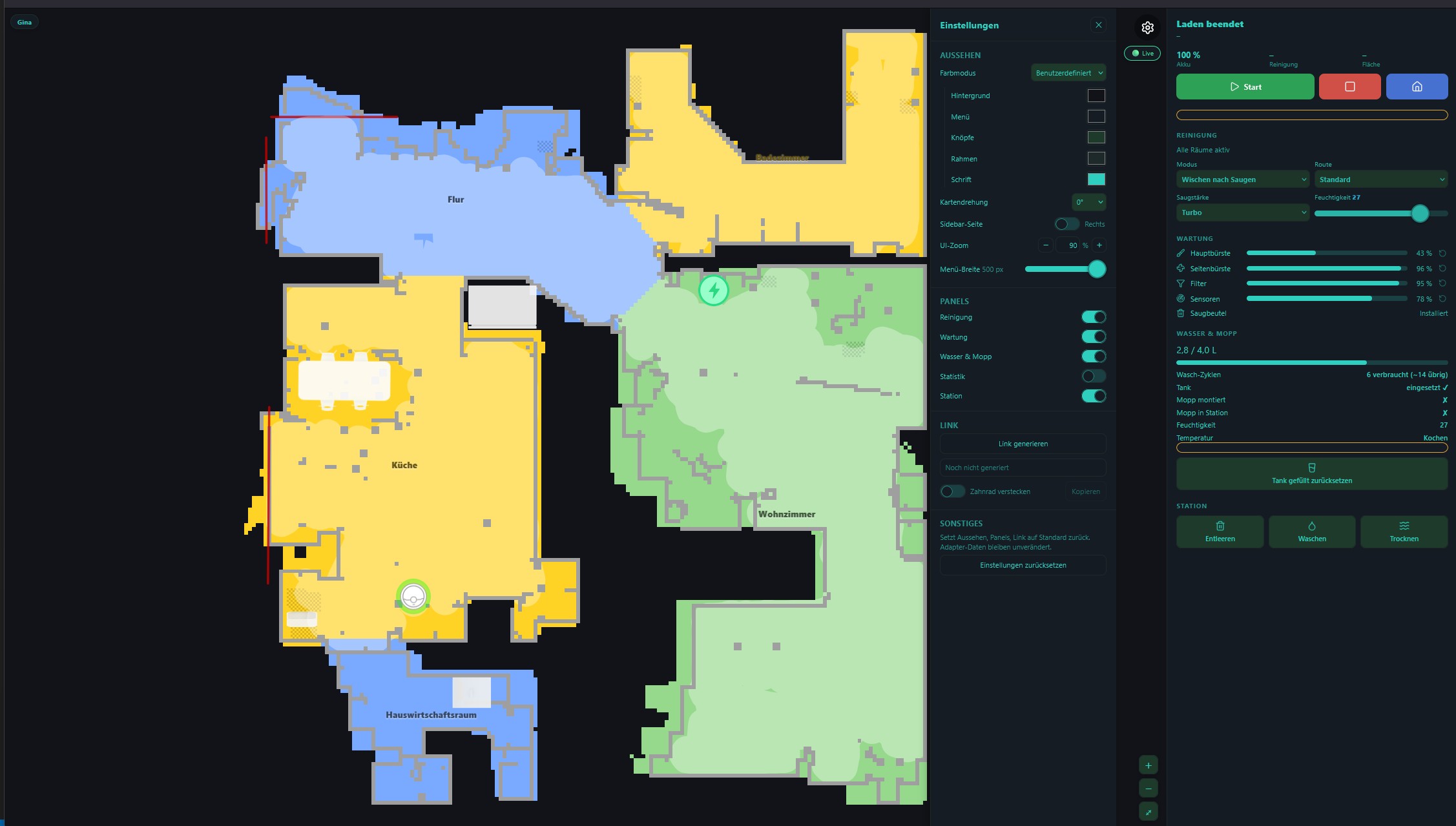
Der Adapter bringt eine eigene Live-Karte mit: Roboterposition und -richtung, Reinigungspfad, Räume, Zonen, Möbel und Teppiche werden in Echtzeit während der Reinigung aktualisiert, und zwar bei jeder Steuerung des Roboters. Dieselbe Ansicht erscheint an vier Stellen und basiert auf demselben Code:
| Wo | Wie öffnet man es? |
|---|---|
| Webseite | %web_protocol%://%ip%:%web_port%/dreame/ z.B. http://<your-iobroker>:8082/dreame/ Diese Funktion wird vom Webadapter bereitgestellt. Ein vorgefertigter Link („Dreame-Map“) befindet sich auf der ioBroker-Startseite und neben dieser Instanz in der Adapterliste. Er kann als iFrame in vis, Grafana oder einem beliebigen Dashboard eingebettet werden. |
| Admin-Registerkarte | „Traum“ im linken Menü des Administrators. |
| Geräte-App | Die Kachel "Dreame robot" für ioBroker.devices: Status oder Karte auf der Kachel, die vollständige Ansicht in einem Dialog. |
| vis-2 | Das „Dreame robot“-Widget: Status oder Karte mit der vollständigen Ansicht in einem Dialog oder die vollständige Ansicht im Widget selbst. |
Aufstellen
- Die Option „Karte abrufen“ muss aktiviert sein (siehe Konfiguration ) – ohne sie wird keine Karte angezeigt.
- Falls noch keine Karte angezeigt wird, starten Sie den Adapter einmal, während sich der Roboter in seiner Dockingstation befindet, damit die erste vollständige Karte geladen werden kann.
- Mehrere Roboter: Ein Geräteumschalter erscheint in der Kopfzeile, oder wählen Sie einen aus mit
?did=<did>Eine weitere Adapterinstanz:?instance=1Die - Eine von einer anderen Stelle geöffnete Seite – eine Datei auf einem Tablet – findet ioBroker mit
?iob=http://<your-iobroker>:8082Der Browser merkt sich das.
Kamera-/VSLAM-Roboter werden nicht unterstützt. Geräte, die per Kamera statt per Lidar navigieren (z. B. Mijia 1C/1T, Dreame F9), sind in der Karte nicht enthalten – sie wurde ausschließlich für Lidar-Roboter entwickelt und getestet. Der Adapter gibt eine Warnung aus, und die Karte bleibt für diese Geräte leer.
Merkmale
- 2D- und 3D-Karte; Etagenauswahl für Roboter mit mehreren gespeicherten Karten
- Tippe auf die Räume, um sie auszuwählen. Starte dann die Reinigung nur dieser Räume, ansonsten wird das gesamte Haus gereinigt. Eine Reinigungsreihenfolge kann ebenfalls durch Antippen festgelegt werden.
- Roboter und Dockingstation mit den Symbolen und Statusanzeigen von Home Assistant; der Roboter fährt seiner Route entlang, anstatt zwischen Kartenaktualisierungen zu springen.
- Sperrzonen und Wischverbotszonen, virtuelle Wände, Vorhänge, Möbel und Teppiche auf der Karte
- Bedienfelder: Status, Störungen, Reinigung, Bestellung, Station, Wasser & Wischmopp, Schnellzugriffe, Zeitpläne, Wartung, Statistiken – ein Rasenmäher zeigt nur das an, was für ihn relevant ist.
- 11 Sprachen, entsprechend der ioBroker-Systemsprache
Einstellungen
Hinter dem Zahnrad, das pro Roboter gespeichert ist <did>.config.widget - sie gelten also überall dort, wo der Roboter gezeigt wird:
- Kartendrehung, Seitenleiste links oder rechts, UI-Zoom, Seitenleistenbreite
- Jedes Bedienfeld kann ein- oder ausgeschaltet sein, und einzelne Zeilen oder Schaltflächen darin; Verknüpfungen werden durch ein Augensymbol neben jedem Bedienfeld ausgeblendet, während die Einstellungen geöffnet sind.
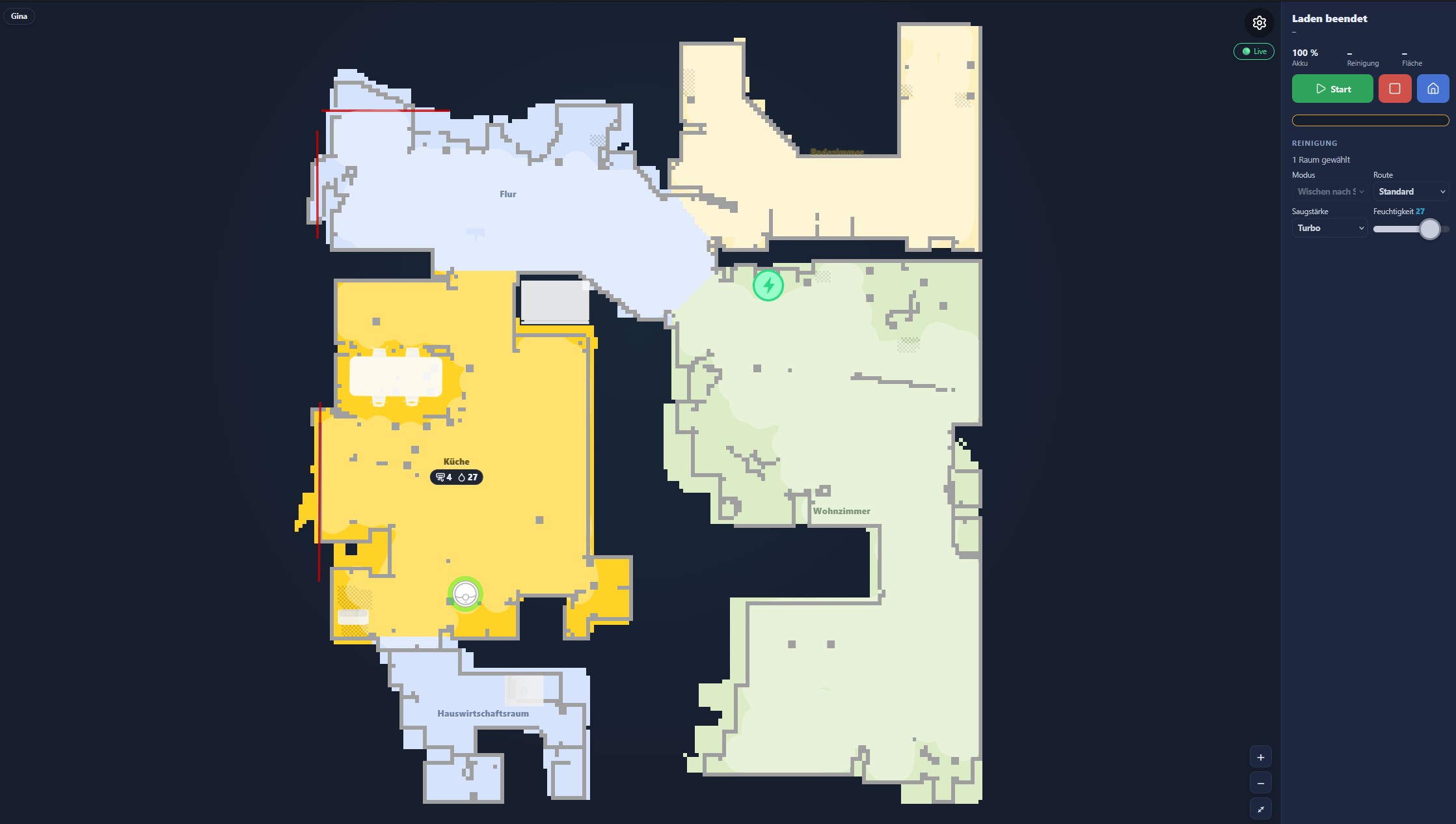
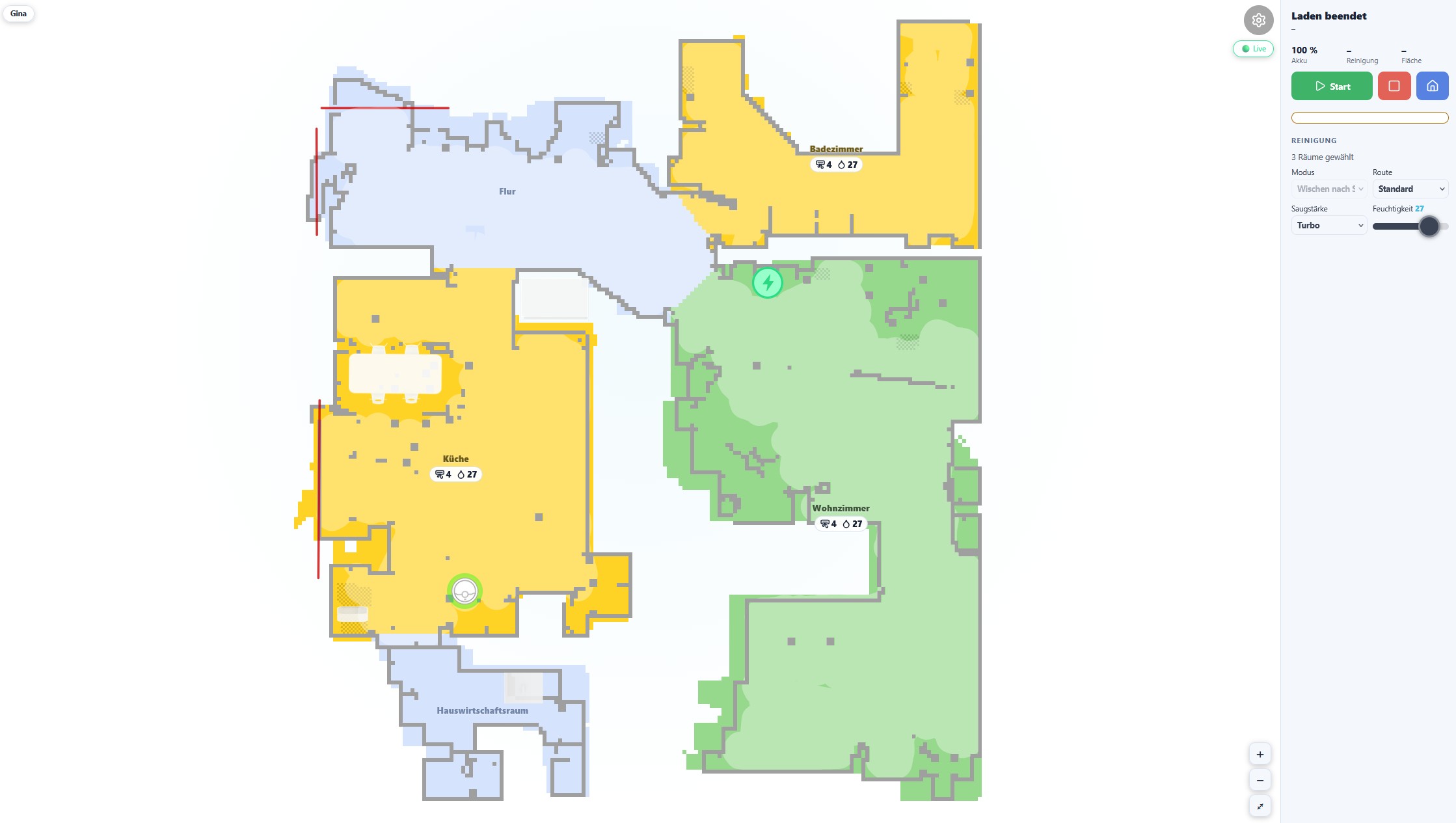
- Auf der Webseite werden auch die Farben in vier Modi angezeigt:
| Modus | Beschreibung |
|---|---|
| Licht | Festes helles Design |
| Dunkel | Dunkles Design (Standard) fest eingestellt |
| Hauptfarbe | Wählen Sie eine Grundfarbe; Seitenleiste, Rahmen und Text werden automatisch davon abgeleitet, wobei ein Kontrastcheck erfolgt, damit der Text immer lesbar bleibt. |
| Brauch | Fünf individuell wählbare Farben (Hintergrund, Seitenleiste, Schaltflächen, Rahmen, Text) für volle Kontrolle |
 |
 |
Kiosk-/iFrame-Beispiel
Die Einstellungen der Webseite können das aktuelle Erscheinungsbild in einen Link einbinden (?cfg=<blob>); ?gear=0 Verbirgt das Zahnrad, für schreibgeschützte Displays wie Wandtablets:
http://<your-iobroker>:8082/dreame/?gear=0&cfg=<blob>
Der Link betrifft nur den jeweiligen Browsertab oder die jeweilige Einbettung – die für den Bot gespeicherten Einstellungen werden nicht überschrieben. Links, die über die vorherige Weboberfläche erstellt wurden, funktionieren weiterhin.
Rasenmäher (A2, A2 1200, ...)
Der Adapter unterstützt Dreame-Mähroboter mit dedizierten Zuständen und Kartendarstellung. Zustände werden verzögert erstellt – nur die vom Gerät tatsächlich gemeldeten Eigenschaften erscheinen im Objektbaum.
Mäherstatus
| Zustand | Beschreibung |
|---|---|
| Status | Mäherstatus (1=Mähen, 2=Standby, 3=Pausiert, 5=Kehrt zurück, 6=Wird geladen, 11=Kartierung, 13=Geladen, 14=Aktualisierung) |
| Fehler | Fehlercode |
| Akkustand | Akkuprozentsatz |
| Ladezustand | Ladezustand |
| Arbeitsmodus | Aktueller Arbeitsmodus |
| Mähzeit | Aktuelle Mähzeit (min) |
| Mähfläche | Aktuell gemähte Fläche (m²) |
| Aufgabenstatus | Aufgabenstatus |
| Fehler | Fehlerdetails |
| Warnstatus | Warnstatus |
| Einstellungen aktualisieren | Einstellungen werden über MQTT (2-51) geändert. Wert: [en,hours] =Regen 0/1 =Frost, [en,start,end] =Niedrige Geschwindigkeit |
| Zonenstatus | Zonenmähstatus pro Bereich |
| KI-Hindernisse | KI hat Hindernisse erkannt |
| Selbstprüfung | Selbsttest-Diagnoseergebnis |
| Gesamtmähzeit | Gesamte Mähzeit (min) |
| Gesamtzahl der Mähvorgänge | Gesamtzahl der Mähvorgänge |
| Gesamtmähfläche | Gesamte gemähte Fläche (m²) |
| Regenschutz | Regenschutzeinstellungen (WRP): [enabled, wait_hours, sensitivity] |
| Frostschutz | Frostschutz (FDP): 0 = aus, 1 = ein |
| niedrige Geschwindigkeit | Nachtmodus mit niedriger Geschwindigkeit (NIEDRIG): [enabled, start_min, end_min] |
| dnd-Einstellungen | Nicht stören-Einstellungen (DND): [enabled, start_min, end_min] |
| Batteriekonfiguration | Batteriekonfiguration (BAT): [return%, max%, charge_en, ?, start, end] |
| Volumen | Lautstärke (VOL): 0-100 |
| Kindersicherungskonfiguration | Kindersicherung (CLS): 0 = aus, 1 = ein |
| ai-obstacle-cfg | KI-Hindernisvermeidung (AOP): 0 = aus, 1 = ein |
| Diebstahlsicherung | Diebstahlsicherung (STUN): 0 = aus, 1 = ein |
| Scheinwerfer | Scheinwerfereinstellungen (LIT): [enabled, start, end, l1, l2, l3, l4] |
| Rasenschutz | Rasenschutz (PROT): 0=aus, 1=ein |
| Klingenstunden | Betriebsstunden des Rotorblatts (max. 100 h) |
| Klingengesundheit | Klingengesundheit 0-100% |
| Bürstenstunden | Betriebsstunden der Bürste (max. 500 h) |
| Zähnepflege | Zustand der Zahnbürste 0-100 % |
| Roboter-Wartungsstunden | Wartungsstunden für den Roboter (max. 60 Stunden) |
| Roboterwartung und -gesundheit | Roboterwartungszustand 0-100% |
| Kollisionsvermeidung | Kollisionsvermeidung (AutoSwitch LessColl): 0 = aus, 1 = ein |
| Aufhelllicht | Fülllicht (AutoSwitch FillinLight): 0=aus, 1=ein |
| Clean-Genie | CleanGenius (AutoSwitch SmartHost): 0=Aus, 1=Routine, 2=Tiefenreinigung |
| Reinigungsroute | Reinigungsroute (AutoSwitch CleanRoute): 1=Standard, 2=Intensiv, 3=Tiefenreinigung, 4=Schnellreinigung |
| breitere Ecken | Größere Eckabdeckung (AutoSwitch MeticulousTwist): 0=Aus, 1=Hohe Frequenz, 7=Niedrige Frequenz |
| Bodenrichtung | Reinigung in Bodenrichtung (AutoSwitch MaterialDirectionClean): 0=aus, 1=ein |
| Haustierorientiert | Reinigung speziell für Haustiere (AutoSwitch PetPartClean): 0 = aus, 1 = ein |
| automatisches Laden | Automatisches Laden (AutoSwitch SmartCharge): 0 = aus, 1 = ein |
| Schnitthöhe | Schnitthöhe in mm (VOR) |
| Hindernisdistanz-Konfiguration | Hindernisabstand in mm (PRE) |
| Mähmodus | Mähmodus (PRE): 0 = Standard, 1 = Effizient |
| Richtungsänderung | Richtungsänderung (PRE): 0=automatisch, 1=aus |
| Kantenmähen | Kantenmähen (VOR): 0=aus, 1=ein |
| Kantenerkennung | Kantenerkennung (PRE): 0=aus, 1=ein |
Positions- und Aufgabendaten (Binärprotokoll, live)
Diese Zustände werden aus binären MQTT-Nachrichten befüllt und verzögert erstellt – sie erscheinen erst, nachdem der Rasenmäher seine erste binäre Aktualisierung gesendet hat.
Aus dem Roboterpositionspaket (SIID 1-5):
| Zustand | Beschreibung |
|---|---|
| Roboterposition | Aktuelle Roboterposition (JSON): {"x":..., "y":..., "angle":...} |
| Mähfortschritt | Aktueller Aufgabenfortschritt (%) |
| gemähte Fläche | Im Rahmen der aktuellen Aufgabe fertiggestellte Fläche (m²) |
| Gesamtmähfläche-Aufgabe | Geplante Gesamtfläche für die aktuelle Aufgabe (m²) |
| Mähaufgabe | Vollständige Aufgabendaten im JSON-Format: {regionId, taskId, percent, total, finish} |
Aus dem Gerätetelemetriepaket (SIID 1-1):
| Zustand | Beschreibung |
|---|---|
| Dockposition | Dock-/Ladeposition JSON: {"x":..., "y":..., "angle":...} (wird beim Andocken aktualisiert) |
| Andockzustand | IN_STATION / OUT_OF_STATION / PAUSE_DOCKING / FINISH_DOCKING / DOCKING_FAILED / DOCKING_IN_BASE |
| Standort-Status | Standortstatus (0–3) |
| Akkustand-Live | Aktueller Akkustand (%) aus der binären Telemetrie |
| Lade-Live | Ladezustand: 0 = Lädt nicht, 1 = Lädt |
| WLAN-RSSI | WLAN-Signalstärke (dBm) |
| LTE-RSSI | LTE-Signalstärke (dBm) |
| ble-rssi | Bluetooth-Signalstärke (dBm) |
| Fehlercode-Binär | Roher Fehlercode aus der binären Telemetrie |
| Pin-Zustand | Pin-Status (0/1) |
| Abdocken | Abdocken-Flag (0/1) |
| Kamerazustand | Kamerastatus |
Mäherfernbedienung
| Zustand | Beschreibung |
|---|---|
| Start-Mähen | Mähvorgang starten (Taste) |
| Stoppmähen | Mähen stoppen (Taste) |
| Pause-Mähen | Mähvorgang unterbrechen (Taste) |
| Anlaufgebühr | Zurück zum Dock (Schaltfläche) |
| Start-Mähen-Ext. | Benutzerdefiniertes Mähen starten (Zonen-/Segmentreinigung mit Parametern) |
| klare Warnung | Warn-/Fehlerstatus löschen (Schaltfläche) |
| Hindernisvermeidung | Hindernisvermeidung ein/aus |
| KI-Erkennung | KI-Erkennung ein/aus |
| Kindersicherung | Kindersicherung ein/aus |
| dnd-enable | Bitte nicht stören ein/aus |
| dnd-start / dnd-end | DND-Zeitbereich |
| Zeitplan | Mähplan |
| Regenschutzset | Regenschutz einstellen: {"value":1,"time":8,"sen":0} oder {"value":0} |
| Frostschutz einstellen | Frostschutz einstellen: 0 = aus, 1 = ein |
| niedrige Geschwindigkeit einstellen | Nachts niedrige Geschwindigkeit einstellen: {"value":1,"time":[1200,480]} oder {"value":0} |
| set-dnd | Nicht stören aktivieren: {"value":1,"time":[1200,480]} oder {"value":0} |
| set-child-lock | Kindersicherung einstellen: 0 = aus, 1 = ein |
| Lautstärke einstellen | Lautstärke einstellen: 0-100 |
| set-ai-obstacle | KI-Hindernisvermeidung einstellen: 0 = aus, 1 = ein |
| Diebstahlschutz einstellen | Diebstahlsicherung einstellen: 0 = aus, 1 = ein |
| Scheinwerfer einstellen | Scheinwerfer einstellen: {"value":1,"time":[480,1200],"light":[1,1,1,1]} |
| set-path-display | Pfadanzeige einstellen: 0=aus, 1=ein |
| Rasenschutz einstellen | Rasenschutz einstellen: 0 = aus, 1 = ein |
| Verbrauchsmaterialien zurücksetzen | Verbrauchsmaterialien zurücksetzen: {"value":[0,brush,robot]} |
| Roboter finden | Roboter finden (Ton abspielen, Knopf drücken) |
| Schlossroboter | Roboter sperren (Taste) |
| fetchMap | Karte vom Gerät abrufen (Schaltfläche) |
| generate-3dmap | 3D-LIDAR-Karte generieren (Schaltfläche) |
| benutzerdefinierter Befehl | Benutzerdefinierten MIoT-Befehl senden |
| Kollisionsvermeidung einstellen | Kollisionsvermeidung einstellen (AutoSwitch): 0 = aus, 1 = ein |
| Aufhelllicht einstellen | Fülllicht einstellen (AutoSwitch): 0 = aus, 1 = ein |
| set-clean-genius | CleanGenius einstellen (AutoSwitch): 0=Aus, 1=Routine, 2=Tiefenreinigung |
| Reinigungsroute einrichten | Reinigungsprogramm einstellen (AutoSwitch): 1=Standard, 2=Intensiv, 3=Tiefenreinigung, 4=Schnellreinigung |
| automatisches Laden einstellen | Automatisches Laden einstellen (AutoSwitch): 0 = aus, 1 = ein |
| Schnitthöhe einstellen | Schnitthöhe in mm einstellen (VOR) |
| Mähmodus einstellen | Mähmodus einstellen (VOREINSTELLUNGEN): 0 = Standard, 1 = Effizient |
| Kantenmähen | Kantenmähen einstellen (VOR): 0=aus, 1=ein |
| Kantenerkennung | Kantenerkennung einstellen (PRE): 0=aus, 1=ein |
| Richtungsänderung festlegen | Richtungsänderung einstellen (VORHERIGUNG): 0=automatisch, 1=aus |
| mow-all | Alle Bereiche mähen (Schaltfläche, o=100) |
| Mähzone | Ausgewählte Zonen mähen — CSV "1,3" oder JSON "[1,3]" (o=102) |
| Mähplan | Starten Sie den Mähvorgang gemäß gespeichertem Plan (Schaltfläche, o=104). |
| Mäh-Hindernis-Scan | Hinderniserkennungslauf (Taste, o=105) |
| Mähkante | Mähkontur: JSON {"edge":[[x,y],...]} (o=101) |
| Mähfleck | Mähbereich: JSON {"area":{...}} (o=103) |
| Mäh-Änderungs-Karte | Aktive Karte wechseln (Nummer, 0-basierter Index, o=200) |
Mähen bestimmter Zonen
Jede auf der Karte definierte Mähfläche wird als eigener Kanal dargestellt unter dreame.0.<did>.mower.map.slot<X>.zone<zoneId> Öffnen Sie den Objektbrowser von ioBroker, navigieren Sie zu Ihrem Rasenmäher und dann zu mower.map und Sie werden einen sehen slot0, slot1, ... pro gespeicherter Karte. Jeder Speicherplatz enthält eine zone<N> Kanal pro Mähfläche – zum Beispiel slot0.zone1, slot0.zone3 Innerhalb jeder Zone findet man name (wie in der App angezeigt), area (m²), time, Und path Die
Der **numerische Teil nach zone ** ist die Zonen-ID, die Sie schreiben remote.mow-zone Wenn der Baum also so aussieht:
dreame.0.<did>.mower.map.slot0.zone1     name = "Front lawn"
dreame.0.<did>.mower.map.slot0.zone3     name = "Back lawn"
dreame.0.<did>.mower.map.slot0.zone5     name = "Side strip"
Dann:
Einzelzone – Rasenmähen „Vorgarten“:
dreame.0.<did>.remote.mow-zone = "1"
Mehrere Zonen – Mähen Sie „Vorderrasen“ + „Hinterrasen“ + „Seitenstreifen“:
dreame.0.<did>.remote.mow-zone = "1,3,5"
Das JSON-Format funktioniert auch – nützlich für Blockly- oder JavaScript-Skripte:
dreame.0.<did>.remote.mow-zone = "[1,3,5]"
Blockly / JavaScript-Adapter-Beispiel:
setState('dreame.0.' + did + '.remote.mow-zone', '1,3', false);
Der Mäher analysiert die Liste, beginnt mit dem Mähen der ausgewählten Bereiche und kehrt nach Abschluss des Mähvorgangs zur Ladestation zurück. Um den Mähvorgang mittendrin zu stoppen, drücken Sie stop-mow (o=2) oder pause-mow (o=4). Zuerst werden die Karten gewechselt (mow-change-map) ist erforderlich, wenn sich die Zielzonen auf einer anderen Karte befinden – andernfalls können die Zonen-IDs nicht aufgelöst werden.
Wechseln der aktiven Karte
Verfügt der Mäher über mehrere Karten, wählen Sie die aktive Karte aus, bevor Sie die Zonen-IDs schreiben:
dreame.0.<did>.remote.mow-change-map = 0   // first map
dreame.0.<did>.remote.mow-change-map = 1   // second map
Rasenmäher-Abkürzungen
Verknüpfungen werden aus den Eigenschaften 4-48 (Base64-kodierte Namen) extrahiert. Jede Verknüpfung erhält einen eigenen Kanal unter deviceId.shortcuts.{id}:
| Zustand | Beschreibung |
|---|---|
| Name | Entschlüsselter Abkürzungsname |
| läuft | Ob die Verknüpfung gerade ausgeführt wird |
| Start | Schaltfläche zum Starten der Verknüpfung |
Geschichte der Rasenmäher
Der Reinigungsverlauf wird über die Cloud-API abgerufen (letzte 20 Mähvorgänge).
| Zustand | Beschreibung |
|---|---|
| Datum des letzten Mähens | Datum der letzten Mähsitzung |
| letzte Mähdauer | Dauer der letzten Sitzung (Minuten) |
| Bereich des letzten Mähens | In der letzten Sitzung gemähte Fläche (m²) |
| letzter Mähvorgang abgeschlossen | Ob die letzte Sitzung erfolgreich abgeschlossen wurde |
| history-json | JSON-Array der letzten 20 Sitzungen |
Mäherkarte
Die Kartendaten werden über die Dreame iotuserdata API abgerufen (nicht über MQTT wie bei Staubsaugern).
| Zustand | Beschreibung |
|---|---|
| Kartenbild | Gerenderte Karte als PNG (base64-Daten-URL) |
| Slot0.Zone_X | Zonendaten (Name, Bereich, Mähzeit) |
| Mähpfad | Rohkoordinaten des Mähpfads |
| Einstellungen | Mäheinstellungen pro Zone |
| Zeitplan | Mähplan |
| 3dmap-URL | URL zum Herunterladen der 3D-LIDAR-Karte (vorab signiert) |
| 3dmap-progress | Fortschritt der 3D-Kartengenerierung (0-100%) |
Kartenabfrage: Die Karte wird beim Start des Adapters und über die fetchMap Taste. Während des aktiven Mähvorgangs (Status 1, 3, 5, 11) wird die Karte automatisch alle 30 Sekunden abgefragt, um den Mähpfad zu verfolgen.
Kartendarstellung: Erfordert die optionale canvas npm-Paket. Die Karte zeigt Zonen (grün), Konturen (weiße Umrisse), Mähwege (gelb), verbotene Bereiche (rot) und Hindernisse (rote Kreise).
3D-LIDAR-Karte: Presse generate-3dmap um den Mäher zum Scannen und Hochladen einer 3D-Punktwolkenkarte zu veranlassen. Die heruntergeladene Datei ist eine PCD-Datei (Punktwolkendaten), die mit Tools wie CloudCompare oder MeshLab angezeigt werden kann. Der Fortschritt wird verfolgt in 3dmap-progress Nach Abschluss des Vorgangs wird die vorab signierte Download-URL geschrieben an 3dmap-url Die URL ist temporär und läuft nach einigen Stunden ab.
Benutzerdefinierte Befehle für den Rasenmäher
Über dreame.0.XXXXXX.remote.customCommand:
{
  "siid": 5,
  "aiid": 9,
  "in": [{ "order": 4, "region": [1], "type": "order" }]
}
Bekannte Einschränkungen
Der Objektbaum füllt sich schrittweise (verzögerte Zustandserstellung). Zustände werden erst angezeigt, wenn das Gerät die entsprechende Eigenschaft mindestens einmal gemeldet hat. Nach einer Neuinstallation oder einem Neustart des Adapters kann der Baum einige Minuten lang unvollständig erscheinen – dies ist das erwartete Verhalten.
L40s Pro Ultra und ähnliche Geräte: Einige Zustände erscheinen erst nach aktiver Nutzung. Eigenschaften in der SIID 4-Gruppe (cleaning-mode 4-23, suction-level 4:4, water-volume 4-5) und SIID 28 (wetness-level 28-1) kann vom Gerät nur nach einer aktiven Reinigungssitzung, nicht aber während der Leerlaufabfrage, ausgelöst werden. Diese Zustände werden erst angezeigt, nachdem mindestens ein Reinigungszyklus nach der Installation oder dem Neustart des Adapters abgeschlossen wurde.
** cleaning-mode Bei einigen** Geräten, darunter auch dem L40s Pro Ultra, konnten in Versionen vor 0.3.18 anstelle des dokumentierten Bereichs von 0–3 Rohwerte (z. B. 5120, 5121, 5122) angezeigt werden. Dies lag daran, dass der Adapter einen zusammengesetzten Wert, der Modus, Fläche und Luftfeuchtigkeit in einer einzigen Ganzzahl kombiniert, nicht dekodieren konnte. Seit Version 0.3.18 wird dieser Wert korrekt dekodiert. Sollten nach dem Update weiterhin Rohwerte über 1000 angezeigt werden, melden Sie bitte ein Problem mit Angabe Ihres Gerätemodells und des angezeigten Rohwerts.
Übersetzungen
Staatsnamen und -beschreibungen sind in 11 Sprachen verfügbar: Englisch, Deutsch, Russisch, Portugiesisch, Niederländisch, Französisch, Italienisch, Spanisch, Polnisch, Ukrainisch und Chinesisch (vereinfacht).
lib/i18n/en.json ist die maßgebliche Quelle. Alle anderen Sprachen werden daraus generiert. npm run translate Korrekturen an nicht-englischen Übersetzungen sollten als Pull Requests (PRs) für die jeweilige Übersetzung eingereicht werden. lib/i18n/<lang>.json Datei.
Credits
- TA2k – Inhaber des Repositorys und ursprünglicher Entwickler des Adapters
- RicardoHipp – Original-Kartenrenderer. Die Kartendarstellung dieses Widgets basiert auf diesem Renderer (MIT-Lizenz).
- Sefina-DS (David) – Mitentwickler, Widget-Neuentwicklung, Live-Tests
- Community – krobipd, flapman, volvodani und alle anderen, die Probleme melden und Geräte testen
Changelog
WORK IN PROGRESS
- Live map widget: fix "no connection" when the web adapter is configured for pure WebSockets (ioBroker.ws) instead of socket.io. Under
/socket.io/socket.io.jsthe web adapter serves one of two different client libraries depending on its instance configuration: the real socket.io client, which exports a callableio(url, opts), or the shim from@iobroker/ws-server-library, which only exposesio.connect(url, opts). The widget calledio(...)unconditionally, so on a ws setup it died with "io is not a function" before the first request — and becauseverbinden()swallowed that error without logging it, the only visible symptom was the generic "Is the web adapter running?" message, pointing the user at an adapter that was working fine. The data layer (www/js/core/daten.js) now picks whichever entry point the loaded client actually offers, additionally listens for the shim'serrorevent alongside socket.io'sconnect_error, and logs the real cause to the browser console. Everything above the connection is unaffected — both setups speak the same command set from@iobroker/socket-classes, sogetState/getStates/getObject/getObjects/setState/subscribeand thestateChangeevent work unchanged. - New admin tab (foundation): the adapter now registers an admin tab (
common.adminTab), so Dreame appears in the ioBroker admin's left-hand sidebar alongside the existing web-adapter widget, which is untouched and keeps working. This first step lays the groundwork rather than replacing anything: a React/TypeScript/Vite project undersrc-tab/that builds intoadmin/tab.html, a narrow seven-method connection interface over the admin's own socket (so views can be tested without a socket, an admin or a browser), device discovery frominfo.deviceswith the same selection rules the widget uses, a typed decoder for themap.mergedCloudpackage, and a pure floor renderer that reproduces the Home Assistant colour scheme — including the exact order its colour rules are applied in, which decides what a room hidden during a running job looks like. The decoder and the renderer return plain data rather than drawing anything, so the planned 3D view can reuse both as-is. 59 tests cover the decoder, the renderer and the device list. Build withnpm run tab:build. - Admin tab: room labels on the map, using the same three-step naming rule as the widget and Home Assistant's
set_name()— a room type chosen in the app wins and is numbered from the second room of that type onwards, otherwise the free-text name from the app, otherwise "Room ". Unlike the widget, whose room-type table is hard-coded German regardless of the user's language, the types are translatable here. The tab also reports when the map raster holds several blocks that sit far apart, which is what a robot with more than one stored map looks like when all of it is drawn at once. - Admin tab: the driven path is drawn, as the two trails Home Assistant uses — a thin vacuum line and a wide, semi-transparent mopping band, with a section that does both appearing in each, which is what makes a vacuum-and-mop run recognisable. The line lifts at every repositioning instead of dashing straight across the home. The world-to-image conversion follows Home Assistant's exact term rather than the shorter-looking one that puts every point about a cell off. The playhead animation and the mask that clips the mopping band to room areas, both present in the widget, are refinements on top of these paths and are not ported yet.
- Admin tab: status header with the robot's current state, battery, cleaned area and run time, plus Start, Stop and Return-to-dock. The 70 status codes and their texts are the widget's own table, reused so both views name the same state identically and the existing translations in all 11 languages apply; a code the table does not know shows as a bare number rather than a guessed label, so it can be quoted in an issue. Commands are state writes to the same triggers the widget uses, and a write that fails now says so instead of leaving a button that appears to do nothing.
- Admin tab: the sidebar panels — cleaning (mode, route, suction, wetness), station (empty, wash, dry), water and mop, maintenance and lifetime statistics. The route list narrows with the mode, because intensive and deep are mopping intensities the robot ignores while it is only vacuuming; offering them would offer a setting that does nothing. A panel whose states the device does not report renders nothing at all rather than a heading over empty rows, so a mower or a basic model shows a shorter column. Wear parts can be reset after a replacement, from a deliberately small control — it changes nothing physical, and doing it by accident quietly costs the user the warning they were relying on. Every panel's labels reuse the widget's existing translation keys, and a test pins that each key named actually exists in the language files, since a missing one would render as the key itself in all 11 languages.
- Admin tab: shortcuts and schedules. Shortcuts run from one button each, with a running one disabled so a second run cannot be queued on top of the first. Schedules are listed by time with their rooms and settings, and each has a switch; one pointing at a shortcut that no longer exists is shown with its switch locked, because arming a schedule that cannot run helps nobody. The kind of a schedule is worked out from which fields the adapter created, not from its
typestate: that state arrives already translated, so branching on it works in German and silently fails everywhere else — the same trap the widget documents having fallen into. Moisture is printed as the level it is, 1 to 32, rather than as a percentage it is not. - Admin tab: fault list and cleaning sequence. Faults and warnings sit at the top of the sidebar and render nothing at all when there is nothing wrong — a panel that is usually empty is read at a glance, whereas one that always says something has to be read properly every time. The four conditions Home Assistant suppresses are suppressed here too, including a low battery while charging, which is what charging is for. An error code the 136-entry table does not know is shown as a bare number rather than a guessed label, so it can be quoted in an issue. The cleaning sequence is edited on the map: tapping a room selects it and appends it to the order, tapping it again removes it, and the numbered badges show the order. A tap writes the new order and changes nothing locally, so what is drawn is always what the adapter holds — the same state can be written by a script or a second browser tab.
- Admin tab: fix three commands whose state ids were missing their device — starting a shortcut, switching a schedule and writing the cleaning sequence all wrote to a malformed id and therefore did nothing. The commands that build an id themselves, rather than going through the shared trigger helper, are now each pinned by a test.
- Admin tab: zoom and pan on the map — mouse wheel, drag, and buttons for in, out and fit, bottom right where the widget puts them. Zooming holds the point under the cursor still, so zooming into a corner does not walk it off the screen, and panning stops at the map's own edges instead of letting it drift into empty space. Room labels and sequence badges keep a constant size on screen, so zooming in shows more map rather than larger words. A press that barely moves still counts as a tap on a room, which is what makes editing the cleaning sequence workable on a touch screen. Switching to a different map returns to the fitted view rather than leaving the user in a corner of a floor they have not seen.
- Admin tab: 3D map view, switchable from a 2D/3D toggle beside the device name. The floor is the same bitmap the 2D canvas draws, used directly as a texture; the walls are extruded from the occupancy grid; furniture stands at its measured footprint and angle; no-go and no-mop zones lie flat on the floor because they are rules about the floor rather than objects in the room, and virtual walls stand up because they are barriers. Nothing extra is fetched — it is the same map package the 2D view already decodes, so switching costs the robot and the adapter nothing. Wall cells are merged into rectangles before extrusion rather than drawn one cube per cell: a 200 m² flat holds thousands of wall cells, and per-cell extrusion is both slow and reads as gravel instead of as a wall. Heights are the one thing not measured — the robot is a floor-level lidar and reports outlines, never elevations — so the furniture heights are ordinary real-world ones, chosen to make the view readable, and the wall height is the robot app's own 500 mm rather than a real wall. Furniture is drawn as bodies rather than models: the app's models sit inside the app package, and shipping them would mean redistributing Dreame's assets. three.js loads in a chunk of its own on the first switch, so an admin session that only ever opens the 2D map does not download it.
- Admin tab: fix washed-out room colours in 3D and draw the cleaning path on the 3D floor. The colours were a colour-space slip, not a lighting problem: three.js renders to sRGB, and a texture that does not declare its own space is treated as linear and brightened a second time on the way out. The floor texture is now composed on a canvas — the room bitmap with the same path strokes the 2D view draws over it, from the same path data, so the two views cannot disagree about where the robot has been.
- Admin tab: 3D framing, orientation and room labels. The camera now looks at the map straight on rather than from a corner, so it keeps the left-to-right orientation it has in 2D and the same flat is recognisable when switching between the two; a corner view looks more three-dimensional and makes that harder. Framing is computed from the actual window shape on every resize instead of once at startup, since a tall narrow window and a wide short one need very different distances for the same map — but only until the user first orbits, after which the camera is theirs and a resize no longer snatches it back. Rooms are labelled in 3D as well, as sprites that face the camera from every angle, and both views now take their names from one place so they cannot drift apart.
- Admin tab: furniture in 3D is drawn from parts instead of a single block — a bed is a mattress with a headboard and pillows, a table is a top on four legs, a sofa has a back and two arms, a plant is foliage over a pot. All 30 furniture types the map can report have a shape, and a type without one still appears as a block at the measured size rather than not at all. What stays measured is the footprint, the position and the angle, all from the robot; what each piece looks like is drawn from scratch here, which is a deliberately weaker claim. No model files from the Dreame app are used — those live inside the app package, and shipping them would mean redistributing Dreame's assets. The parts of every piece are pooled into two instanced meshes, so a flat of thirty pieces is two draw calls rather than hundreds of objects.
- Admin tab: fix the blurred cleaning path in 3D. The floor texture held one texel per map cell, so the vacuum line — 1.1 cells wide — was a single texel, and on a floor seen at an angle the GPU averaged it into the room colour behind it; the 2D view, drawing the same line as a vector at screen resolution, showed it crisp. The texture is now drawn at up to eight texels per cell, bounded by the GPU's largest texture and a memory budget so a large flat on a phone does not ask for hundreds of megabytes, and it uses anisotropic filtering, which keeps thin lines thin on a surface seen at a slant. The rooms are enlarged without smoothing, so their cell edges stay as hard as before.
- Admin tab: floor selector for robots with more than one stored map. The robot's own floor is shown live — rooms, path, sequence, 2D and 3D — while any other floor is shown as the picture the adapter stores under
map.maps.<id>.image; only the floor the robot is on arrives as raw map data, so the others cannot be drawn, rotated or clicked, and the 3D switch is disabled for them with a tooltip saying why. The adapter draws those pictures when it starts, so a change made in the app to a floor the robot is not on appears after its next start. The map header's floor id and charger position are now decoded as well; the floor id is what tells which stored map the robot is on. - New widgets for the devices app (ioBroker.devices) and for vis-2, both built from the same views as the admin tab. The devices tile shows the robot's status on the small sizes and its map on a 2x2 tile — or whichever of the two is picked in its settings — together with the floor the map should show; a click opens the full view in a dialog, 2D or 3D with the floor selector and every panel. The vis-2 widget offers the same two displays and a third that puts the full view straight into the widget, without a dialog, for a view built around the robot. All of them lay themselves out by the size of the widget rather than of the screen, so a narrow widget stacks what a wide one puts side by side, and the dialog goes full screen on a phone. Robot and floor are picked from drop-down lists of the robots and floors there are, under the names the Dreame app gives them, rather than from the object browser, which offers every object of the installation; changing the robot clears the floor, which belonged to the old one. In the devices app these lists are json-config custom fields served from the tile's own bundle. Both widgets are captioned — a devices tile at the bottom, where the app's own tiles put their name, a vis-2 widget at the top, where a card's title sits and where the full view names the robot; in vis-2 this replaces the usual title field, which only knew a text of the user's: automatically with the robot's name — and the floor's, where the map is pinned to one, so two tiles of two floors can be told apart — or with a text of the user's, or not at all; a custom caption also titles the dialog. On a map the caption sits beside the map rather than over it, so it hides no room. Without a robot picked, they show the first robot of
dreame.0, so a widget works the moment it is placed. In the vis-2 editor the widget is inert, so it can be moved and resized without zooming the map or opening dialogs. Build withnpm run build; the bundles go toadmin/dm-widgetsandwidgets/dreame. The words of the widgets' own settings are translated into German; the other nine languages show English for now. - The web page at
/dreame/is now the same view as the admin tab and the widgets, built from the same code; the old page inwww/is gone, andwww/now holds only the build of the new one. Everything the old page could do is there - compared feature by feature, and what was missing was added to the shared view first, so the admin tab and both widgets gained it too. Its addresses and parameters keep working:?did=,?gear=0for kiosk displays,?cfg=links made with the old page, and?iob=for a page opened from elsewhere. It connects through the web adapter whether that speaks socket.io or pure websockets, and loads nothing of the admin's app frame: only the connection and the translations are taken from gui-components, which keeps the page some 500 KB lighter. The translations moved fromwww/i18ntosrc-tab/i18n. - Map: rooms are picked by tapping them, through the adapter's
remote.custom-room-cleaningswitches, and Start then cleans just those - or, with none picked, the whole home, as before. The selection is the adapter's, not the page's: a tap writes the room's switch, and the map shows the pick when it comes back, so a script, the old page and a second browser all see one selection. The pick is cleared only after the adapter has acknowledged the start, which is when it has read it; the old page cleared it straight after sending, racing the adapter. The switches of the map the robot is on are used, andactive-mapis pointed there before a start, so a pick made on one floor never starts rooms of another. Editing the cleaning order now picks the rooms with it, since the adapter follows an order only for a pick of exactly its rooms, and the order panel says so when the two part. Rooms are drawn as the old page drew them - strong colours, paled where a partial pick leaves them out - and their names in the text colour outlined in the background, readable on every room colour and in both themes. - Map: robot and dock are drawn with Home Assistant's icons, sized by the map, the robot turned to its heading, each with its status badge - cleaning, charging, sleeping or a fault on the robot; emptying, washing, drying or drying the dust bag on the dock, hot where the water is. The robot drives along its trail instead of jumping every few seconds: each new piece of trail is played back over the time until the next map arrives, the trail growing only behind the robot, which faces the way it drives and turns to its reported heading at the end; without a trail, as on the way home, it glides between reported positions and faces backwards where it reverses. Where the system asks for reduced motion, it moves at once.
- Map: no-go and no-mop zones, virtual walls, curtains, furniture pictures and carpets on the 2D map, drawn as Home Assistant draws them, including the widget's corrections for pixel-exact zone outlines and the half-grid origin of carpets; carpets as HA's checkerboard, the mopping band clipped to the rooms so it no longer spills over walls. Rooms picked for the next start, or cleaned by the running job, carry a badge with the suction level and water amount.
- Panels: the header shows battery, cleaning progress and area, the last two only while a job runs - the robot keeps no "last cleaning" figures, and a stale 29 m² read like a result - and the drying progress while the mop dries. The cleaning panel says which rooms the next start covers, locks the mode during a job, puts the route back to standard when a new mode has no place for it, and shows no route field on a robot that reports none. The station offers only what it has - no station buttons on a robot without a station - with pause and resume for a wash, and a tooltip on every greyed-out button saying why. Water & mop shows the tank as the adapter counts it, coloured and warned by its status, the tank, mop, wetness, detergent and water temperature rows, and a button to reset the counter after a refill. Maintenance turns orange at 20 % and red at 10 %, and a missing dust bag red. Schedules show their type. The connection to the Dreame cloud shows as Live, Offline or Connecting. On a mower the panels that do not apply stay away. The line between panels is no longer drawn twice where a panel has nothing to show.
- Settings behind the gear, in every view: map rotation, sidebar left or right, UI zoom, sidebar width, each panel on or off and single rows or buttons inside it - shortcuts with an eye beside each while the settings are open - and, on the web page, the four colour modes, the share link and a reset that asks twice. Stored per robot in
config.widget, in the old page's format and migration, so settings made there carry over. - Map: fix the trail, the rooms and the markers drifting apart from the floor under them wherever the map was drawn in a box of another shape - a wide, short window, or a widget sized by hand. The floor is a canvas and everything on top is an overlay, and the two were sized by different rules:
aspect-ratiowithmax-heightdoes not keep a ratio, so the browser shortened the box and left its width, the canvas stretched with it, and the overlay kept the map's true shape. The map now measures the space it is given and takes both its sides in pixels, at its own ratio, and the overlay follows the box exactly - so the two cannot disagree, and the map is never stretched. - vis-2 widget: fix a crash while rendering ("Cannot read properties of undefined (reading 'length')"). vis-2 hands a widget set its own React and MUI, but only under their bare names - and the icon package reaches for the deep path
@mui/material/SvgIcon, which that does not cover. A second MUI came into the bundle with it, and an icon given ansxwas then worked out by this bundle's MUI against the theme of vis-2's: where the two versions differ, that throws, since an older theme has nobreakpoints.internal_mediaKeys. The icons now take theirSvgIconfrom the one MUI vis-2 provides, so nothing of the widget styles against a foreign theme any more - and about 70 KB of duplicated MUI leave the bundle.@mui/systemis declared as a dependency as well, which is how a widget set tells vis-2 to share it. - vis-2 widget: captioned automatically as well - the robot's name, and the floor's where the map is pinned to one - or with a text of the user's, or not at all. The option "without card" is now called "without frame", since "card" read as the map in German.
0.4.12 (2026-09-17)
- Fix Issue #138: three robustness/functionality fixes for map handling on newer models with AES-encrypted map payloads (r2253c/w and similar). 1) A silent crash in the room-name fallback path (main.js): when the map file request failed, an unhandled TypeError showed up only as a generic error; now an early return with a clear debug message. 2) A model without an AES-IV table entry can never load its base map — this is now a persistent, recognizable condition (unsupportedMapModel) instead of the generic please-restart-the-adapter hint. 3) The old_map_data (piid 13) property, pushed specifically during active cleaning, could carry the same object_name-plus-AES-key format as the already-working piid 3 path, but was previously only logged as unimplemented and discarded; it now reuses the existing, already-verified decrypt pipeline (confirmed against the Home Assistant reference implementation), with a Debug-level log that masks the key material so it is safe to share in a public issue. Thanks to @luckyheiko for the detailed reports that made all three fixes possible.
0.4.11 (2026-09-17)
- Fix Issue #119: sync REMAP'd common metadata (name, states) to existing state objects at adapter start. In v0.4.8 the REMAP change for SIID 4/PIID 6 was correctly written to the in-memory spec but not to the persisted ioBroker objects, because _lazyCreateState only updates common.states when the cloud sends a get_properties response for that property — which may never happen for infrequently-changing properties. The frischwasser widget's mop-pad-presence detection then fell back to the pulse-only source and displayed permanent not-installed even on REMAP'd devices. A new one-time-per-device migration (_syncRemapObjectMetadata, marker .info.remapMetaSyncV2) now rebuilds the state objects with the correct metadata at adapter start. Thanks to @SilentM1978 for the diagnostic widget test that isolated the root cause to metadata persistence rather than the REMAP logic itself.
0.4.10 (2026-09-12)
- Fix: axios bumped to 1.20.0 for upstream security fixes; Node.js built-in requires now use the node: prefix (lib/haDecode.js, lib/mapMerge.js)
0.4.9 (2026-09-12)
- Fix: map.cover type-mismatch log flood during cleaning runs (#141)
0.4.8 (2026-09-12)
- Fix Issue #119 for Dreame L40s / X40 Ultra (r9419*): SIID 4 PIID 6 is remapped to reflect mop-pad presence 1:1, same as r6001a in v0.4.7, based on an isolated pad-remove/reinstall test on an r9419h device in this development cycle. Generalize the mop-in-station / mop-pad-installed fixes from v0.4.7 across all vacuum models: the permanently-0 mop-in-station property is now removed from every vacuum device's object tree at spec load time, and mop-pad-installed is renamed to mop-handling-pulse since it only emits ~1s pulses during mechanical mop handling (state id unchanged so existing user scripts keep working). The frischwasser widget's Mopp-montiert indicator now uses the mop-pad-presence state on models where the REMAP is active — visible after the first cloud poll cycle following the update. Also completes missing UI translations (Issue #122). Thanks to @SilentM1978 and @ralfheitz for confirming the pulse behavior on their devices.
0.4.7 (2026-09-06)
- New tap-to-sequence widget for custom cleaning order directly on the map with room badges, plus a fresh-water/detergent widget for L20 Ultra. Fix Issue #126: clean-water-tank-status bit-mask handling and derived Boolean states for r2253* (L20 Ultra) models. Fix Issue #119: correct mop-pad status on Dreame X60 Pro Ultra Complete (r6001a) via a new model-override layer — removes the dead mop-in-station property, renames the mop-handling pulse, and remaps SIID 4 PIID 6 to actual mop-pad presence on r6001*. Adds status codes 116/117/121/122 (Installing mop, Removing mop, Entering dock, Exiting dock) globally for all vacuum models. Thanks to @SilentM1978 for the detailed live traces that made the r6001a fix possible.
0.4.6 (2026-08-29)
- Attempted fix for issue #124 layer 4 (missing pixel raster on r2253c/r2253w): map background, walls, and room fills were not rendered even though overlays and metadata came through correctly. Adds a fallback to combined_pixel_type when the base pixel raster is empty (matching Home Assistant's renderer), and introduces permanent [MERGE-DEBUG] info-level logging (dimensions, pixel counts, wall/segment counts) so this failure mode is instantly diagnosable if it returns. Models whose base raster is already populated (e.g. r9419h) are unchanged. Thanks to luckyheiko for the pinpoint analysis.
0.4.5 (2026-08-28)
- Fix for issue #124 (Layer 3): map rendering could crash on the frontend when the device reported detected carpets with an invalid polygon field (null or malformed). Adds a filter in lib/mapMerge.js so invalid carpets never reach the frontend, a defensive guard in the carpet drawing routine in www/js/karte/merger.js, and a generic try/catch around overlay drawing so a single bad overlay never breaks the whole map rendering. The unreferenced legacy widget page www/legacy.html, which carried the same bug, is removed. Combined with 0.4.3 (comma-truncation) and 0.4.4 (AES decryption), this closes the full end-to-end map path for r2253c/r2253w. Thanks to luckyheiko for identifying the root cause and proposing the fix approach.
0.4.4 (2026-08-28)
- Fix for issue #124 (Layer 2): map payload for r2253c, r2253w and similar newer Dreame models is AES-256-CBC encrypted; the adapter now derives the AES key from the object_name comma suffix (SHA256, first 32 hex chars as UTF-8), uses a model-specific IV, and decrypts the payload before zlib inflation. Combined with the 0.4.3 comma-truncation fix, this closes the full end-to-end map download path for r2253 models. Also fixes a long-standing bug in lib/dreame.js where the persistent MAP_LIST path used an empty IV instead of the model-specific one. Models without a comma suffix in the object_name (e.g. r9419h/L40s) are unchanged. Thanks to luckyheiko and ralfheitz for the diagnostic logs.
0.4.3 (2026-08-28)
- Fix for issue #124 (HTTP 404 on map download for r2253c, r2253w and similar newer Dreame models where the Dreame backend returns an object_name with a comma suffix that the OSS storage does not resolve): the adapter now transparently retries with the object_name truncated at the first comma. Models without a comma in the object_name (e.g. r9419h/L40s) are unchanged. Diagnostic [MAP-DIAG] logging from 0.4.2 remains but only fires when the fallback also fails; new [MAP-DIAG-2] captures the retry outcome for future analysis.
0.4.2 (2026-08-27)
- Diagnostic release for issue #124 (HTTP 404 on r2253c/L20 Ultra map download): adds temporary [MAP-DIAG] logging on HTTP errors during fresh map downloads (model, did, object_name, download_url, HTTP status, timing, content-type, response body head) to distinguish race, region and object-name-format hypotheses. No functional changes; fallback to persistent MAP_LIST map unchanged. Diagnostic will be reverted in 0.4.3 together with the actual fix.
0.4.1 (2026-08-03)
- Added Schedules: schedules created in the Dreame app are now parsed into
schedule.<id>.*states (time, weekdays, type, enabled toggle, per-room or whole-floor settings with translated room names and enum values, linked shortcut for shortcut-type schedules). See Schedules. - Widget: added a Schedules panel/button showing all schedules in a table with an on/off switch each; schedules pointing at a deleted shortcut show a locked switch instead of silently failing.
- Widget: added a Shortcuts panel — one tile per app shortcut, tap to start it directly.
- Fixed app shortcuts being unavailable on vacuums (previously mower-only); shortcut channels are now rebuilt on adapter restart and cleaned up when deleted in the app.
- Widget: full German/English translation of every panel (Cleaning, Shortcuts, Schedules, Station, Maintenance, Water & Mop, Statistics, Kopf/Fehler status and error text), following the ioBroker system language.
- Widget: individual rows/tiles within a panel can now be hidden, not just whole panels (e.g. hide suction level or moisture on the Cleaning panel).
- Widget: menu width control changed from a slider (which visibly drifted under the pointer while dragging) to a number field with −/+ buttons, matching the existing UI zoom control.
- Widget: fixed a label/input association bug where clicking the "UI zoom"/"Menu width" caption activated the adjacent minus button instead of focusing the field (#104, thanks RicardoHipp).
- Widget: the cleaning-mode tile is no longer locked as soon as any room is selected — testing showed the robot does honour the globally set mode for room cleaning except for the combined vacuum+mop mode (#103, thanks RicardoHipp).
- Widget: removed the unused, never-wired-up Mopp panel placeholder;
configVersionbumped 5→6 to clean up any leftoverpanels.moppconfig entry. - Retyped six MIoT settings from
booleantonumber(auto-dust-collecting, auto-lds-coverage, clean-carpets-first, silent-drying, hair-compression, mopping-with-detergent) — devices reporting a value outside 0/1 had those silently rejected before. Thanks to krobipd for the analysis. - Fixed several
map.*states logging "has no existing object" on first creation (missingawaitbefore the object was created). - Named 13 previously raw/unnamed status datapoints (mop pad and dirty water tank consumables, firmware/MCU version, cleaning-related flags, camera light, current city, cleaning mode) after cross-checking them against another adapter on the same hardware. Thanks to krobipd.
- Decoded
status.error(previously a raw numeric code) into readable, translated text for 98 error codes, cross-checked against two independent sources. Thanks to krobipd. - Added a fallback so
status.state/status.battery-levelstill populate on models whose regular status poll omits them (e.g. Aqua10 Ultra / r95475). Thanks to krobipd. - Added
remote.go-to-point(x/y/use-current-position/start): send the robot to a stored map coordinate to look around, without cleaning on the way. Thanks to krobipd. - Added per-device
info.onlinereachability state with one log line per online/offline transition, replacing silent timeout logging. - Bumped
pako(map data compression) from 2.x to 3.x.
0.4.0 (2026-07-31)
- Modular widget rebuild: customizable appearance (light/dark/main-color/custom themes), configurable panels, kiosk mode with URL-based configuration sharing, robot switcher for multi-device setups.
0.3.26 (2026-07-20)
- Fixed stream-status (siid 10001 piid 1) type warning: the value is a streaming-session object, not a number - state declaration corrected to type string / role json, matching the convention used for dnd-task, task-info and zone-status (#82). The boolean type mismatch reported by flapman on remote.auto-dust-collecting, mopping-with-detergent, hair-compression, silent-drying, auto-lds-coverage and clean-carpets-first is already covered by the boolean coercion added in 0.3.25 - please update. Thanks to krobipd for reporting the exact device payload and preparing the fix.
0.3.25 (2026-07-20)
- Fixed room-specific cleaning settings being written to the wrong room (cleanset used RoomOrder instead of the real room id) (#95). Fixed boolean switches being rejected by the device - values are now sent as 1/0 (#94). Fixed adapter reboot loop on devices without a generated map, e.g. MOVA Z70 (#83). Fixed multi-room cleaning only cleaning the first selected room on 5th gen devices. Fixed swapped cleaning modes (vacuum/vacuum+mop) on devices with liftable mop pads. Fixed stream-status type warning (#82). German translation: renamed dining hall segment from Speisesaal to Esszimmer. Thanks to RicardoHipp for reporting and analyzing several of these issues.
0.3.24 (2026-07-01)
- Fixed custom room cleaning bug where switching active-map without touching a checkbox left customCommand holding room IDs from the previously selected map, causing the robot to clean the wrong room (room segment IDs are not unique across maps). customCommand is now rebuilt automatically whenever active-map changes, and is recomputed fresh from the active map's checkboxes immediately before every start as a final safeguard. Start is now aborted with a warning if no room is selected for the active map.
License
MIT License
Copyright (c) 2024-2026 TA2k tombox2020@gmail.com
Permission is hereby granted, free of charge, to any person obtaining a copy of this software and associated documentation files (the "Software"), to deal in the Software without restriction, including without limitation the rights to use, copy, modify, merge, publish, distribute, sublicense, and/or sell copies of the Software, and to permit persons to whom the Software is furnished to do so, subject to the following conditions:
The above copyright notice and this permission notice shall be included in all copies or substantial portions of the Software.
THE SOFTWARE IS PROVIDED "AS IS", WITHOUT WARRANTY OF ANY KIND, EXPRESS OR IMPLIED, INCLUDING BUT NOT LIMITED TO THE WARRANTIES OF MERCHANTABILITY, FITNESS FOR A PARTICULAR PURPOSE AND NONINFRINGEMENT. IN NO EVENT SHALL THE AUTHORS OR COPYRIGHT HOLDERS BE LIABLE FOR ANY CLAIM, DAMAGES OR OTHER LIABILITY, WHETHER IN AN ACTION OF CONTRACT, TORT OR OTHERWISE, ARISING FROM, OUT OF OR IN CONNECTION WITH THE SOFTWARE OR THE USE OR OTHER DEALINGS IN THE SOFTWARE.