Structure of the documentation
This documentation is the central resource for all ioBroker users. This page explains how to navigate it.
The website is responsively designed: depending on the screen width, controls are grouped or hidden to make room for text. Therefore, the page looks different on a phone than in the images shown here.
The areas of a page
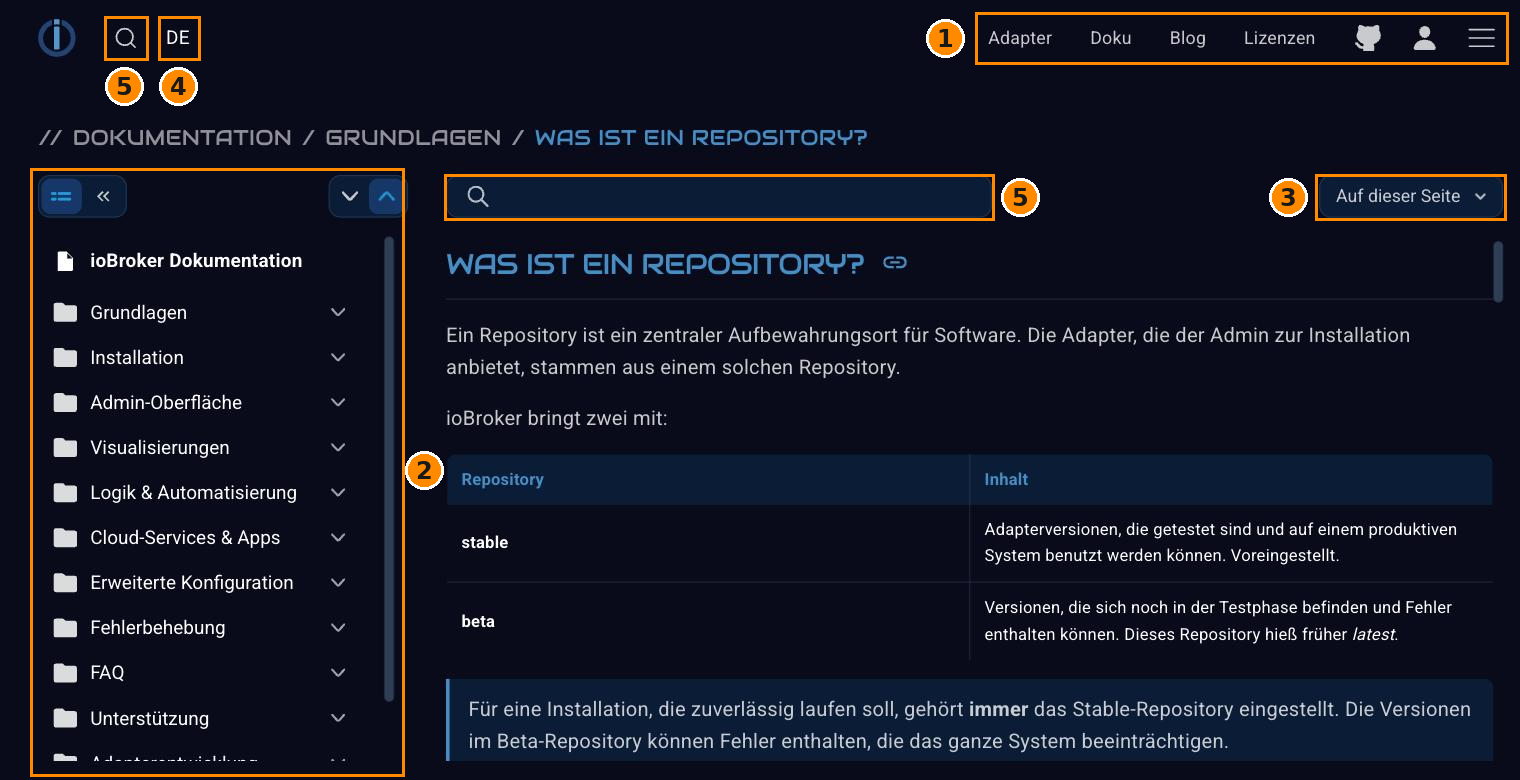
| No. | Area |
|---|---|
| 1 | Main menu : leads to the other parts of the website. |
| 2 | Documentary menu : the tree of all chapters. |
| 3 | Topic menu : the headings of the currently open page. |
| 4 | Language selection . |
| 5 | Search and filter : above is the search across the entire website; in the documentation area, the field above the text filters the chapter tree and searches the entire text when the Enter key is pressed. |
Above the sections is the breadcrumb trail : it shows where the current page is located in the tree, and each part of it is clickable.
1 Main Menu
The most important items are listed at the top. The icon with the three lines on the far right opens the full menu:
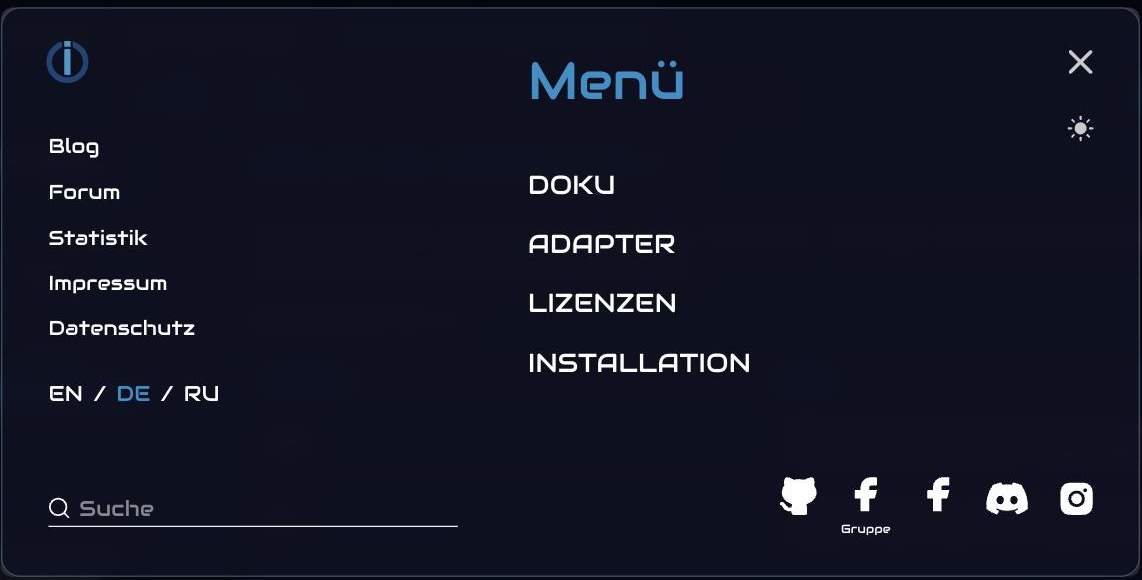
In addition to the main sections – documentation , adapters , licenses , and installation – you'll also find a blog, forum, statistics, legal notice, and privacy policy. Icons in the bottom right corner link to GitHub, Facebook, Discord, and Instagram.
The sun symbol in the top right corner switches between light and dark appearance.
2 Documentation Menu
The tree on the left leads through all chapters. Clicking on a folder expands it, the two arrows above it expand or collapse the entire tree.
The field above the text is a filter , not a search field: After entering a term, only chapters whose titles match the search term will remain in the tree view. To search the entire text, press the Enter key ; a link for this is also provided below the field.
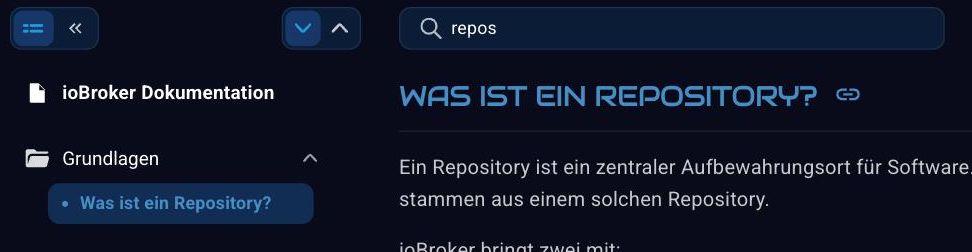
The double arrow in the top left corner allows you to hide the tree completely if more space is needed for the text.
3 Theme menu
The top right corner of this page leads to the headings of the currently opened article:
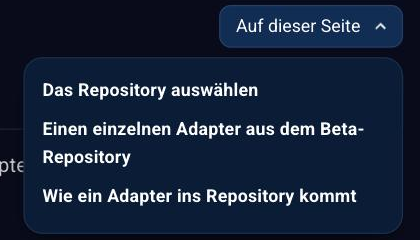
For longer pages, this is the fastest way to find the section you're looking for.
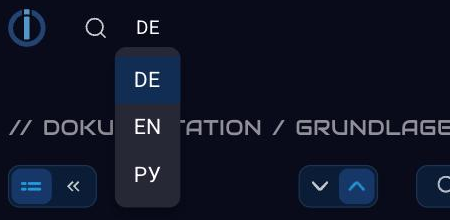
4. Language selection
The documentation is multilingual. The German texts serve as the template; the other languages are created from it and gradually improved by native speakers.
5 Search and Filter
The website has two input fields that are easily confused.
| Field | What it does |
|---|---|
| Magnifying glass in the head area | searches the entire website: documentation, adapters and blog |
| Field above the text, with funnel symbol | Filters the chapter tree by chapter titles; pressing the Enter key starts a search of the entire text using the same term. |
The funnel symbol distinguishes the two: a funnel indicates filtering, while a magnifying glass indicates searching. A term that appears in the text but not in any heading will therefore not be found in the filter. The indicator below the field then directs you to the search function.
From the results list, the "Back " button in the upper right corner takes you back to where you came from.
Where to begin?
- Those who are not yet familiar with ioBroker should start with the basics .
- The installation instructions describe the process for Linux, Docker, Proxmox, Windows and macOS.
- The admin interface explains how to use it.
- How data points become processes is explained under Logic & Automation .
- All adapters are listed individually in the adapter reference .
- Anyone who wants to write their own adapter can find the starting point in the developer section .
This documentation is constantly growing. If something is missing or needs better explanation, we welcome any help .