Artificial intelligence is increasingly finding its way into ioBroker. It's no longer just about using AI in developing adapters or writing code. Now, AI can directly assist with daily work using ioBroker: it can analyze problems, write and optimize scripts, create visualizations, and even control the entire smart home system using natural language.
Let's look at what possibilities already exist today.
1. AI helper in the admin
The AI assistant in the ioBroker Admin panel is the first step. It has been integrated since Admin version 7.9 (June 2026) and appears as a round button in the bottom right corner of the interface. It offers numerous options for examining your installation and resolving problems.
For example: When asked why there are so many errors in the log, the assistant reads the log itself, the status of all instances and the system data, summarizes similar messages and states the cause and the next step for each one.
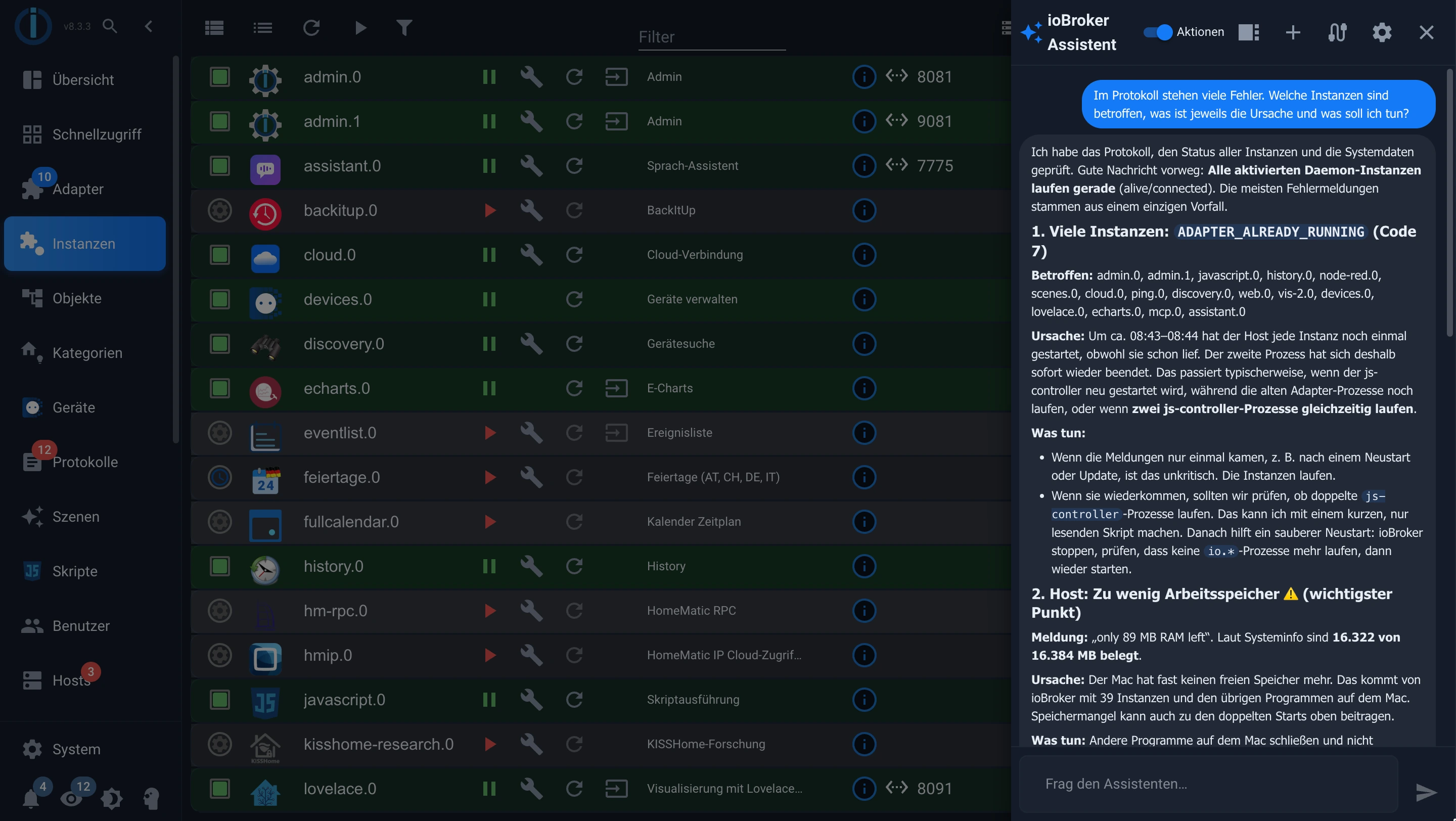
The assistant can, for example, help with...
- To analyze errors and problems in the installation,
- to find possible causes for malfunctions, for example by examining logs and system messages,
- to recommend suitable adapters for a device or service
- to develop suggestions for improvement,
- Evaluating statistics and recognizing correlations,
- to suggest concrete steps for troubleshooting.
In "Actions" mode, the assistant can also make changes itself, but only after your explicit confirmation. Without this mode, it only reads.
A recently released video demonstrates how this works in practice:
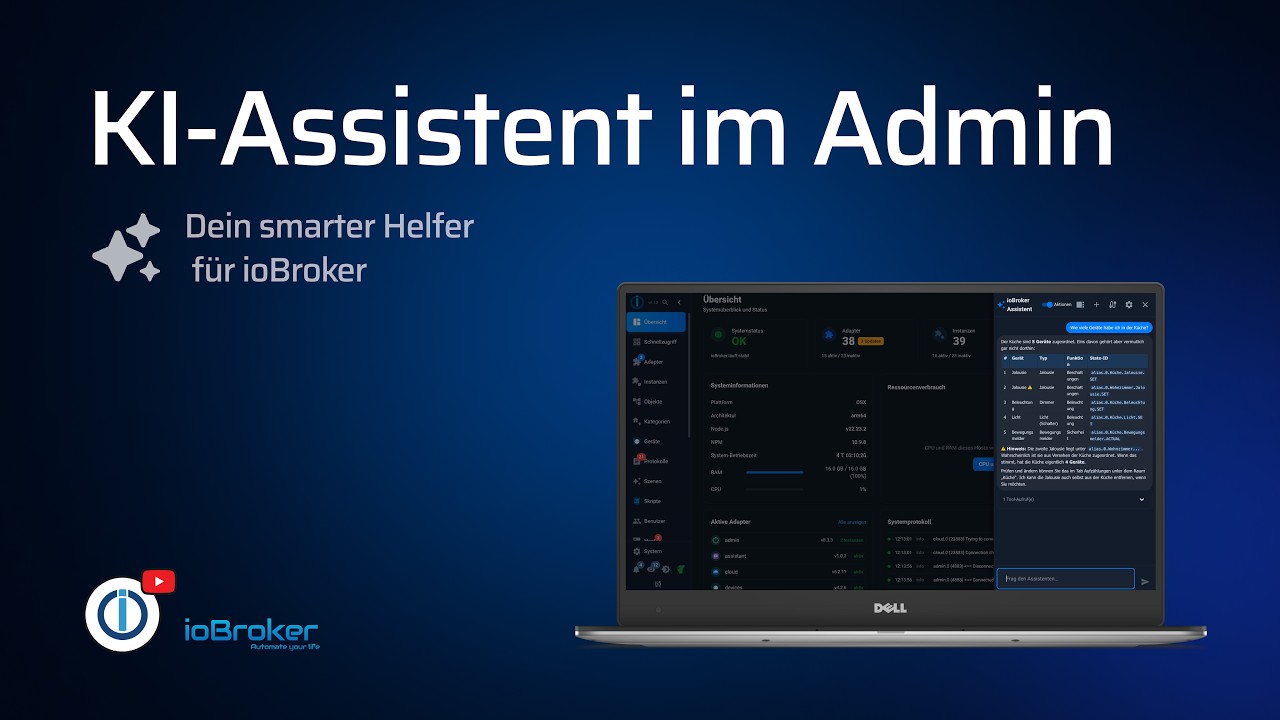
The assistant allows you to examine your own system and ask questions that previously would have required manually reviewing numerous objects, data points, and log files. AI can help gather relevant information and develop potential solutions.
Of course, this doesn't work entirely without preparation. First, the assistant must be activated in the admin instance settings. Then, it needs access to a suitable AI model. OpenAI, Anthropic Claude, Google Gemini, and DeepSeek are supported, as well as any OpenAI-compatible endpoint. The latter allows you to integrate collection services like OpenRouter and even your own locally operated models (more on this below). The settings also indicate that objects, states, and logs will be passed to the selected provider.
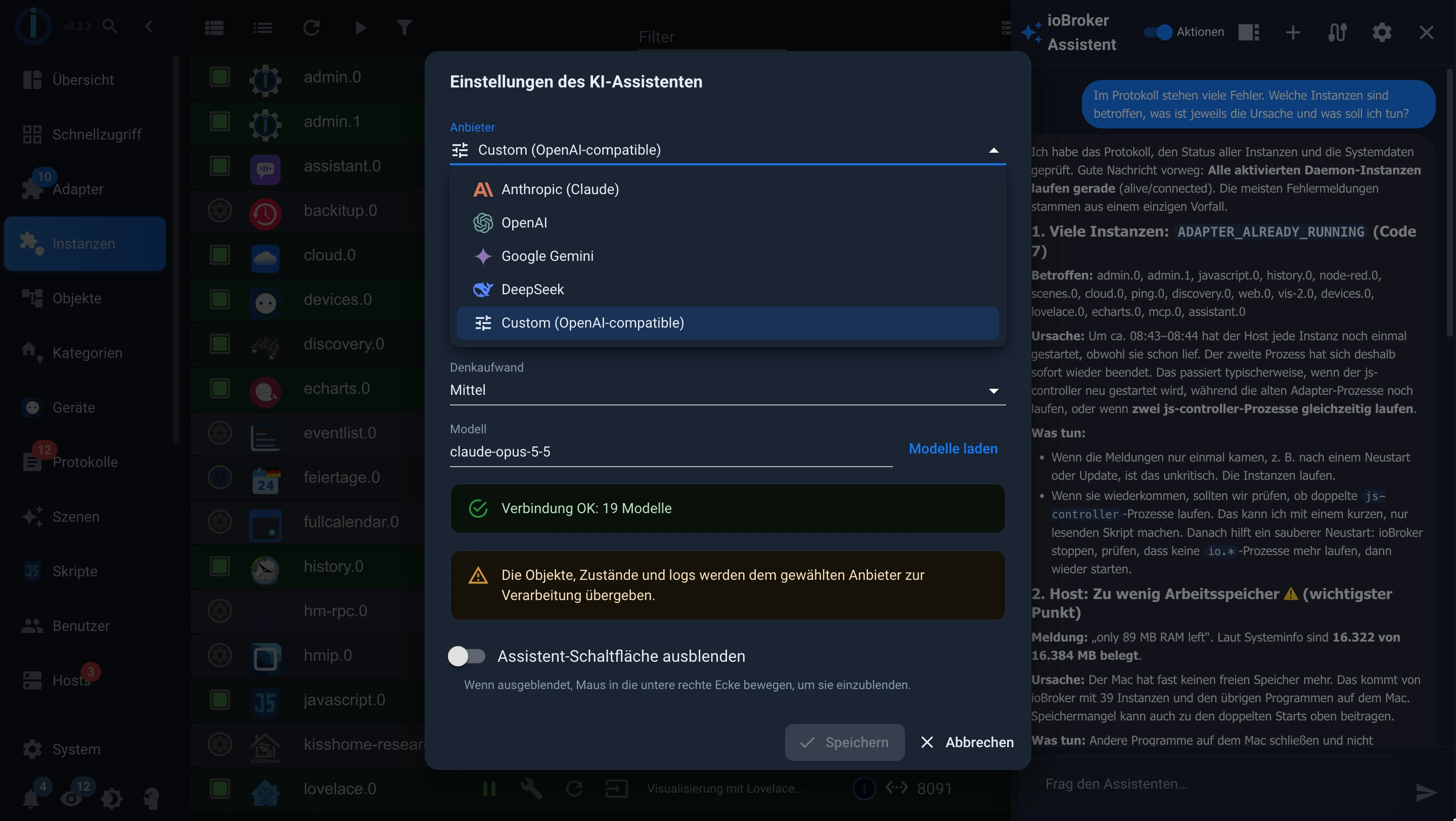
Which AI subscriptions are needed?
Important: A chat subscription and API access are two different things!
If the assistant in the admin panel communicates directly with the AI provider, it needs API access. A paid chat subscription is not sufficient for this.
OpenAI (ChatGPT)
ChatGPT Plus and Pro do not include API credits. A separate account with its own billing via the OpenAI platform is required for the API.
Anthropic (Claude)
Claude Pro and Claude Max are subscriptions for using Claude in chat. The API is set up separately via the Claude Console and billed according to usage.
Google Gemini
The API key for Gemini is created in Google AI Studio:
DeepSeek
DeepSeek also offers API access, which is set up separately via the DeepSeek platform. Billing is based on actual usage, specifically the amount of input and output tokens processed.
https://platform.deepseek.com/
Operate your own AI models locally
It's also possible to run your own AI model locally, without a provider and without ongoing costs, for example using Ollama or LM Studio. Both provide an OpenAI-compatible endpoint that you can add as a separate provider in ioBroker. This works in the Admin, the JavaScript adapter, VIS-2, and also in the Smart Assistant.
The major advantage: All data remains within your own network. Furthermore, there are no costs per request.
Important: Of course, you need the appropriate hardware for this! The model doesn't run on the ioBroker server itself, but on a dedicated, high-performance computer on the network, which ioBroker accesses via the endpoint. The purchase can quickly cost several thousand euros. The power consumption of such a computer shouldn't be underestimated either.
The catch, therefore, is the hardware. A language model that can reliably call ioBroker tools and deliver usable responses requires significant processing power and, above all, ample graphics memory. A Raspberry Pi or a small mini-PC is insufficient for this. A computer with a powerful graphics card or a system with large shared memory, such as a Mac with Apple Silicon, is recommended.
Not every model is suitable
You can't just take any model and expect the same results as from Claude Opus or the large ChatGPT models. Anyone starting a small model like Qwen3 with 8 billion parameters and hoping for that will be disappointed. The wizards in ioBroker work with tools: The model has to decide which data points to read, formulate the calls correctly, execute several steps sequentially, and summarize the results meaningfully. This is precisely where small models most often fail. They omit necessary calls, invent data points, return faulty parameters, or simply respond with text instead of using a tool.
As a rough guide (as of October 2026, many things change from month to month in this league):
| Hardware | Examples | What to expect |
|---|---|---|
| up to 12 GB graphics memory | Qwen3 8B, Llama 3.1 8B | For simple questions and individual switching commands. Not recommended for error analysis, scripts, or visualizations. |
| 16 to 24 GB graphics memory or a Mac with 32 GB | gpt-oss-20b, Qwen3.6 27B, Qwen3.6 35B-A3B, Qwen3-Coder 30B, Devstral 24B | The entry-level class for serious use. Suitable for manageable scripts and questions about the system. |
| 64 to 128 GB, for example Mac Studio or multiple graphics cards | gpt-oss-120b, Qwen3.5 122B | Significantly more reliable for multi-stage tasks and larger scripts. |
Even large local models don't quite match the best cloud models for complex tasks. However, they are often perfectly adequate for everyday smart home use.
Tip: In Ollama, the context window is very small by default (4096 tokens). However, the wizards pass many tool descriptions, objects, and log lines. If the context is too small, the model "forgets" some of this information, resulting in poor responses. Therefore, increase its size via the settings. num_ctx or the environment variable OLLAMA_CONTEXT_LENGTH, as far as the storage capacity allows.
For smaller models, the JavaScript adapter also offers a dedicated "Code" mode that does not require any tool calls.
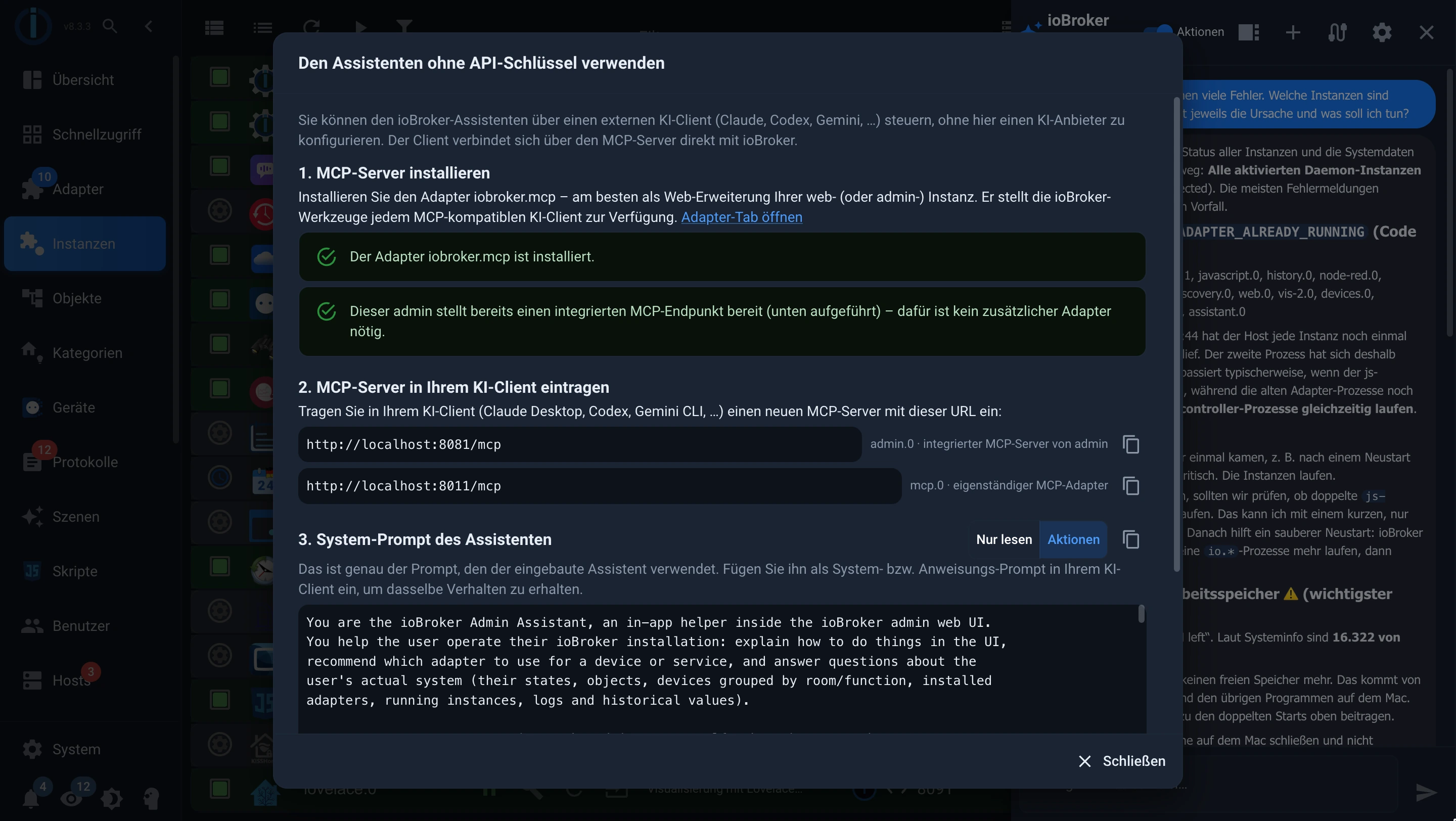
It also works without an API key.
Those who already have a subscription to Claude or ChatGPT and don't want to set up additional API access can reverse the process: Instead of ioBroker calling the AI, the AI accesses ioBroker via the MCP server (more on this in section 4). In the admin wizard, the "Use without API key" button (the cable icon in the header) guides you through the three necessary steps: provisioning an MCP endpoint, entering the displayed address in your AI client, and accepting the wizard's system prompt. For the first step, the administrator already has their own MCP endpoint; alternatively, the MCP adapter can be used. The dialog displays the appropriate addresses directly for copying. Then, for example, Claude Desktop or ChatGPT behaves exactly like the built-in wizard.
How do I set up API access?
The following steps are usually required for classic API integration:
- Create an account with your chosen AI provider.
- Activate API access and, if necessary, enter a payment method or top up your balance.
- Create an API key.
- Store the key in the AI assistant settings.
- Select the desired model and test the connection.
API usage is billed according to the provider and actual consumption. These costs are therefore in addition to any existing ChatGPT, Claude, or other AI subscription. It's advisable to set a spending limit with your provider.
And one more point to be aware of: In a cloud model, the content of the request, such as object names, values, or log lines, is transmitted to the respective provider. Those who want to avoid this should opt for a locally operated model.
2. The AI assistant in the JavaScript adapter
Even before the helper feature in the admin panel, AI was integrated into the JavaScript adapter. A simple code generator based on ChatGPT has been available there since 2023. With version 9.2 in spring 2026, it evolved into a fully-fledged AI chat application that supports multiple providers, can call tools, and works directly within the editor. A large part of this work comes from Eistee82, for whom we extend our sincere thanks! This is a particularly useful feature for users who create their own automations or maintain existing scripts.
In this example, the chat program is supposed to write a script that warns of excessively high humidity. In "Code" mode, it first creates a plan and only then writes the script:
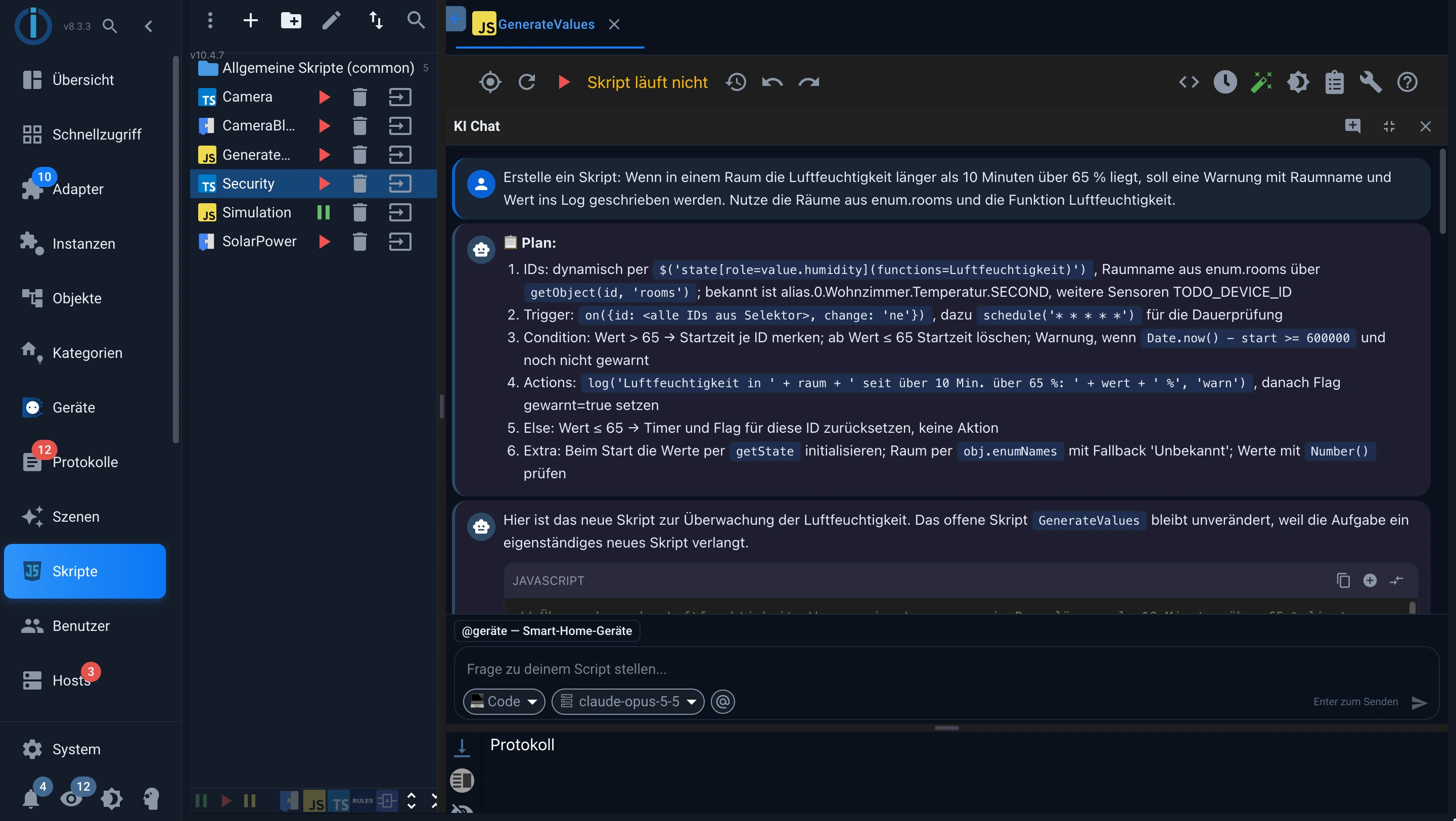
The assistant can, among other things:
- Create new JavaScript scripts,
- Analyze existing scripts and search for errors,
- Explain the causes of the errors,
- Repair existing scripts,
- Comment on the code and document it clearly,
- Optimize and simplify scripts,
- to help with the implementation of complex automations.
In addition to the chat, there are also commands directly in the editor: via right-click, keyboard shortcuts, or commands such as... /explain, /fix, /refactor or /comment The assistant displays changes as a comparison, red for removed lines and green for new ones. They are only applied after you confirm. @ Other scripts can be incorporated into the conversation.
So you no longer need to be able to program every function yourself. You simply describe what should happen. The AI then generates a suitable solution.
This is also helpful when troubleshooting: Instead of just seeing an error, you can have the corresponding code analyzed and receive an explanation of where the problem might lie and how it can be fixed.
Tip: Use a current version of the JavaScript adapter. Many improvements have recently been made, especially to context processing, which are important for the quality of responses. For example, the chat now always sees the currently open script, even with Blockly and even with unsaved changes. For large models with tool support, the "Agent" mode is recommended; for smaller, local models, the "Code" mode is best.
Of course, generated code should be checked before execution. Especially with scripts that control devices, delete data, or affect security-relevant functions, user review remains necessary.
3. AI in VIS-2: Creating visualizations
VIS-2 now also features an AI assistant. It was released with version 2.20 in mid-October and is currently available in latest The repository is available. Anyone who tries it out would be greatly helped by providing feedback in the forum.
The focus here is not on programming automations, but on creating and configuring visualizations.
Instead of searching for, placing and configuring each widget individually, you can describe what you want to achieve.
An example:
"Build a new page 'Climate' with temperature, humidity and heating from all rooms, one section per room."
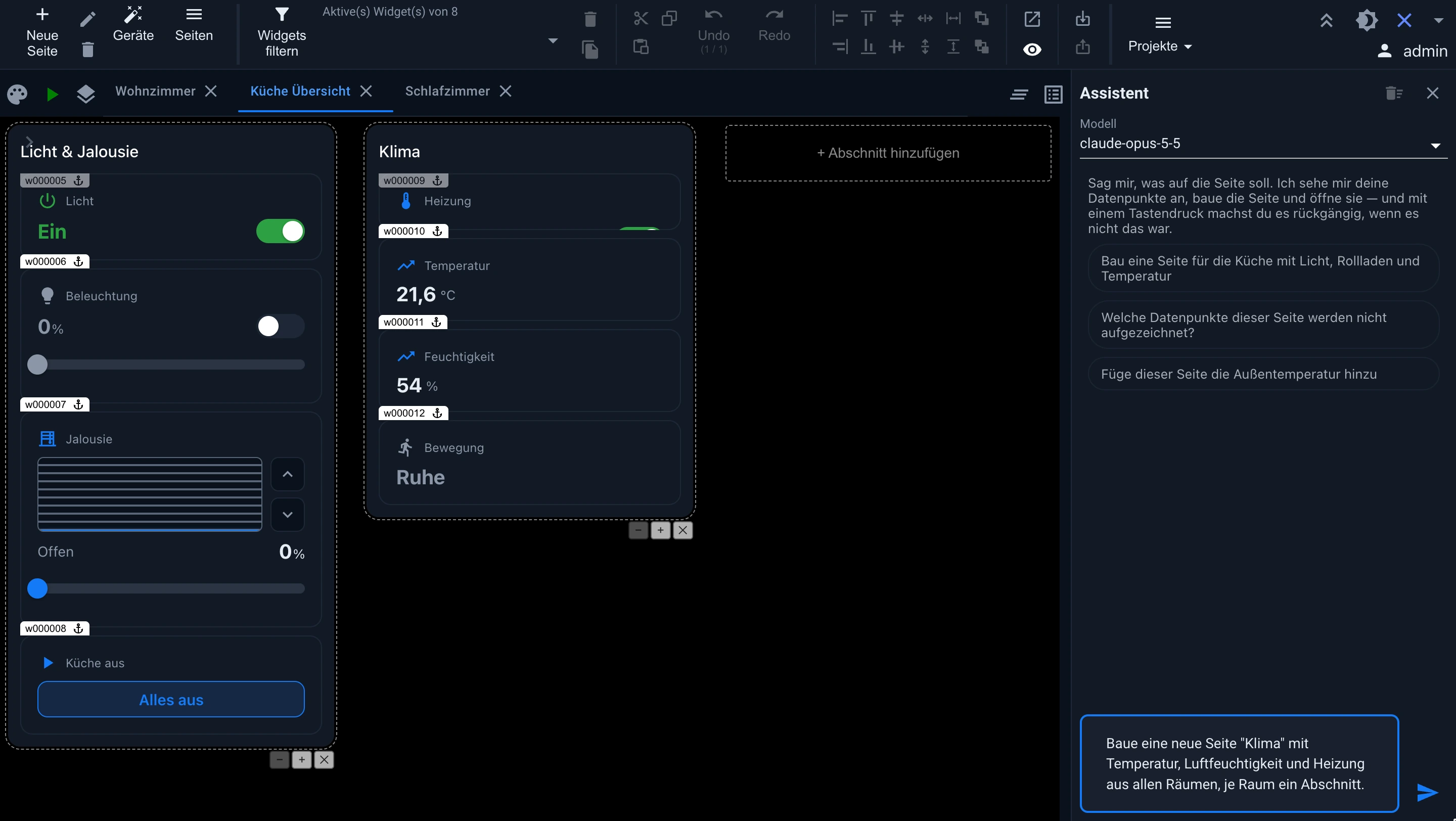
AI can help assemble the appropriate elements, place widgets, and prepare their configuration. It does this by using information the objects already know, such as names, units, and limits.
In this example, the assistant automatically found the appropriate data points for the living room, kitchen, and bedroom, created a section for each room, and added the new page to the navigation. Remarkably, it openly indicates where it's unsure: the thermostat in the living room is named "ThermostatBathroom" in the data, so it asks whether it really belongs in the living room. And where there are no data points, such as a heating switch in the bedroom, it doesn't invent any. If you don't like the result, you can undo it with a click on "Undo".
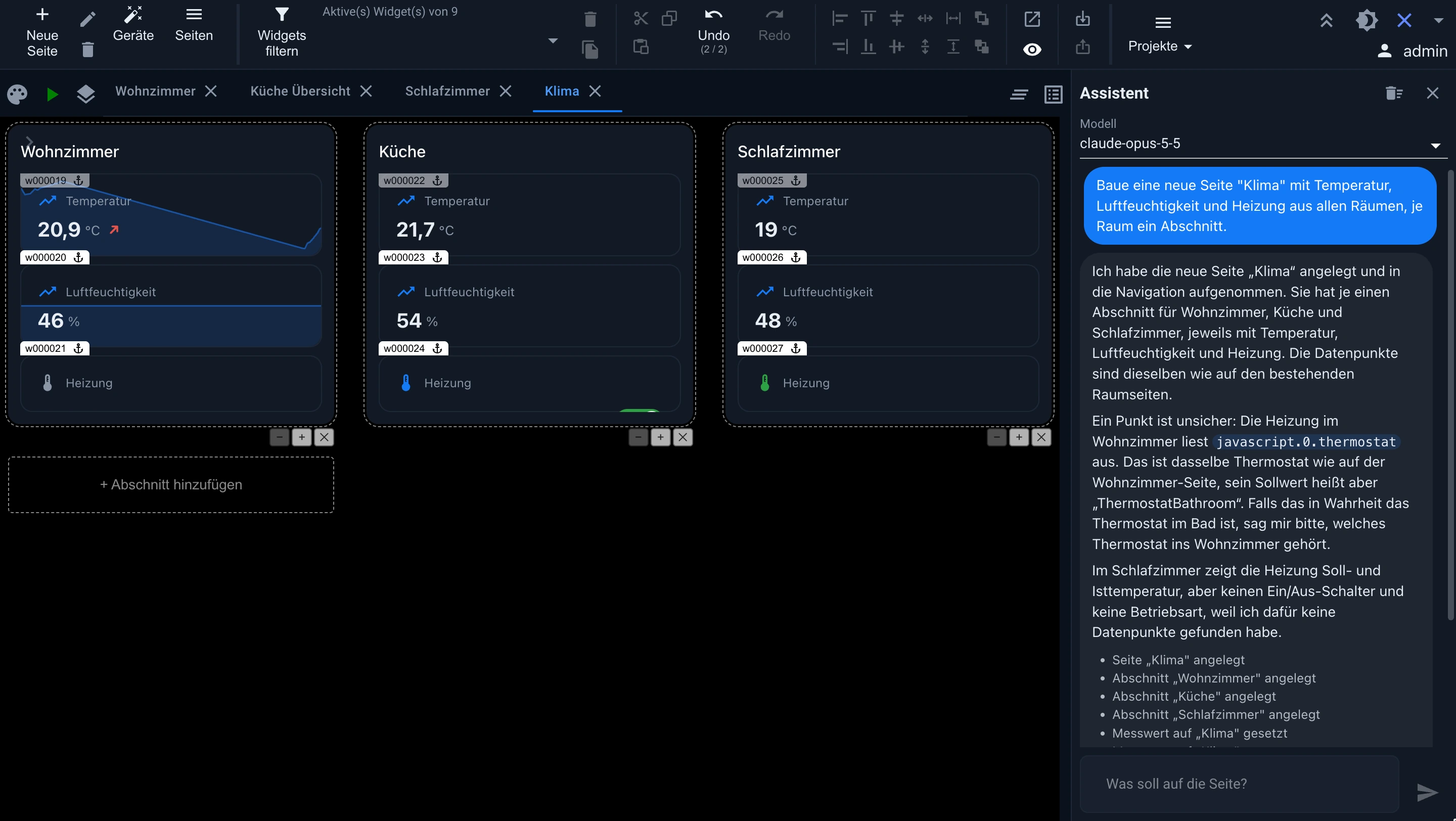
This opens up new possibilities, especially for users who want to create a customized visualization without having to deal intensively with every single detail.
This allows you to get from an idea to a first functional interface more quickly. The result can then be adapted to your own needs as usual.
4. ioBroker MCP Server: AI gains access to the system
The next stage is the ioBroker MCP server, i.e., the adapter. ioBroker.mcp.
MCP stands for Model Context Protocol . It is an open standard that allows AI applications to use external tools and data sources.
The MCP adapter makes ioBroker accessible to external AI applications. These include Claude (in the browser, in Claude Desktop, and in Claude Code), ChatGPT, Codex, Gemini CLI, and other MCP-enabled clients. This means you are no longer limited to a single wizard within the ioBroker interface.
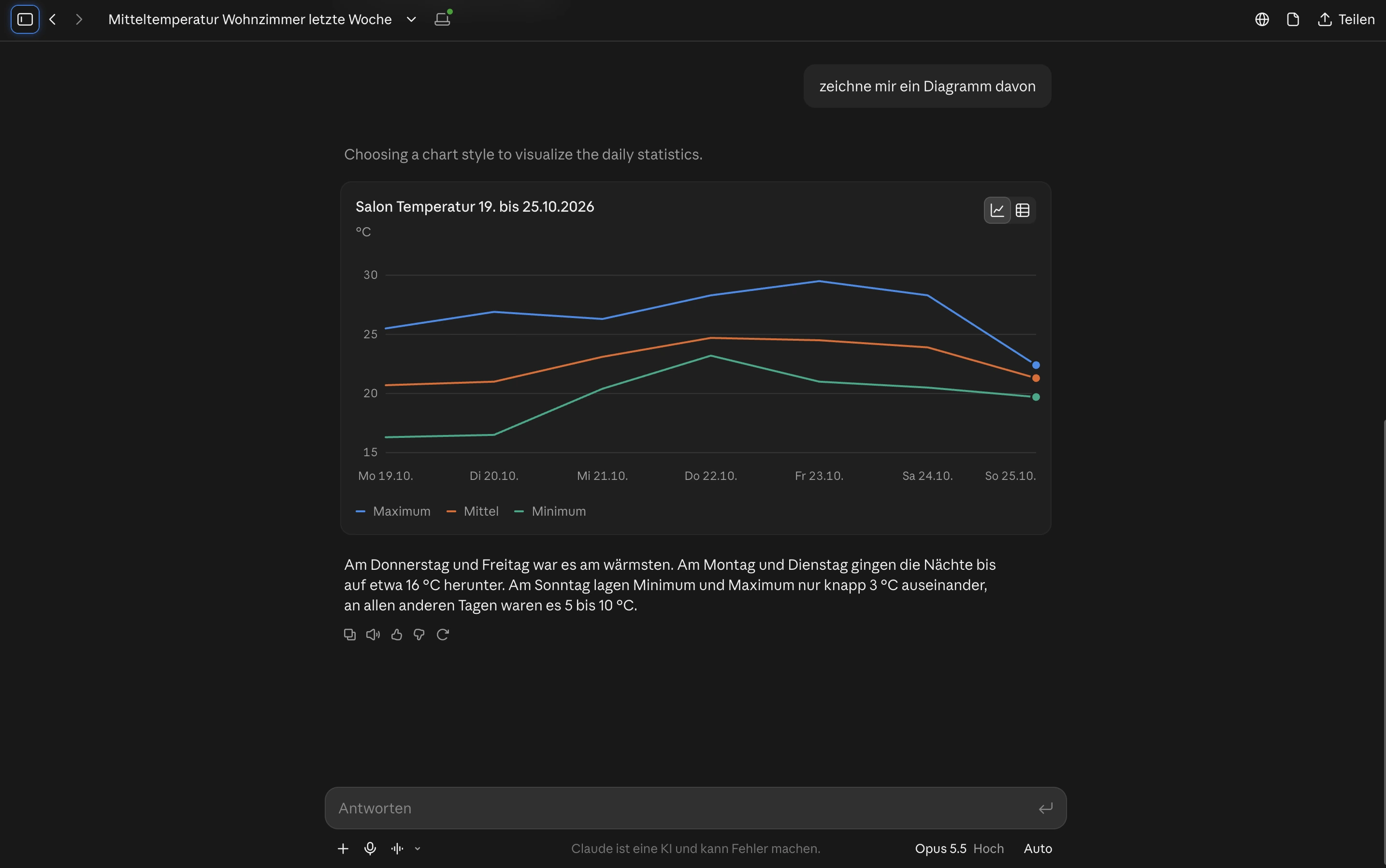
An example from Claude Desktop: When asked about the average temperature in the living room over the past week, Claude automatically searches for the appropriate data point and retrieves the values from the History adapter. There is no living room in this installation. Claude clearly states this and instead uses the temperature sensor in the parlor. It calculates the average temperature using a time-weighted method so that frequent reports during rapid changes don't skew the result.
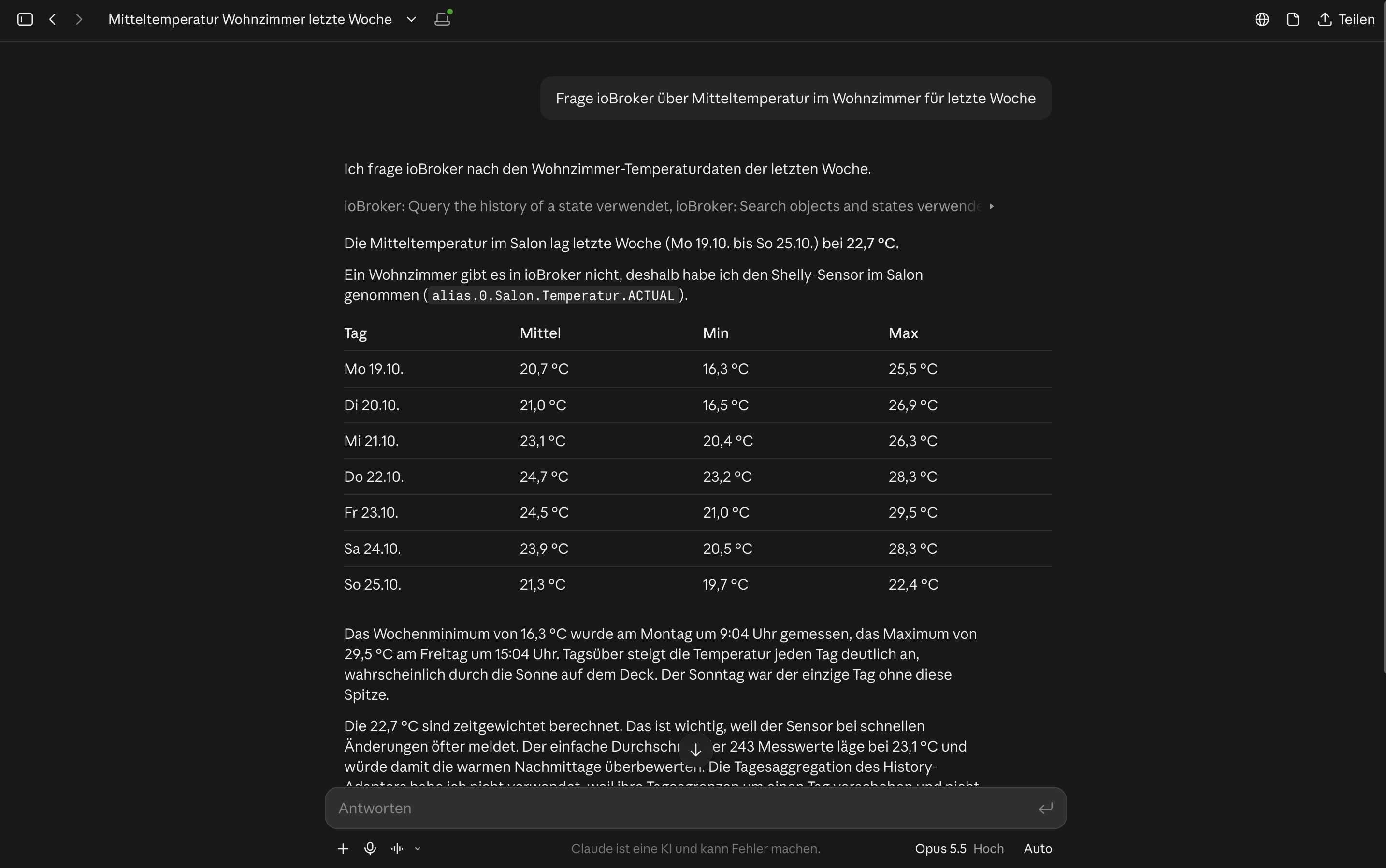
With just one more sentence, this becomes a diagram:
Possible use cases include:
- examine the condition of the plant,
- Analyze objects, data points, and logs,
- Ask questions about the configuration,
- Evaluate historical values, provided a history adapter is installed,
- Creating and revising scripts,
- Start, stop, or update adapters for instances,
- Process more complex tasks over several steps.
For common tasks, the adapter includes ready-made templates that many clients offer as commands: diagnosing a malfunctioning instance, providing an overview of a room, and creating an automation from a description.
The real strength lies in the fact that the AI not only answers general questions, but can also work with the information and tools of the specific ioBroker installation.
How does the AI access ioBroker?
There are three ways:
- On your own network: If the AI client is running on a computer in the same network as ioBroker, for example Claude Code, Codex or Gemini CLI, it's easiest. The client communicates with the MCP server directly via its local address, normally via HTTP and, if desired, even without logging in, for example...
http://192.168.1.10:8011/mcpNothing needs to be accessible from the internet. - Via ioBroker remote access: The client connects to
https://mcp.iobroker.in/mcpLogin is done with your ioBroker.pro account. No port needs to be opened. The prerequisites are an ioBroker.pro account with an active assistance or remote access subscription and the IoT adapter, in which the MCP instance is selected. This is the recommended method for Claude in the browser and ChatGPT, as these services connect from the cloud and cannot reach a local address. - Directly to your own server from the internet: For this to work, your installation must be accessible from the internet via HTTPS, for example through port forwarding or a reverse proxy. Login is then performed with an ioBroker user.
In Claude Code, a single command is sufficient for local access; you replace the IP address and port with your own:
claude mcp add --transport http iobroker http://192.168.1.10:8011/mcp
The address for remote access is accordingly https://mcp.iobroker.in/mcp In Claude (browser and desktop), you can add ioBroker as a custom connector; this is possible in all plans, with one connector allowed in the free plan. In ChatGPT, this requires developer mode, which is available starting with the Plus plan.
When setting up via remote access, an ioBroker login page opens. There, you log in with your ioBroker.pro account and grant access. Claude himself never sees the password.
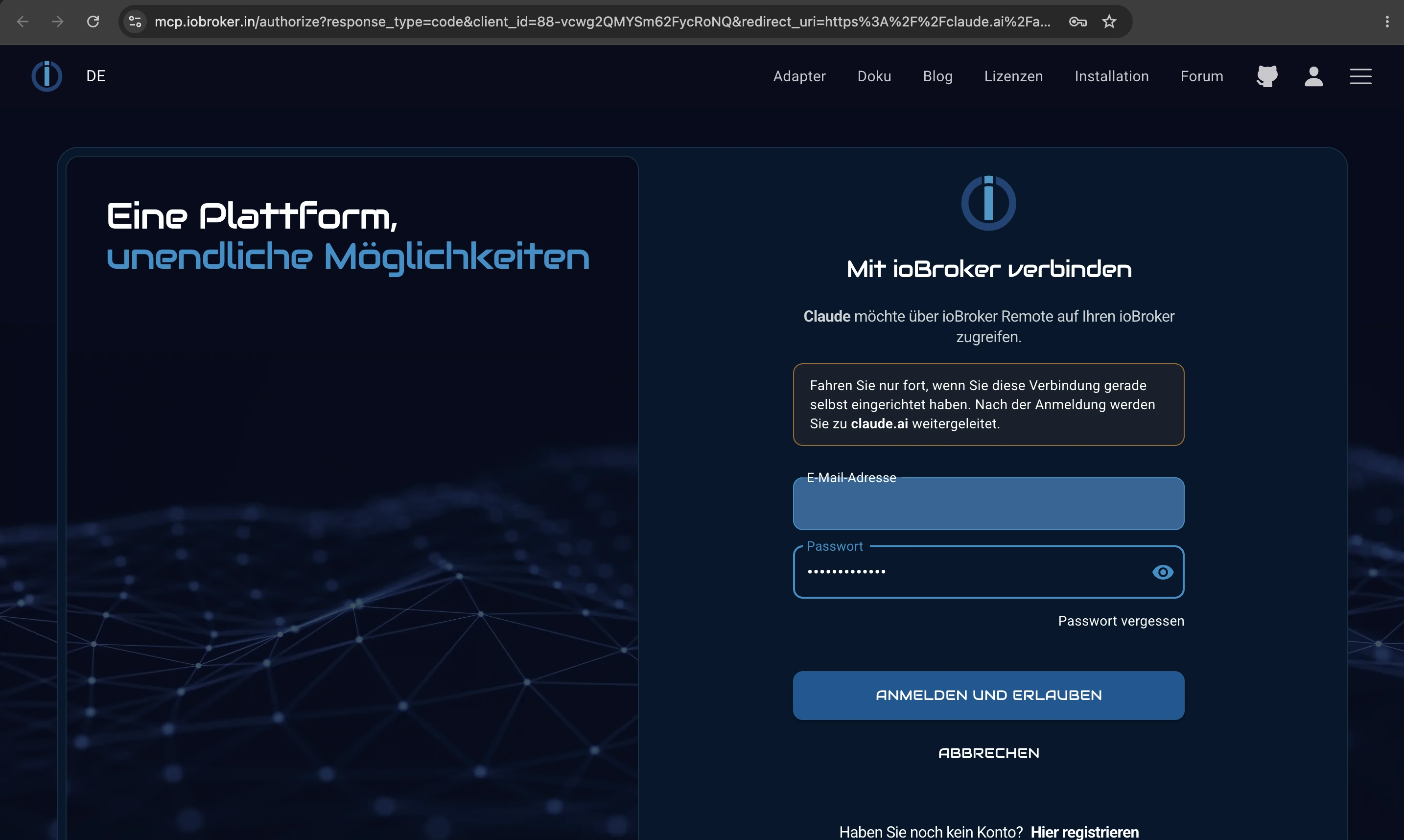
Important: Without logging in, anyone on your network can access the MCP server. This should only be done on a trusted network. Access will then be with the rights of the default user configured in the adapter, therefore this should not be done. admin not be, but a user with limited rights.
Unlike API integration, a regular chat subscription is sufficient here. An API key is not required.
Permissions
An AI model can only examine or modify what it actually has access to. Therefore, in the MCP adapter, all options that modify the system are disabled by default: modifying objects and files, controlling instances, managing adapters, modifying scripts, and sending messages to other adapters. You only enable what you actually need.
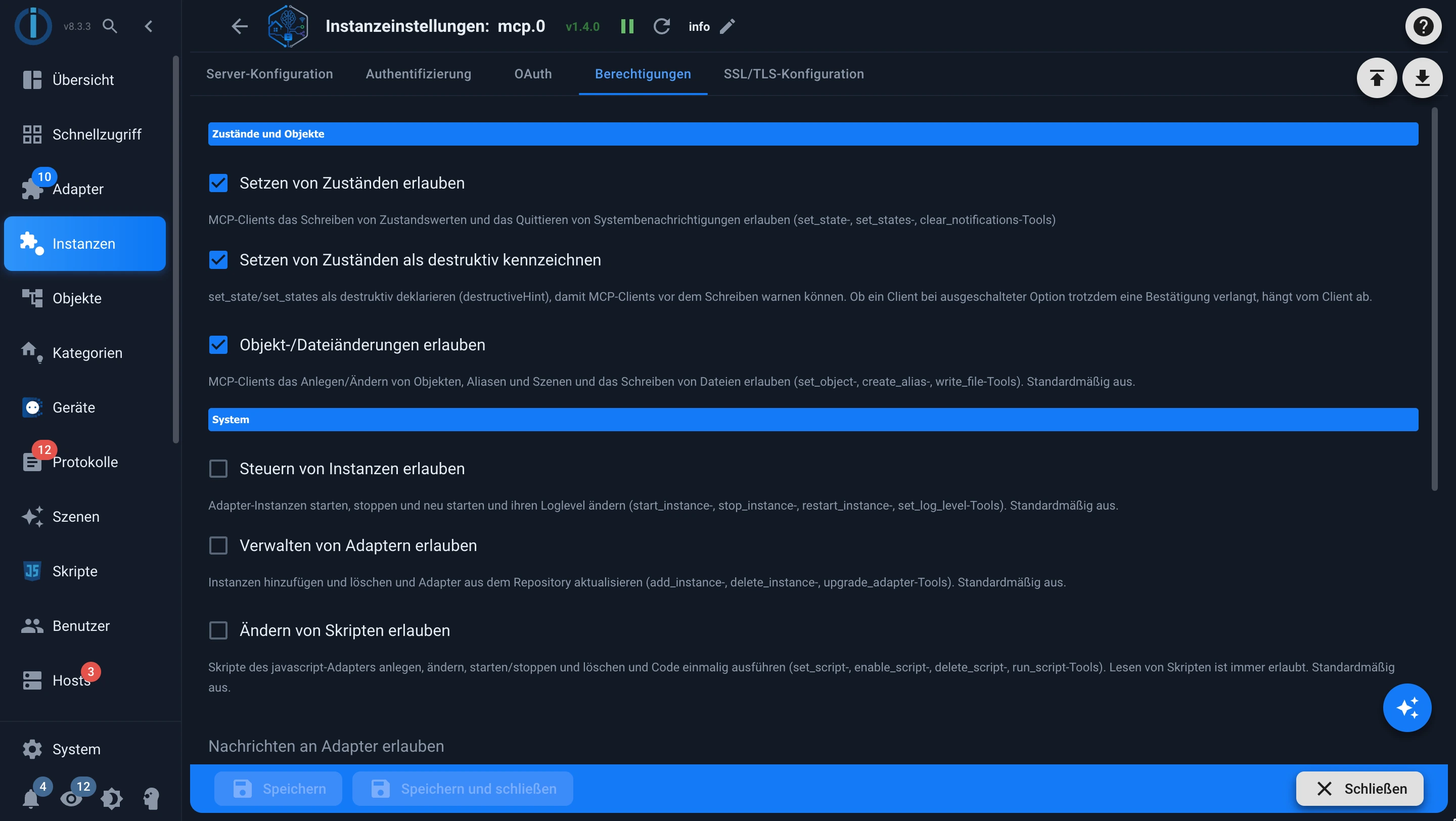
All access attempts are made using the rights of the logged-in ioBroker user. Therefore, it is advisable to create a separate user with restricted rights specifically for the AI. Suitable clients will prompt the user by default before potentially dangerous actions such as deleting an object or stopping an instance.
We will report on the further development of the MCP server in more detail in a separate video about its possible uses and another about its setup.
5. The ioBroker Smart Assistant: Control your smart home with your voice.
The functions described so far primarily support the configuration, development, and analysis of an ioBroker installation. With the ioBroker Smart Assistant, the adapter ioBroker.assistant, another level is added: direct interaction with the smart home.
It's important not to confuse this assistant with the ioBroker Alexa Skill. It's a separate approach that allows communication with ioBroker via various interfaces.
These include, for example:
- the chat directly in the adapter settings,
- Telegram,
- Scripts and data points,
- Language about suitable hardware.
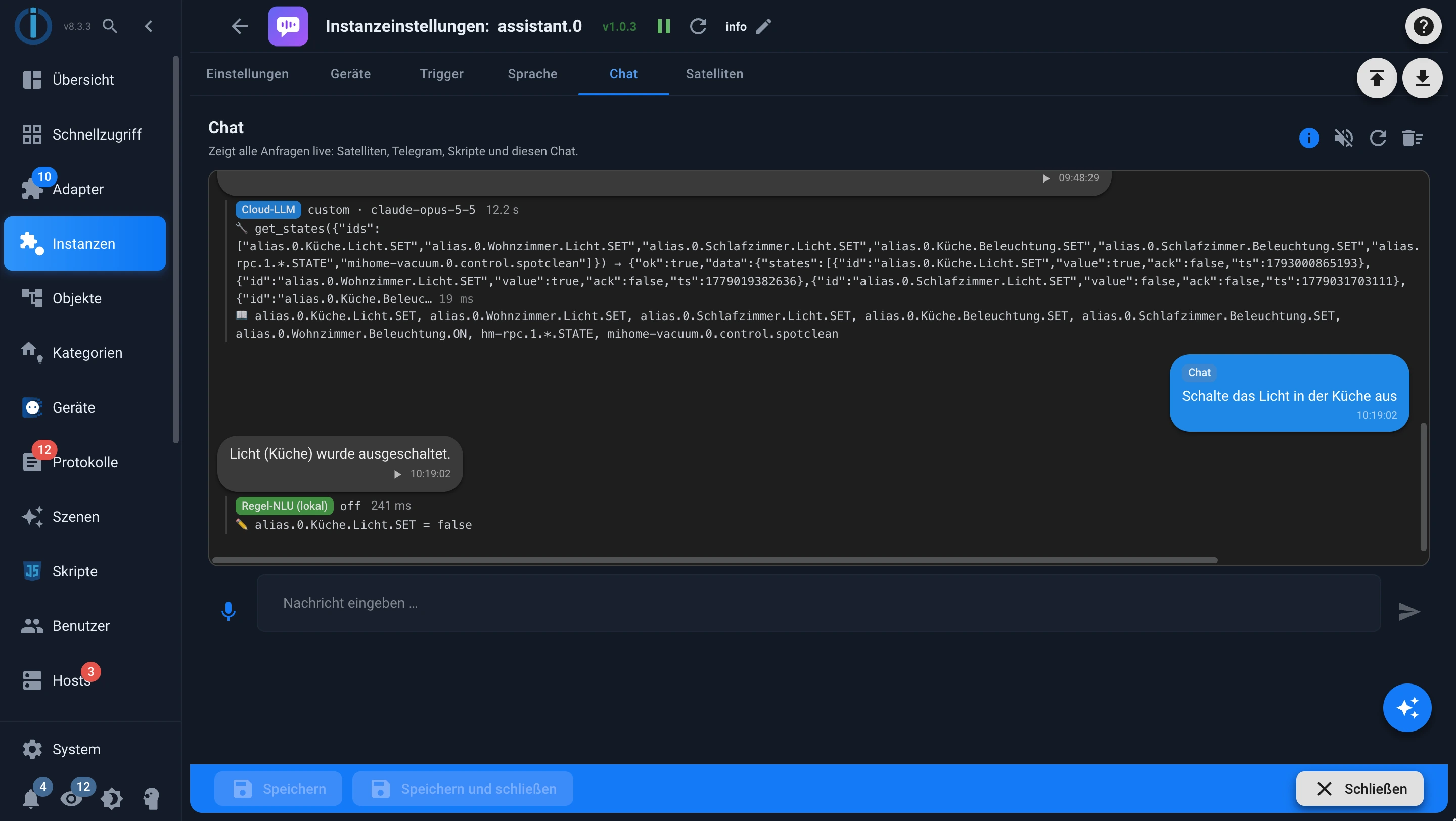
The adapter's chat tab displays all requests live, regardless of whether they originate from a chat, Telegram, a script, or a voice device. For each response, you can see which data points were read or activated. Here, the voice model, when asked "Which devices are currently switched on?", queried the lights and sockets and even noticed that some values were quite old.
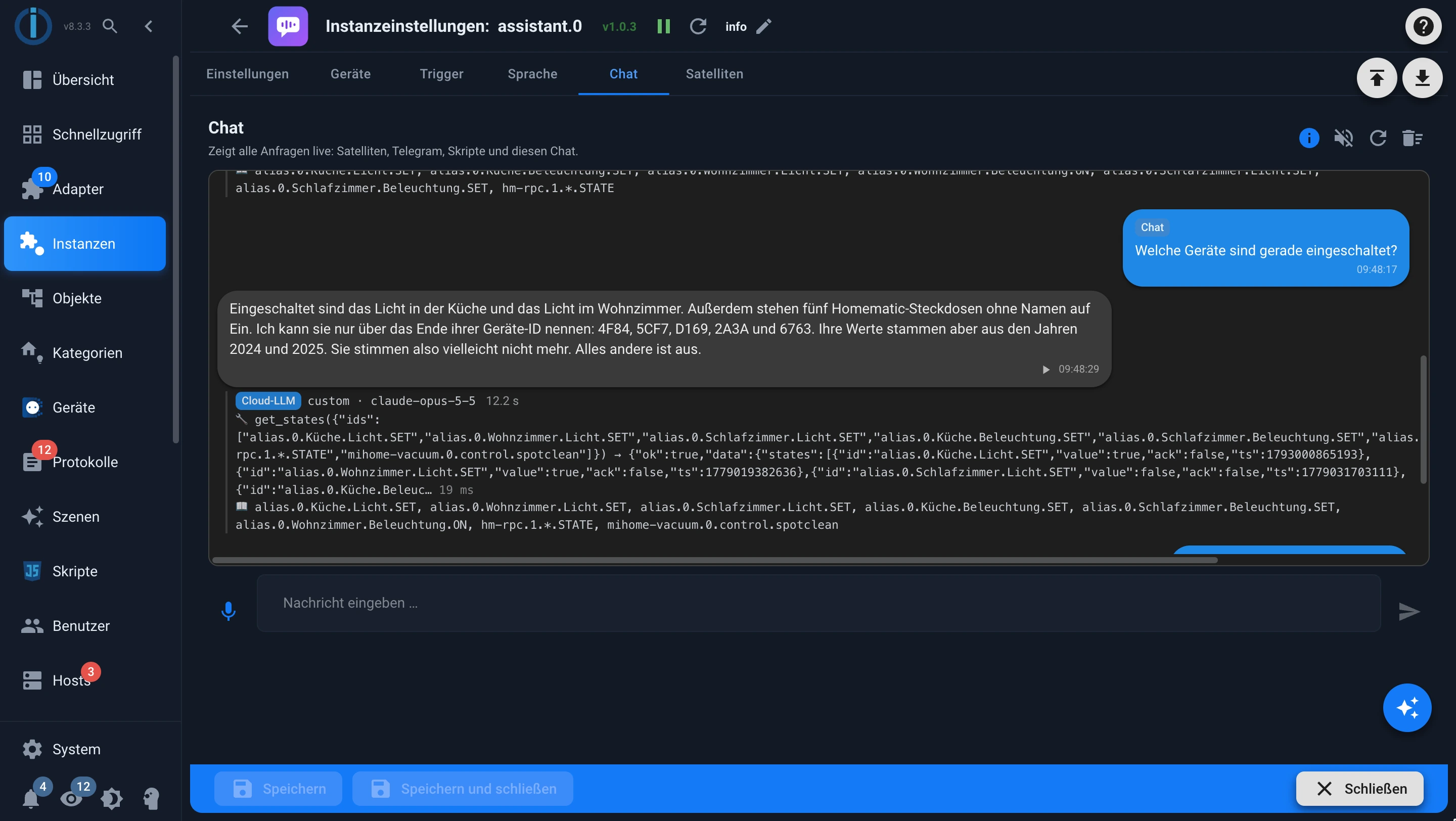
You can ask questions, control devices and communicate with the system without having to click through the usual interfaces.
Possible tasks include:
- "How is the weather today?"
- "Turn off the light in the kitchen."
- "Which devices are still switched on?"
- "Play YouTube channel XY on your TV."
Furthermore, the assistant can also take proactive steps: It can make announcements, react to events, and ask questions, for example, "The deep fryer has been on for five hours. Should I turn it off?" It then analyzes the spoken response. Fixed routines such as "Good night" can be stored as predefined actions.
How well such tasks work depends on the model used, the available integrations, and the connected tools.
Speech input and speech output
Voice control also requires suitable hardware and components for speech recognition and speech generation.
Initial tests were conducted using a Raspberry Pi and a Poly Sync 20. This device has noise-canceling microphones and is therefore well-suited for voice interactions. A so-called satellite runs on the Raspberry Pi, which recognizes the activation word, records the speech, and plays back the response. This is accomplished using a dedicated satellite based on Node.js (@iobroker/assistant-satellite).
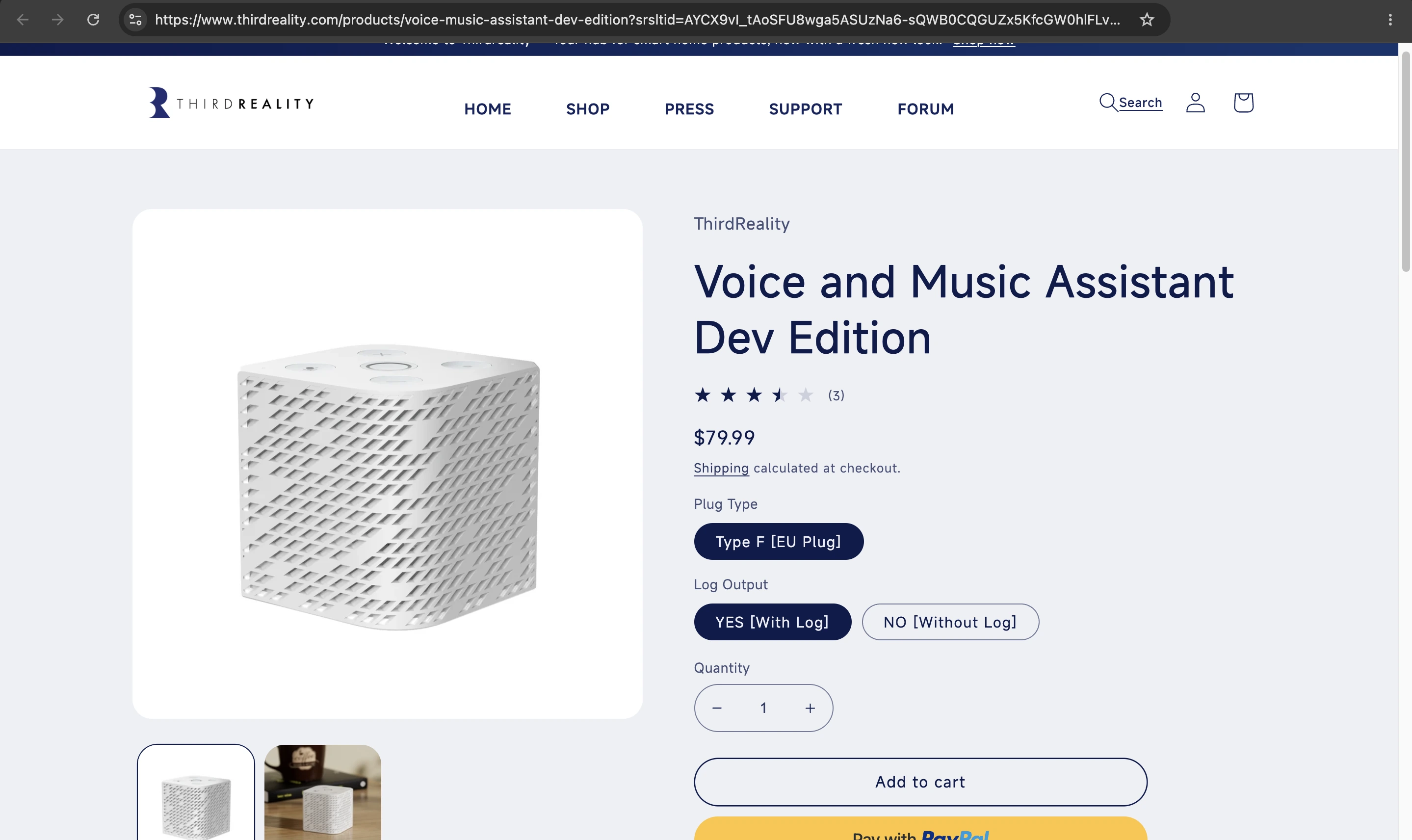
Alternatively, ready-made voice devices that work with ESPHome can be connected, such as the Home Assistant Voice PE or the ThirdReality Voice & Music Assistant. No installation is required on these devices.
A Raspberry Pi can serve as a control and communication platform. However, its processing power is limited for demanding speech recognition and high-quality speech generation.
There are two basic possibilities here.
Local processing
Speech recognition, speech generation, and, if applicable, the speech model run on dedicated hardware, for example with Vosk and Piper. This offers advantages in terms of data privacy and independence, but places higher demands on the hardware and the choice of model.
External services
For speech recognition and generation, tools such as Amazon Transcribe and Amazon Polly, Azure, or OpenAI can be used. This allows for powerful speech processing without having to run all the models yourself.
Both methods can also be combined: A second service can be configured as a backup for each direction. If the cloud service fails, local processing takes over. This ensures the house remains controllable even without an internet connection.
Which option makes sense depends on your own requirements regarding data protection, quality, costs and response speed.
What can the Smart Assistant do today?
The assistant can answer questions, chat with the user, and, depending on the integrated functions, perform actions in the smart home.
However, expectations should be kept realistic: as soon as the language model is used, the interaction can currently be significantly slower than with established voice assistants such as Alexa, Google Assistant or Siri.
This is not surprising. An AI assistant may first need to understand the request, retrieve relevant information from ioBroker, select appropriate tools, perform an action, and then formulate a response. With speech recognition, speech output is an additional step.
To ensure that simple commands are still executed quickly, the assistant works in stages: First, a rule-based recognition checks whether it is a known command such as "turn on the light," then the stored routines are applied. Only then does a local or cloud-based language model come into play. The stage that has answered a request is displayed live in the adapter's chat tab.
The difference is clear: In the test, the local rule recognition system completed the command "Turn off the kitchen light" in just over 0.2 seconds (marked in green). However, it cannot answer the question "Which devices are currently switched on?"; this question is then passed to the language model (marked in blue). The language model queried the relevant data points, formulated the answer, and took approximately 12 seconds to do so.
This approach opens up possibilities that go beyond classic voice commands: It is not only possible to give fixed commands, but also to ask questions, investigate relationships and formulate more complex tasks in natural language.
The Smart Assistant is still a new project. We welcome anyone who tries it out and shares their experiences in the forum.
Conclusion: AI will become a component of ioBroker
Developments show that AI can now be used on several levels in ioBroker:
- Admin: Analyze the installation and investigate problems.
- JavaScript: Creating, repairing, explaining, and optimizing scripts.
- VIS-2: Create and configure visualizations faster.
- MCP Server: Connect external AI applications such as Claude or ChatGPT to ioBroker, even without an API key.
- Smart Assistant: Interact with your own smart home via chat, Telegram or voice.
These approaches complement each other. One helps with debugging, another with programming, and yet another with user interface design. MCP allows these capabilities to be leveraged from external AI environments. Ultimately, the Smart Assistant brings interaction closer to everyday life.
Of course, not everything is perfect yet. The quality of the results depends on the model, the available context, the configuration, and the hardware used. Those who want to work locally will need correspondingly powerful hardware. Speed and ease of use also need further improvement.
Nevertheless, the direction is clear: AI can not only make ioBroker easier to program, but also help to better understand, manage and operate existing smart home systems.
And that's just the beginning. Try it out and tell us in the forum what tasks you've given the AI!